Categories
Editorial Photographic

Graph Paper Press release their first photoblogging theme for WordPress

Last week WordPress theme builders Graph Paper Press released their first dedicated photoblogging theme, Retouch. It addresses a lot of the needs of photobloggers, especially those coming from the fading photoblogging platform PixelPost, such as correctly placed navigation; drop-down info, exif and comments; an organised Archive page; logo and menu on the same line to reduce vertical space wastage.

It also adds an HTML5-based gallery slider so that you can upload a few photos in a set instead of just one image; being HTML5, the slider works on modern touchscreen devices. Personally I think photoblogs benefit from just one image a day so it’s unlikely I’ll use this feature but it’s certainly nice to have if you’re less bound by such self-imposed ‘rules’.

Unfortunately for me, however, the graphical design of the theme seems to aimed at the less professional, less stylistically discerning photoblogger…

The graphical design of Retouch may not be to the taste of minimalists

GPP’s themes are usually rather elegantly styled and highly customisable, but this one feels peculiarly like the lovechild of Fisher Price and whoever it was at Apple that turned iCal and Address Book into the skeuomorphic eyesores they are in OS X Lion, fake leather-and-stitching included.

(Messrs Jobs and Forstall, please stand up!)

Unfortunately it seems to have little of GPP’s usual customisation functionality, so you’re kind of stuck with it.

Despair not!

The good news is that this is just the free ‘beginner’ version (the first hit is always free…); in their forums they revealed that a more fully featured ‘pro’ version is in the wings being completed, which will come with minimal black or white designs, the ability to turn off those footer widgets, and hopefully the usual Custom CSS feature.

Art design aside, Retouch has the essential photoblogging functionality I need; all that stands in the way of me switching from PixelPost to WordPress is the release of their pro version.

If you visit Graph Paper Press via my referral link and go on to purchase a theme I’ll get a small kickback: http://graphpaperpress.com/?ref=358

Categories
Other how-tos

how to customise an iCade stick and buttons

A couple of days ago I wrote about my new iCade and how much fun it is, but that I don’t like the stiff, clicky buttons or the way the stick can slip into the diagonal directions too easily. The parts I ordered to improve the experience have arrived so in case you fancy trying the same thing, here’s a guide on how to fit them; click on any photo to enlarge it.

The new parts
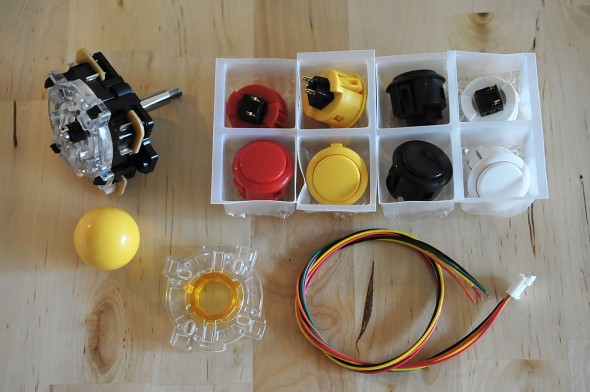
icade mod sanwa

Clockwise from top left I have:

  • Sanwa Ball Top Joystick JLF-TP-8Y – I went with Pac Man yellow for my ball top, but the original red iCade ball will fit too. Make sure when ordering that you don’t get the widely-available 8YT version as that comes with a metal plate attached which is apparently a pain to remove. If you’re interested in what the letters and numbers in the name mean, there’s a good explanation in this Shoryuken forum post.
  • 8 x Sanwa Snap In Pushbuttons OBSF-30 – these need a 30mm hole in the control panel to fit them whereas the iCade stock buttons are 28mm so you’ll need to widen those holes a little with sandpaper or a sanding tool. They have a slightly convex top and are far quieter with a much lighter tap required to trigger them. The lip around the buttons is pretty much the same size as the stock buttons so they should all fit okay. I went with red, yellow, white and black to match the iCade’s panel designs (didn’t fancy blue).
  • 5 Pin Joystick Cable JLF-H – one end plugs neatly into the new joystick. The other ends will need to be attached to the wires that currently run from the circuit board to the stock joystick, either by soldering or using a screw terminal. I went with the latter because I’ve never soldered anything in my life.
  • Sanwa Octagonal Restrictor Plate GT-Y – this is the ‘gate’ that restricts how the joystick moves. The joystick actually comes with a square gate that can be rotated 45 degrees (see my iCade review) but I’ve read that octagonal is the way to go for total control.

Total delivered from Gremlin Solutions: £50.36. Birthday, remember?

You’ll also need a few tools:

  • the hex allen key that came with the iCade (or similar)
  • Phillips screwdriver
  • small flathead screwdriver (if you’re using a screw terminal)
  • possibly a Security Torx screwdriver – my iCade control panel had two Security Torx screws but I read that other modders had no such screws in theirs. I guess Ion changed the design at some point. Security Torx heads are like regular Torx heads but with a pin in the centre that requires your screwdriver to have a hollow tip.
  • soldering kit or 5-way screw terminal
  • sandpaper or a Dremel sanding tool
  • a cable tie

Let’s get cracking

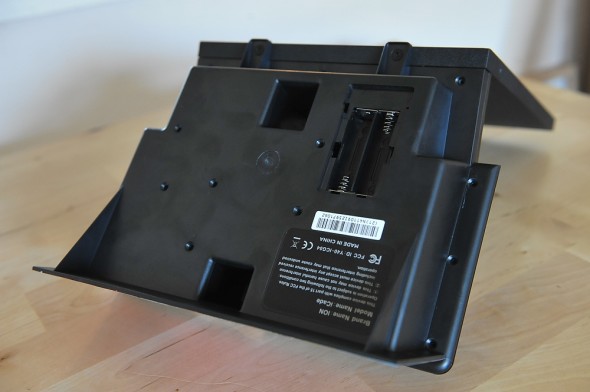
First we need to open the control panel. Remove the sides of the iCade and turn the control panel upside down to reveal the screws you need to remove.
icade mod guideicade components

There’s 16 in total, including those pesky Torx screws (if you don’t have them it’s just 16 Phillips head screws). Keep them in a dish!

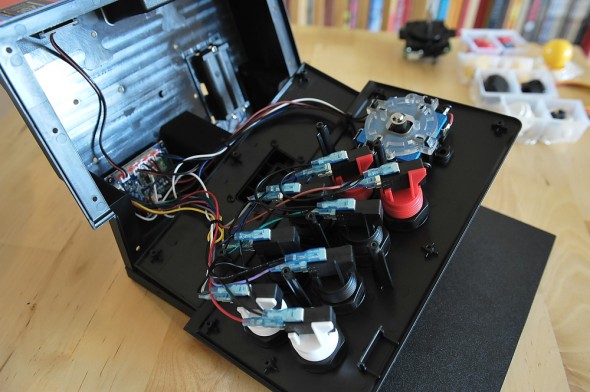
Then rest the iCade on it’s back and lift off the panel carefully.

inside the icade cabineticade button switches

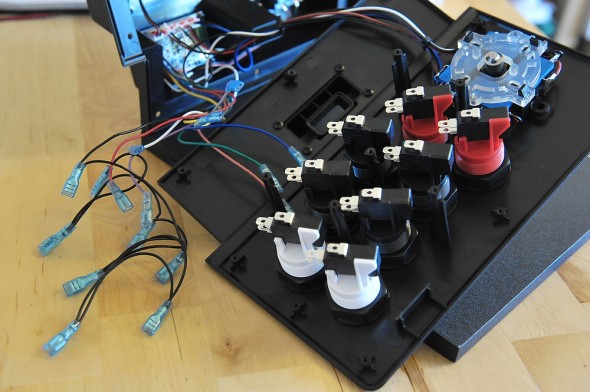
You need to remove the wires from the switches but before you do so draw a diagram of the underside of the board and note which coloured wire is attached to each button; they all have one black ground wire as well, you don’t need to note that.

Mine were tough little buggers to remove and nervous sweaty hands didn’t help, so I used my Leatherman pliers to grasp the necks of the metal clasps and tug firmly.
icade buttons modicade buttons guide

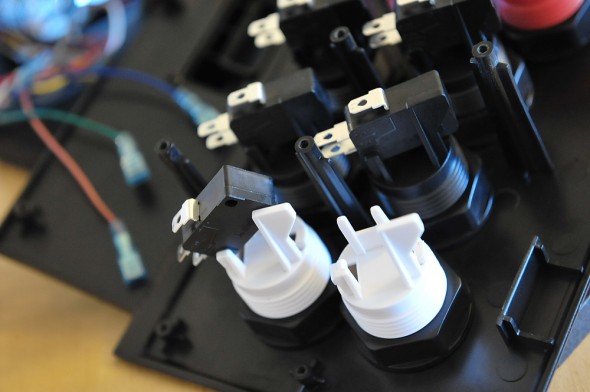
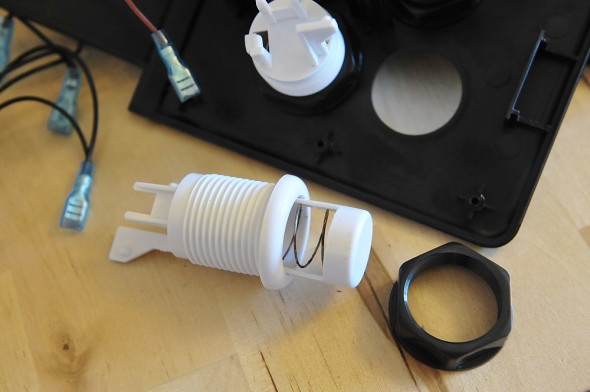
The black switches need to be removed next. Pull gently on the tall strut holding each in place and you can wiggle them out easily.

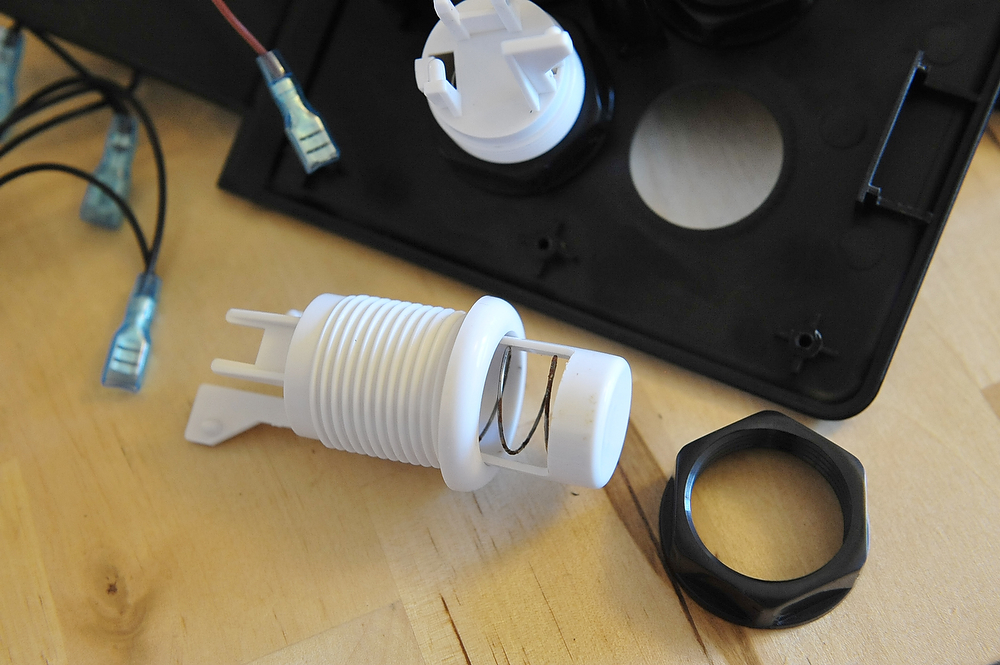
Finally unscrew the nuts and slide the buttons out; some of those blighters are tight but rest assured that none are glued on even though it bloody well felt like it.

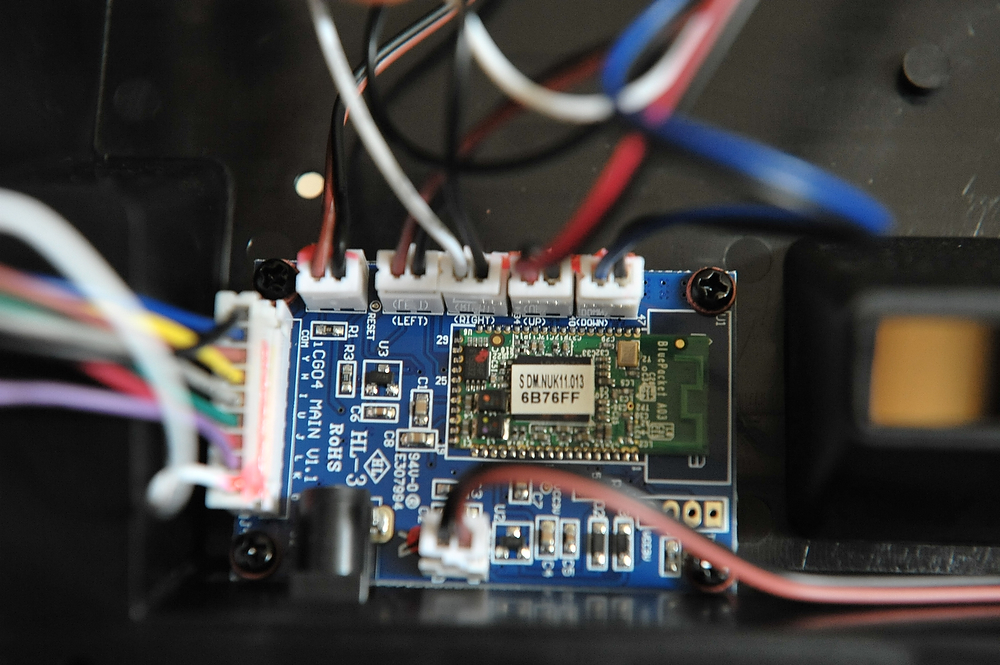
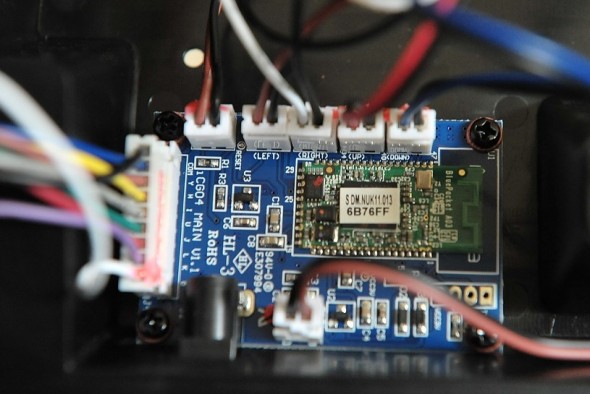
Before you remove the joystick, take a look at the iCade’s circuit board; where the joystick wires are attached there should be the directions printed in tiny lettering on the actual board. If so, great. If not (highly unlikely) then before removing the stick take a note of which of the coloured wires is attached to each directional switch on the stick.
icade circuit boardicade mod instructions

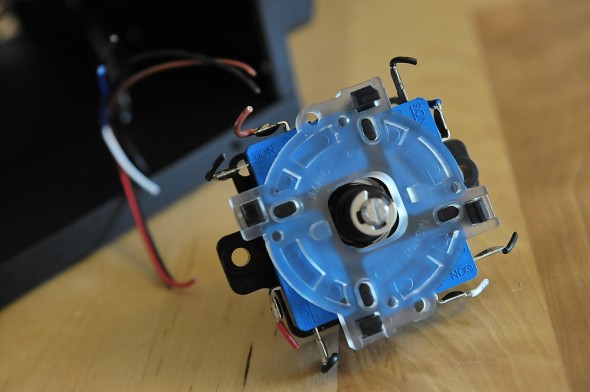
Now pop the ball and dust protector off, remove the four screws and keep hold of them for later; then slide the stick out and cut the wires as close to the switch connector as you can so you have some spare when soldering/connecting.
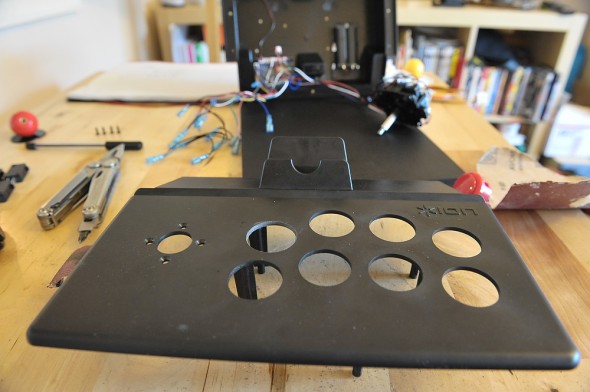
icade control panel

The new buttons need a wider hole, by a couple of millimetres. I have no sanding tools so I got some sandpaper and did it by hand which was easy enough but took me about an hour, and boy did my wrist hurt the next day.

You’ll also need to sand the hole for the stick by a millimetre or so, to fit the lip at the base into it.

icade buttons replacement

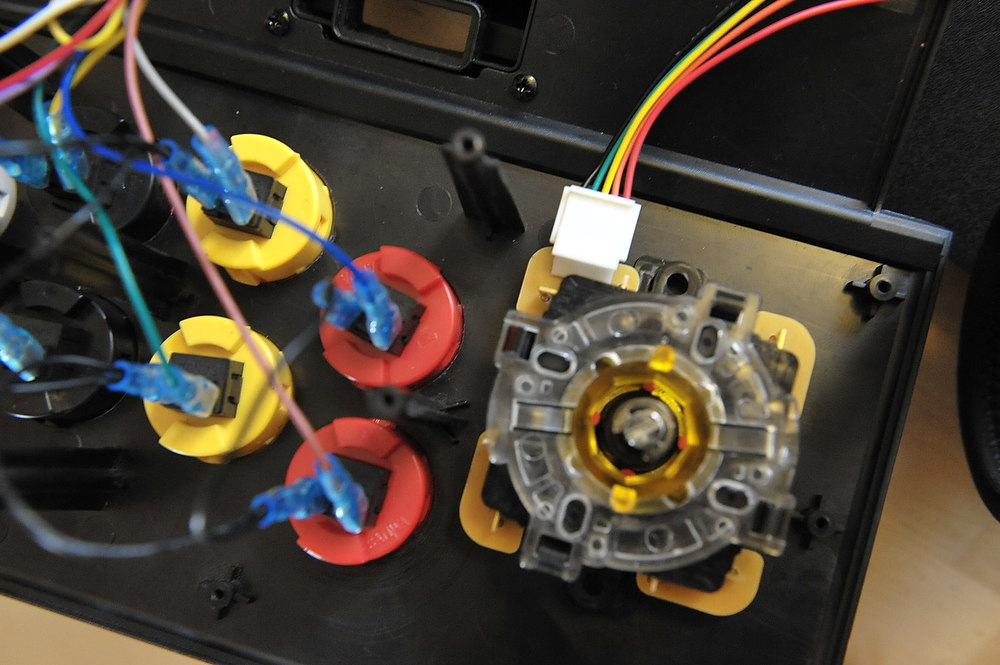
The buttons clip in easily; make the re-wiring easy on yourself by aligning the buttons so the switches beneath line up the same way. Then, looking at the buttons so SANWA is printed the right way up, clip the appropriate coloured wire onto the left contact and the daisy chain of black wires onto the right contact.

The joystick is a little trickier. Technically it doesn’t matter which orientation you mount it so long as you connect up the wires appropriately, but our hand is forced because we need enough room to clip on the 5-wire bundle safely. The best position is to have the stick connector (or PCB) facing the iPad, towards the back of the case.

However, if we just rotate the entire stick to achieve this, the iCade’s screw connector gets in the way of the stick’s plastic moulding; you can see them sticking out either side in the first image below. Therefore, we have to mount the base with the protruding mouldings top and bottom. That would place the PCB on the left or right side, so we have to rotate that as well, to take account of the stick mount rotation.

Don’t worry, it’s easy 🙂
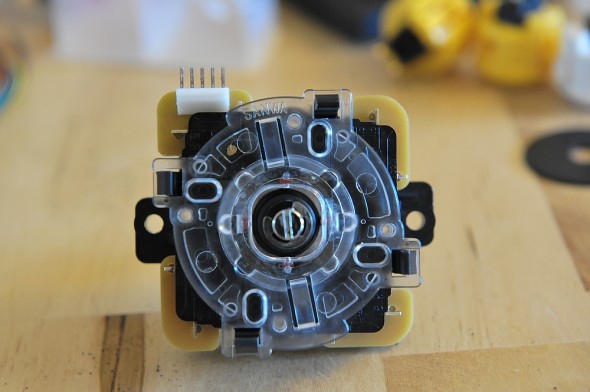
icade sanwa stickicade PCB mod
icade PCBicade octagonal gate sanwa

Unclip the existing square gate from the stick (again, note that this gate can be rotated forty-five degrees into a 4-way stick if you prefer). The PCB and four switches are all one piece and can be lifted off together, rotated ninety degrees and replaced. Then attach the octagonal gate (or your original if you’re happy with that) and you’re done.

Position the stick so the PCB faces up towards the back of the case, making sure the mounting ring sits properly in the widened hole, then attach it with the four screws that held the original stick.

Nearly there! All that’s left is to connect the directional wires to the 5-wire bundle. It’s best not to clip it on just yet, so that you don’t risk pulling on wires while making the joins.

Because we rotated the connector and the switches, we need to re-map the directions and as luck would have it there’s a brilliant guide to doing just that available here, which for ease of reading I’ve reproduced below with full credit to the original creator, rtdzign.

icade wiring guide rtdzign

The guide shows the view of the stick from beneath. With our PCB in the top position we want the bottom left picture. I have a Sanwa stick so on the 5-wire bundle I need to connect yellow to the UP wire, green to DOWN, red to LEFT, orange to RIGHT and black to ground.

You’ll have noticed there’s 4 black ground wires coming from the circuit board. As the stick uses a common ground you only need to use one of those four, doesn’t matter which; you should tape up the ends of the others so there’s no chance of metal contact in the future. I’ve read of people merging all four into one and connecting that, but I preferred the simpler way.

I used a screw terminal but if you fancy a spot of soldering then you might like this soldering guide on the Touch Arcade forums.

So, got your wires all connected up? Time to clip them onto the PCB and then fire it all up and make sure it works.

icade pcb helpicade sanwa

And assuming it does, you’re done! I got it right first time, thankyouverymuch 🙂

icade sanwa mod

Grab a cable tie and tidy up that bundle of joystick wires, then tuck everything in neatly, make sure nothing’s trapped and start screwing the case back up, casually tossing into the bin any Torx Security screws you may have encountered along the way…
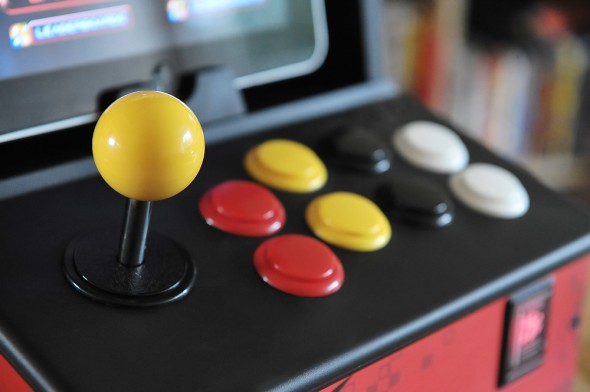
icade sanwa stick

I have to tell you, the difference is huge. It was well worth the effort. Games like Pac Man, Silverfish HD, Hard Lines and Forget-Me-Not are so much more pleasurable due to the improved accuracy of the U/D/L/R directions with the octagonal gate; your high scores will improve, guaranteed.

icade sanwa buttons

The buttons are a different world. A feather-light press is all that’s needed and when hammered they make nothing like the cacophany the stock buttons do, plus you don’t feel like you’ve been for a workout. In something like Super Crate Box where reaction speed is key (thanks to the crazy big collision box around your character), the hair-like trigger on them is superb.

If you’re on the fence about trying this but fear of cracking the iCade open is holding you back, rest assured if I can do it, you can*.

Thanks for reading, and good luck!
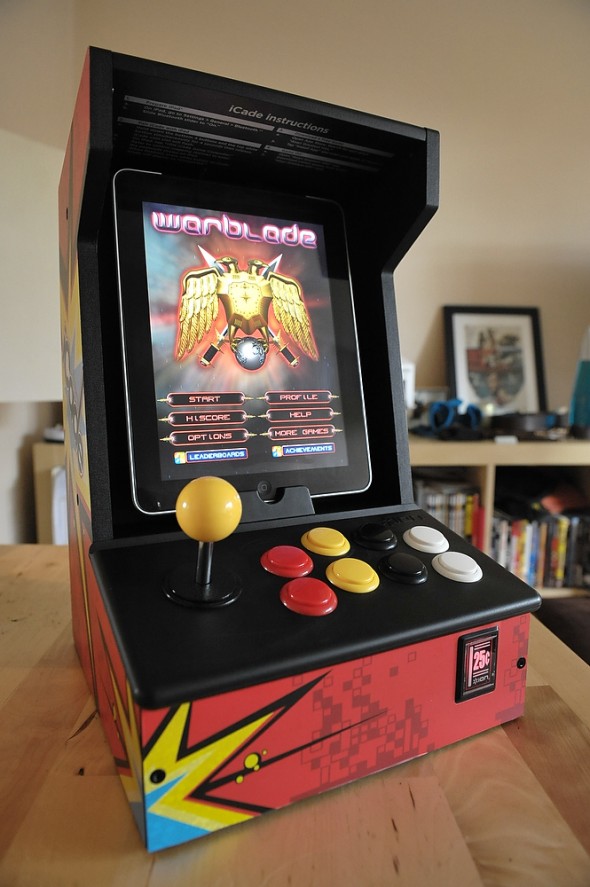
icade mod sanwa stick buttons

* By the way please don’t hold me to that. It really is simple but if you’re disasterously bad at stuff like this and you go ahead and try it and screw it up by doing something stupid like cutting all the wires at the wrong ends or something, all bets are off and I will deny any legal responsibility to my claim that “if I can do it, you can”.

But seriously, you probably can.

UPDATE: a fellow iCade modder called Tom got in touch in the comments:

It was all going so well, up until it came time to attach the new joystick. The 4 original screws do not fit the new joystick, the holes are just slightly too large. I did purchase the same joystick, so I’m not sure what happened.

At first we thought this may be because some iCades appear to have been built slightly differently – the Torx screws don’t show up on every iCade, for example – but he got back in touch shortly afterwards by email to explain the solution:

It turns out that the screw holes on the joystick (both of them) are not threaded, they are just smooth holes. If you take the joystick apart, there are some hex nuts behind those smooth holes and that’s what the screws go into that secure it to the panel. It’s impossible to see this without taking the joystick apart. You may have mentioned this in your page, but I don’t recall seeing it. On the original joystick the nuts are glued inside the holes, so it takes a bit of work to get them out, but once you do, they fit into the new joystick no problem. Problem solved!

There were 2 nuts in each socket, so eight nuts total. I used a small socket and a hammer to get them out. Make sure the socket is big enough to not go into the threads.

I had the security torx screws too and managed to get them out with a very small straight slot screwdriver. There’s way you can leverage that nipple to actually unscrew it without having the tool, but again, you have to have a really small screwdriver.

He also included the following photo, adding:

You can see where the hex nuts would go quite easily in this pic. This is the old controller, inside view.
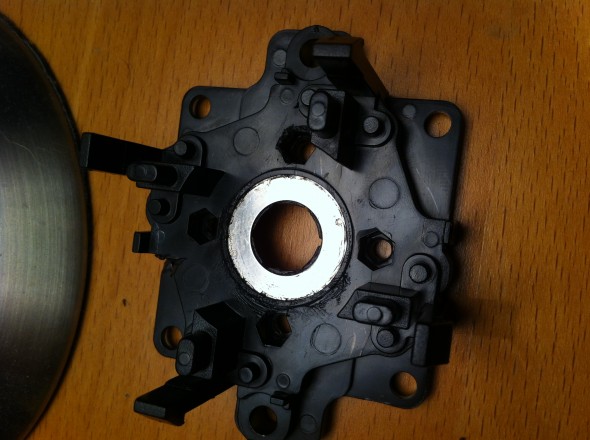
icade-joystick-mod

So if you’re having similar problems, hopefully this will help. Thanks, Tom!

Categories
Gear & gadget reviews iOS & Mac reviews Reviews

iCade for iPad: my review

It was my birthday last weekend (36 if you must know) and I treated myself to an iCade for my iPad; normally I think they’re a bit overpriced at £79 ($99) but it was in a sale and I got some Quidco cashback, plus it was my birthday so that’s okay.

It requires a bit of assembly screwing the sides, back and pre-formed control panel to each other but once complete the design and high quality finish instantly conjures up memories of mis-spent youths in arcades, even if you never actually mis-spent your youth in arcades (the only games I was allowed as a kid were ZX Spectrum and BBC Master games, and I’ve been remedying that ever since).

play PacMan on the iCade for iPadThe verdict is that we love it – my wife is no gamer but got thoroughly stuck in to a couple of classics and modern remakes on the iCade, laughing, cursing and throwing the stick around mercilessly. She’s even downloaded some to her own iPad for when I’m out with mine, it’s that good.

Yes, it’s expensive but it’s the extra level of control it brings to iPad arcade gaming that justifies the purchase – most people instinctively know how to use a stick, even if you’ve never set foot in an arcade. The improvement is profound in some cases; for example, the delightfully insane Forget-Me-Not does alright with swipe-to-turn input but played on an iCade you immediately forget about the controls and focus on the frantic, epileptic-fit-inducing gameplay; arcade gaming feels so right on this thing.

But it’s not perfect

We’ve mostly been playing Pac Man for iPad and a superb Galaga clone called Warblade HD, both of which I highly recommend. They’re the epitome of arcade gaming and well worth the price, even Pac Man’s relatively pricey (for retro) £2.99 – just think how many goes that would buy you in an arcade these days. However, these games are so good that they highlight a couple of issues I have with the controls.

playing Warblade (Galaga clone) on iCade for iPadFirst, both the stick and the buttons, while sturdy and good quality, are very clicky and the buttons require a fairly firm push. Shooting games like Warblade are bloody noisy to play as a result, and it can get pretty tiring hammering away at the stiff fire buttons. Sure, I could work on my arcade physique a little more but it really does feel like hard work after a while.

Second, the stick’s movement is restricted by a square ‘gate’ inside the control panel. The square is set so that the stick locks into the corners on the diagonals as opposed to the Up, Down, Left and Right directions which are on the flat sides of the square gate.

In Pac Man in particular you want to hit those prime directions reliably and often with some force (especially when Hollie is playing it). The way the iCade stick is set up it’s far too easy to hit the flat edge of the square gate and slide into one of the corners; it only takes a small slip like this to trigger a diagonal, turning Pac Man round a corner you didn’t intend to turn or occasionally flipping him 180 degrees, straight into the ectoplasmic jaws of Blinky, Pinky, Inky or Clyde.

Super Crate Box on the iCadeThe clickiness was a bother that I could live with but the stick gate was such a frustration in an otherwise excellent package I Googled it to see if anything could be done. I learned that some square gates can actually be removed from the plastic frame they sit in and can be rotated 45 degrees to place the corners on the prime directions.

Alternatively they can be replaced with octagonal or round gates. Unfortunately the square gate on the iCade’s stick is all one piece and can’t be rotated. For that I’d need to buy a new gate, and so I was introduced to Gremlin Solutions and everything you might need to build your very own arcade machine.

And then I got to thinking about how if I was going to pop the iCade open I might as well see about fixing the clickiness too, so I started learning about switches, button weights, PCB versus non-PCB sticks, the naming conventions of Sanwa joysticks, and how to fit all the above into an iCade. Before I knew it I’d bought a set of eight buttons, a new stick, wiring, and an octagonal gate; £50.36 delivered from Gremlin Solutions, almost as much as I spent on the iCade to begin with.

Hey, it’s my birthday, remember?

Next post – fitting the new kit.

Categories
Editorial Other Photographic

on David Cameron’s advice to the British film industry

Today the papers report the latest BS to spill forth from our Prime Minister, David Cameron, this time about the film industry (Guardian; Telegraph). Now, David clearly doesn’t know the first thing about the film industry. That’s not to say that I know everything, I absolutely don’t, but there’s some things I do know that make the crap Cameron spewed forth sounds utterly ridiculous.

Here’s how the afore-linked Guardian reports it:

During a visit to Pinewood studios in west London, the prime minister will meet small and medium businesses in the £4.2bn UK film industry, and suggest he supports the expected findings of a review that aims to rebalance the industry’s national lottery funding in favour of supporting independent pictures that have mainstream potential. Successful film companies would receive greater support, rather than government funding going to unproven film-makers.

What he’s basically saying is that only films that are going to do well at the box office should be getting funding, because that will solve everything.

Except it won’t solve anything at all. In fact, it’s literally impossible to achieve in the first place. What David Cameron clearly has no idea about (amongst many, many things) is that in the movie industry…

“Nobody Knows Anything”

William Goldman, movie screenwriter extraordinaire, famously stated this in the opening chapters of his book, Adventures in the Screen Trade. It refers simply to the fact that you can write a movie, cast a movie, make a movie and promote a movie, but until it gets released to the public, nobody knows anything whatsoever about how successful it will be.

Now there are executives around the world who think that actually they do know. Of course they think that, or else nobody would be funding any movies at all. Executives with the purse strings make assessments on the likely success of a movie and weigh that against how much money they’re going to put in and make a judgement on the risk involved.

The problem is that no matter how experienced they are, and how many successes they’ve had in the past, they still don’t actually know. Movies that were expected to soar actually bomb all the time. And movies that came from nowhere can go on to capture the zeitgeist and the public’s attention in ways nobody ever predicted.

So what Cameron has done is weigh in on a problem he knows absolutely nothing about, by making out like he actually has the solution. And the solution is:

(and I’m paraphrasing)

“Only fund movies that are going to make money.”

Brilliant, Dave. Just one question: how are we going to know what those movies are, exactly?

Actually, two questions. Second question: doesn’t this clever idea lead us gayly into the gaping maw of Blockbusterland, where only the loudest, flashiest, most anodyne films ever get made because they most closely match the depressing monotony of Hollywood’s annual summer release schedule?

And once we’re there, how is that going to make it ultimately easier for Britain to support the creation of the sorts of thoughtful, intelligent movies that the medium, and Britain in particular, can do so well? This decision of Cameron’s (I keep saying it’s his decision but in fact he’s actually just supporting some other investigation that has come to this conclusion, and will no doubt have been advised to do so because it might make him look more like he’s down in the trenches sticking up for the Brits he’s supposed to be governing) just bolsters the notion that only blockbusters can be counted on, which in turn drives more creative films even further into the styx (that’s if they can even get funding any more), which means they make even less money, and so on.

I have no easy answers. But the one thing I do know is that nobody knows anything, and that Cameron’s idea that we should only fund films that will make money is in fact an empty series of words designed to make him look like he’s got a plan; this isn’t it.

Categories
iOS & Mac reviews Reviews

Review: Alfred for Mac, an excellent app launcher

alfred-mac-reviewToday I want to write about an app I recently got for my Macs that has completely changed how I use them for the better. It’s called Alfred and it’s a ‘launcher’ app that allows you to do almost anything on your Mac via the keyboard.

Such apps are not new but until now I’d had no interest; Alfred caught my eye with a bold, friendly design and a lot of recommendations. It’s available in a basic free version here with an optional ‘Powerpack’ for £15 that massively expands what it can do.

To really get the most from Alfred you need the Powerpack but you should definitely grab the free version and give it a whirl; I upgraded within five minutes of seeing what it could do and haven’t looked back so this review is based on features it provides – but not all of them, there’s just too many.

(All the Alan Partridge fans reading: insert your own “I wonder who got the powerpack?” gag here –>   )

Typing alt-Space brings up the Alfred box into which you type your command or keywords. Typing an application name launches it, like Spotlight; typing a URL or part of a bookmark opens your browser and takes you there; if you want to search the web Alfred offers a selection of search engines then performs the search; it can control iTunes, send emails, perform calculations, manage your clipboard history, search for and perform actions upon most any file on your computer – and that’s just ‘out of the box’.

alfred mac preferencesBy installing 3rd-party extensions in the form of Shell Scripts, AppleScripts or Automator Workflows, Alfred can integrate with many popular applications including Wunderlist, Fantastical, Things, Evernote, Spotify, and Omnifocus. You can even tweet from it. The Alfred user community has come up with all sorts of other cool computer stuff you can do with extensions, many of which are collected on the Alfred site here; have a browse and see if anything that you do often has an Alfred shortcut. If it doesn’t, just create your own.

If all of this still sounds a bit “so what?” then you’re thinking what I was thinking when I first read about launchers. I mean, what’s wrong with the Dock, right?

Alfred is quicker, less distracting & more comfortable

For a long time my Dock had been loaded with around twenty apps and four folders. I would have liked a less full Dock but I found that it was more annoying to have to go looking for them when I wanted them than it was to have the Dock looking a little busy.

Then I got a Magic Trackpad for my iMac. I like it in principle but it’s definitely suited more to gestures than it is precision; It’s probably no coincidence that around this time I started investigating apps like Launchbar and QuickSilver that I’d heard a lot about; I wanted a better way to get to apps than through precise mouse movements.

In the end I didn’t see the point installing and learning to use something new that I could approximate for free by using Spotlight to launch apps that weren’t in the Dock. Spotlight’s cmd-Space shortcut is easy to remember and type, and entering a few characters of an app’s name is far quicker and easier than invoking a new Finder window and navigating to the app and double clicking.

Having got used to launching apps via Spotlight like this, trying Alfred was like opening the floodgates as it grants the same easy access to almost everything you do regularly on your computer, and considerably more elegantly.

How could Alfred help you?

Here’s a few examples of how I use it day to day:

I rarely type URLs into browsers now, or search via the Google box in my browser (although I still don’t remember every time). I can connect to my other Mac via Screen Sharing with just two keystrokes (‘ss’) instead taking a good ten seconds of focus to do it manually. When working on my site I often use the same selection of apps so I’ve set an Alfred keyword that opens them all at once.

alfred mac growlA very useful shortcut that I’m using daily is for Wunderlist. Things I need to remember occur to me all the time; sometimes I try and record them with Siri and then get frustrated with Siri when I have to correct everything it got wrong; sometimes I remember to launch Wunderlist and create a new reminder; and most of the time I do neither because they’re both too much effort and then I forget.

With Alfred I type ‘wl remember to do that thing’ and go back to whatever I was doing while Alfred sends that off to Wunderlist in the background, displaying a Growl to confirm receipt. My fingers don’t leave the keyboard, I remain in the same app environment and I stay focussed on whatever I was doing. All I have to do is remember to check Wunderlist…

alfred mac search

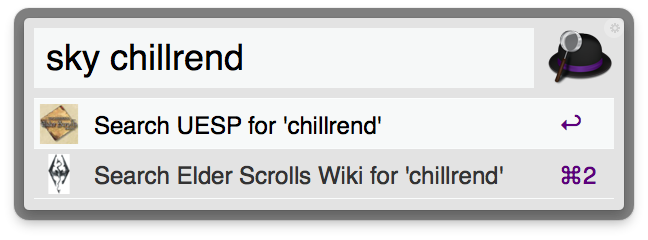
Another example: I’ve been playing a lot of Skyrim recently (like, hundreds of hours of it) and occasionally need to look something up online. I’ve saved the two best Skyrim wiki sites as custom searches in Alfred and given them both the keyword ‘sky’. Now when I need the low-down on that Chillrend blade I looted I type ‘sky Chillrend’ and Alfred offers both wiki sites as possible actions. Rather than search one at a time I’ve set a keyboard shortcut to ‘action all results’ with ctrl-Return and both open in the background.

alfred mac utilityAnd then there’s the customisation and options; most of the keyboard shortcuts can be altered (although you should try the defaults first because they’ve been chosen deliberately); you can change the fallback search sites Alfred will offer to search with if it doesn’t recognise any keywords in your query; Dropbox syncing to sync extensions and settings across multiple Macs running Alfred; you can even style the Alfred box how you like it or download themes other users have created (my own attempt is available here – what I said earlier about Alfred being elegant obviously goes out the window if you go with a Sex Pistols colour scheme).

Alfred also learns quickly; the more you use it, the less characters you need to type before Alfred knows what you want. Using this I’ve trained it so that when I start typing ‘ph’ it offers Photo Mechanic first because that’s what I’ve picked the most when I’ve typed in just those two letters in the past, whereas if I continue to ‘pho’ it offers Photoshop first.

The finishing touches to an already wonderful app are the friendliness of the small team behind it and the support of an enthusiastic community providing extra functionality in spades. Every question I’ve tweeted at @alfredapp has received a prompt and helpful response and there are both official and unofficial Alfred tips sites to pore over.

Grab now, buy later

A full review of Alfred would take ages and I’ve really only touched on a very small set of the functionality; suffice to say it is extensive. The wealth of possibilities may seem overwhelming or you may be reluctant to give up the mouse. Don’t worry – it scales beautifully to users of all proficiencies and your mouse hand will definitely thank you. In fact, at first it took me by surprise how liberating it was to remove so many constant mouse interactions; even small movements down to the Dock are hassle compared to Alfred once you get into the habit.

If you’re even a bit of a geek or use your computer frequently I think you’ll love Alfred for Mac. Grab the free version now and see how long it takes you to resist the Powerpack and open up it’s trove of possibilities. It really does change the way you use your computer.

(Okay that last line sounds so much like a radio sponsorship blurb but I assure you this is from the heart, not the wallet; I love using Alfred so much I want you to as well – no kickbacks here.)

Thanks for reading. If you’d like to comment on anything I’m @myglasseye on Twitter.