I’ve known and worked with Tristan Versluis for a few years now since I did stills for his FX-heavy short, Pixel, in around 2007. He’s mostly known for his prosthetics work (recent credits include World War Z and Harry Potter & The Deathly Hallows Part I) and has been moving into directing first via self-written shorts and now features.
His first big feature came a couple of years ago, called Not Alone and starring Lucy Benjamin amongst others. Frustratingly, that project seems to have left his control in the edit, taking a somewhat different direction to that originally envisaged. Since then there have been more shorts and now a brand new self-written feature that he’s in full control of, called OMNI.
An alien abduction story, OMNI started shooting in Germany a couple of months ago with Tristan’s core group of previous collaborators, led by Stuart White on cinematography duties, and this month returned to the UK with two night shoots on a rooftop in Hackney Wick. They’re shooting on a couple of different cameras but for this particular shoot the team got access to a Red EPIC and a mini jib arm which injected some real dynamism into the scene, one of the key moments in the film. Speaking of which, I actually know virtually zero about the plot of the film other than that some of the characters witness an extra-terrestrial visitation and one of them gets spirited away. Is Tristan keeping a wickedly tight grip on the secrets in the script, or did he just forget to send me a copy of it? I have a feeling it’s both, which is cool because I like a bit of mystery…
The scenes we were shooting featured Charlotte Hunter and Ray Bullock Jnr, and despite the freezing temperatures (but thankfully little wind or rain!) both put in very moving performances. At some points in the scene Charlotte was lying on the baltic concrete wearing really not very much (no more than the average lady wears to a nightclub, put it that way) and before the camera rolled was visibly shaking with cold; these actors willingly suffered for Tristan’s art – the effect of the staunch loyalty Doctor Versluis instills in those that work with him (he has such a calming, zen-like bedside manner when applying time-consuming prosthetics to actors that the name ‘Doctor Versluis’ was coined and stuck).
So here’s a bunch of my stills from the evening, mostly behind-the-scenes because I think that stuff is always a lot more interesting, and all approved by Tristan for their lack of spoilery content; if you’d like to comment on anything I’m @myglasseye on Twitter. Enjoy, and thanks for visiting.
(just click on images to see them larger without leaving this page)
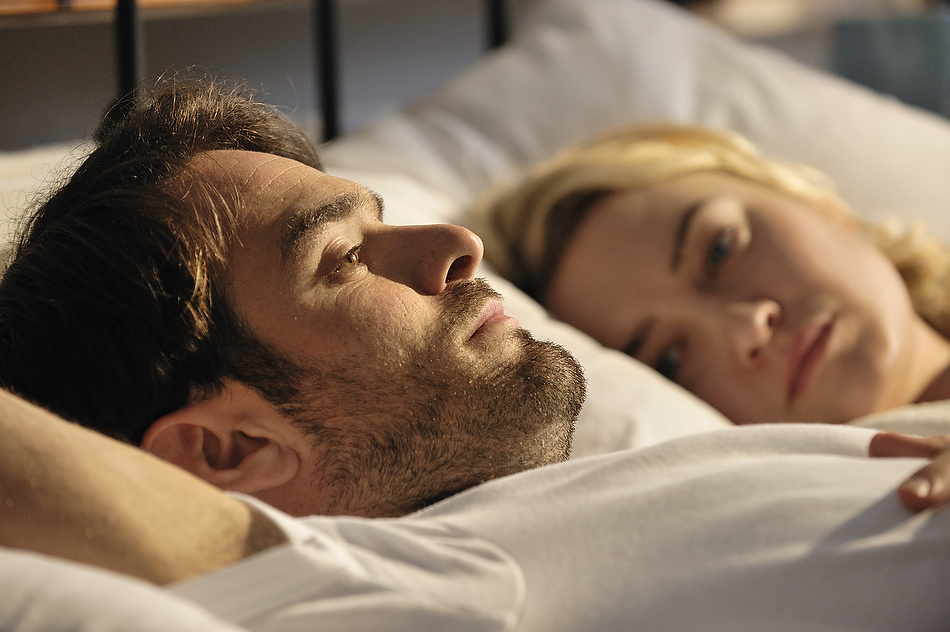
On-set still, featuring Charlie Cox and Sophia Myles
While working my way up the ladder of ‘stills photographer’ on movies, I did a lot of short films. Several of the directors I worked with on those shorts have become friends who I’ll go out of my way to work with again, including Tristan Versluis, Ryan Haysom and Jacob Proctor. The first short I did for Jacob was Mother Time (on Vimeo here) a couple of years ago, and then Collectables (photo gallery on my blog here) a year or so later.
He recently wrote and directed a new short, A Sunny Morning, shooting over the course of a weekend in a house in Greenwich (the Art Director, Melanie Light, emptied a lounge and converted it into a bedroom). Like Collectables it features just two characters, played by Sophia Myles and Charlie Cox, and was shot by Director of Photography Trevor Speed.
When the film has completed editing, Jacob intends for it to be a calling card for his directorial skills and has been building an online following around the film and it’s cast using Twitter (follow them here) and a blog-based website (over here).
My involvement started with some concept photography for the website, followed by production stills on set. The film is about a woman called Grace who is on the brink of a life-changing decision following an argument with her husband and jealousy of her best friend’s career success. To create the mood, Jacob wanted to illustrate the website with specially-shot photographs of Grace’s ashtray, books, and a ring lit by soft, natural light and so one Saturday morning around a month before the actual shoot we set up in his own bedroom and shot the arrangement in as many ways as we could think of to give the website designer something to play with.
I wanted to post a few of my own favourites from that day, which you can see below. The film’s Twitter account will be releasing more stills from the set as they accumulate more followers and Facebook friends, so take a moment to add your support and they’ll get released that bit quicker 🙂
Here’s the social network links for the film one more time:
UPDATE 3: September 3rd, 2015 – well, two years later and out of nowhere this post is suddenly tremendously popular again for some reason! Has Instagram been updated again? Does everyone hate it for some reason? What I’ve learned is: get over it. They won’t change it back, you probably can’t roll back any more (see below for how most of the old methods don’t work), and you’ll probably forget you were even upset about it after you’ve posted a few more pics of your lunch or your cat 🙂
UPDATE 2: September 30th, 2013 – as noted by Sergio Alejandro in the comments this downgrading trick, which used to work, doesn’t seem to work any more as Instagram are actively preventing their users from using older versions of the app, probably for compatibility reasons:
“This no longer works. I logging in after downgrading and it told me that the version I was using was an outdated version of IG, and that I’ve have to upgrade in the app store.”
Personally, I don’t really see the need to downgrade anyway. I originally wrote this way back when Instagram released version 2.0 and completely ruined all the filters. As far as I can tell (I hardly ever use Instagram these days so correct me if I’m wrong!) the iOS 7 update is just a cosmetic change and Instagram still works the same, it just looks different.
If that’s so, my advice is relax! Stop wasting energy hating something that doesn’t really matter – you’ll get over it – and spend that energy making nice photos to share instead!
UPDATE 1: September 27th, 2013 – I’m seeing a lot of visitors to this post now that Instagram has updated for iOS 7 – hello everyone!. The techniques used to roll back Instagram versions described in this post and in the comments below refer to much older versions. The principles should still be the same but I can’t guarantee it’ll work any more – good luck!
ORIGINAL POST: I recently wrote about the Instagram 2.0 update (over here), which added lots of headline features but at the expense of the lifeblood of the app; it’s filters. They seem to have changed the entire processing method and now all the filters seem like subtle variations of one another, with none of the character that made them so distinctive.
I mentioned in passing that I’d removed my copy of Instagram 2.0 as it was so awful and replaced it the earlier version from my iTunes. I’ve noticed a lot of visitors coming to the article via a Google search for that exact process so I thought I’d make it a little easier to find.
How to do it
You need to have the old version of Instagram.ipa on your computer already. This might be a problem if you downloaded the updated app via iTunes on your computer, or you downloaded the update on your phone and have since synced with your computer. Look through your iTunes media folder and if it’s not there, try the trash.
Once you have the old version of Instagram.ipa, place it in the correct folder in your iTunes hierarchy, along with all your other apps. Then delete the current, updated version of the app from your iPhone right now. Don’t worry, you won’t lose anything except your Instagram login settings which you enter when you re-install the app. All your photos are on their server and in your Photos app.
Now connect your iPhone to your computer and sync over that old version of Instagram.
Once complete should have the previous version of Instagram – or at least the version that was on your phone last time you synced with iTunes. Happy old-school Instagramming!
Back up
At this point we want to future-proof ourselves. Head to your iTunes Media folder, find the Apps folder and locate Instagram. It will be called something like ‘Instagram x.x.x.ipa’ (where x.x.x is the version number). Create a folder on your Desktop (or anywhere you like) called App Backups (or anything you like), then hold down the Alt key and drag the Instagram app into that folder. You should see a green + sign to indicate you’re copying the app, not moving it.
The idea is that if you now accidentally overwrite the original app in your iTunes folder you can replace it with your backed-up copy and re-sync.
UPDATE
Melissa posts in the comments that it even if you updated in iTunes or already synced, all may not be lost:
It’s also possible to roll back to version 1 even if you *have* updated the app in your library…
On a Mac at least. iTunes will throw the old version into your Trash folder. Just retrieve it from that folder (I just copied it to my Documents folder), delete the new Instagram from iTunes, and drag and drop the old version into iTunes to add to your library. Then sync! Works a treat 🙂
That’s going to be very good news for some of you, I reckon!
(UPDATE: March, 2012; over time, and with updates to the app, my opinions on Instagram 2.x have changed somewhat; I just posted my updated thoughts on what’s new, what’s changed and what hasn’t – you can read them here. And now, back to the article you wanted to read in the first place…)
Instagram has been my favourite iPhone photo app for about a year now. It doesn’t have the nebulous wealth of filter options of PictureShow or the ubiquitous Hipstamatic but it’s simple, effective, social and fun; the dozen or so filters are varied and distinct; it includes a tilt-shift effect; it exports with just one tap of ‘Save’ to a good variety of sites simultaneously; and it has it’s own little version of Twitter in the Instagram feed where you follow friends or strangers whose Instagrams you appreciate, which works very well.
This week it got a significant 2.0 update adding new filters, live filter and tilt-shift previews before you take your photo, and the option to remove the borders which can change the feel of an image dramatically. It’s also faster and saves much bigger images. Overall that’s a fantastic bunch of new features to add to my favourite photo app.
However, before long something felt very amiss and on closer examination I discovered that I really don’t like it so much after all.
What’s not being mentioned in the press coverage but hasn’t escaped many users on Twitter is that the update also removes three perfectly good filters, Apollo, Poprocket and Gotham; the remaining filters have all been tweaked and feel somehow less than they were – a couple are almost completely different now; most frustratingly the tilt-shift effect has lost a crucial editing option so that at certain settings the effect is ugly to the point of being unusable.
Pictures speak louder than words
I deleted Instagram 2.0 from my iPhone shortly after updating and synced the prior version from my iTunes computer so I could do a comparison of the two as I suspect plenty people will be interested (read how to do this here). Even if you’re not that bothered about these changes you might be surprised by some of them.
First of all, here’s the example image I’m using in it’s original state, along with the 3 filters that have been removed:
Clockwise from top left: original, Apollo, Poprocket & Gotham
These were all pretty good. I didn’t use Poprocket so much, but Apollo was lovely. Gotham in particular offered a high contrast alternative to Inkwell and was especially good for bright, low contrast scenes (for a better example, see my photo here). Now there is only Inkwell remaining for B&W aficionados and anyone who likes their B&W moody and punchy is out of luck.
Now let’s look at the four new additions:
Clockwise from top left: Amaro, Rise, Hudson, Valencia
I can see the variations but seriously, are Amaro, Rise and Valencia anywhere near different enough to each other? Even using this one scene, the removed filters were far more distinctive.
Next, the old and new tilt-shift screens and resulting effect. Look carefully at the transition control.
Both versions allow you to set the size, angle and location of the ‘in focus’ area but the old version also allowed you to feather the transition from soft to sharp and back again using the slider to move the secondary outlines around the focus zone. The new version does not give you this control. Instead, as you pinch to expand or contract the focus zone the app respectively softens or hardens the transition but even at it’s widest it’s pretty noticeable.
In the above example shots the focus zone is the exact same size but I’ve been able to feather the transition in the original version, on the left. If you click on the image to see it larger you’ll notice the new version created a transition that so hard it’s pretty much unusable.
And now the pièce de résistance or, in the Queen’s English, ‘the piece of resistance’:
Filter comparisons
XPro II (original & 2.0)
The new XPro II is a little brighter and contrast is reduced, and in the sky you’ll see that the colour toning is very different.
Lomo-fi (original & 2.0)
Lomo-fi is also a little darker but with more shadow detail (reduced contrast). The characteristic blown highlights are gone, leaving something with much less character.
Earlybird now has more shadow detail but is somehow flatter and yellower. (UPDATE: as you’ll read below, this is also the only filter that the Instagram guys have acknowledged is different, for some reason)
Sutro (original & 2.0)
Sutro: where do you start? This isn’t even the same filter any more.
Toaster (original & 2.0)
Toaster is another one with reduced contrast. The original seemed to glow out of the centre and this one is very flat with a hint of a blue wash.
Brannan (original & 2.0)
Brannan feels largely the same; I’d say this one of the few examples of an improvement, with a bit of extra detail and toning in the highlights, and it’s almost imperceptibly punchier.
Inkwell (original & 2.0)
Inkwell is the only B&W filter on offer now. It’s been brightened slightly which brings out some shadow detail but blows the sky in this shot. I’d say this is an improvement on the previous, flatter version but the lack of a punchier B&W alternative is a real shame.
Walden (original & 2.0)
The new Walden a kind of yellow wash that flattens the contrast, and has lost it’s subtle but pleasing desaturation. It’s quite different.
Hefe (original & 2.0)
Hefe is now a little darker and has lost it’s characteristic warmth.
Nashville (original & 2.0)
Nashville had a nice washed out 80s fashion photo feel. The new version has lost that and is too contrasty as a result.
1977 (original & 2.0)
1977 also used to have a washed out feeling but has lost it and increased in contrast like Nashville. Notice also that the textures in the original version (see the ‘film blotches’ about two thirds of the way up on either side) are absent in the new version, I’m thinking because they didn’t play nice with the live previews.
Lord Kelvin (original & 2.0)
Lord Kelvin (or just Kelvin as it’s known now) is completely different. This is such a departure that it really made me think about any possible technical reason to make these changes.
Across the board distinctive elements of each filter have been compromised. Filters that were washed out are now more contrasty. Filters that were contrasty are now more washed out. They’ve all drifted towards the same look.
Instagram said that all the filters have been completely re-written to work with the new live preview system and to output far higher resolution images, and it seems to me the re-writes just haven’t nailed the original look. I have a feeling this may be for technical reasons, that the new engine for live preview just can’t support certain features like textures. I suppose it’s also possible the Instagram guys wanted to make some tweaks deliberately but if they did then that’s not cool in my opinion. Users preferring the social side may not mind much, but I had some favourite filters that just don’t feel the same at all and I know I’m not alone.
The higher resolution output also contributes subtly to the loss of character. Instagram seeks to replicate old school film and camera effects which almost all thrive on their lack of perfection. The original version’s lower res lent a barely perceptible softness to the finer details which helped sell their retro film pretensions, a quality which is noticeable now by it’s absence. Every image Instagram 2.0 produces is as full of detail as the original image and that’s a problem. If there was a way to cheat a little imperfection back into the details somehow that would be interesting.
But the big problems are the changes to the filters and the tilt-shift tool. I think the latter is something that could and definitely should be changed and if you’re reading this, guys, that would be awesome. However the filters have been changed, and for whatever reason, they just aren’t quite on the money yet, some painfully so.
And as for the new filters, they feel so similar in tone that the loss of the Instagram Three is even more keenly felt as they were so full of character, something which the whole selection now seems to lack a little of.
For the time being I think I’m going to go back to the last version I have saved in iTunes (again, instructions here). I know I haven’t ever had to pay anything to use this app and so it’s not like I’m particularly entitled to ‘my’ app, but I didn’t really take the Instagram guys to be the iOS incarnation of George Lucas either – and I still don’t really because I love the app too much. I’m hoping they hear some of the feedback and see what they can do with it.
UPDATE
22nd September: The @instagram Twitter account just posted this link to notice of an update to 2.1 coming soon. Two notes relevant to this review:
Earlybird looks more like old version
In v2.0, the Earlybird filter was altered slightly. This was unintentional and in v2.1 we’ve restored the filter back to its original state.
Tilt-shift has softer cutoff
We noticed the blur on tilt-shift in v2.0 was more intense when applied after capture. In v2.1, we’ve made the tilt-shift preview consistent between screens and less intense.
I’m surprised that Earlybird is the one being singled out given how different nearly all the other filters are. I also don’t think there’s any need to do anything with the tilt-shift except put the transition/gradient slider back in.
ANOTHER UPDATE
25th September: I notice now that the Instagram support page contains a couple of references to both the missing filters and the Tiltshift gradient tool:
I can’t find the Gotham, Poprocket, or Apollo filters
The Gotham, Poprocket and Apollo filters were replaced by 4 new filters in V2.0 of Instagram. We understand that there are fans of these filters in the Instagram community and in future releases we hope to introduce improved versions that capture the essence of these filters.
I can’t adjust the tilt shift gradient
In designing the new camera interface, we strived to keep the app as simple as possible. In keeping with this, we thought it was a reasonable tradeoff to remove the ability to adjust the tilt shift effect. If you have feedback on this feature, we’d appreciate if you could send us an email with details.
I’ve sent a detailed but polite email to them outlining my main concerns with the filters, the live preview feature and the tilt-shift tool and if you feel strongly about any of these I would encourage you to do the same – but do be polite! Nobody responds well to an angry or abusive email.
YET ANOTHER UPDATE
September 26th: I mention in the comments below that you can’t change a filter after you shoot like you used to be able to, and that having to choose before you shoot ruins the spontaneity. I’ve been playing with the app today and I’m happy and a trifle sheepish to admit
I was wrong!
You can choose a filter before you shoot if you want but after you shoot you can also change your choice, so it’s the best of both worlds.
This large oversight of mine actually makes me slightly less disappointed in the update. But only a little bit, mind… 😉
Thanks for reading. If you’d like to comment on anything I’m @myglasseye on Twitter.
A couple of days ago I wrote about how to set up your Lion Mac to stream media to XBMC on your jailbroken AppleTV 2, since Lion changed the way SMB worked and hence broke SMB streaming. It involved a great wee application called Playback, which streams to a whole bunch of devices including XBMC installations. It avoids having to get your hands dirty in Terminal, but requires a £10 license (a small and well-deserved price to pay).
I’ve had an eye on the usual forums and spotted another method of doing the same thing which also has the advantage of being free and of being able to take advantage of your meticulously organised fanart, posters and .nfo files, something I don’t think Playback does (if it does, please let me know how in the comments).
This alternative uses WebDAV and an application called MediaMaster Server, which is free on the Mac App Store – and seeing as this post is really just for Lion users, that shouldn’t be any barrier to entry. I believe the app is actually meant as a free complement to a paid iPad app for streaming media to your iPad, but it also happens to work nicely with XBMC.
2) Click ‘Select root directory’ and navigate to the folder that contains your various media folders. For example, all my various types of media have their own folders, and all of those reside in my ‘Media’ folder on my external drive. That is the folder I’ve used as my root directory.
3) In the settings tab, give yourself a username and password, and click on ‘Secure HTTP’ if you want a secure setup. I left the port as the default.
4) Click the master switch on the left to ON.
5) In XBMC go to setup a new share and navigate to the option that lets you fill in WebDAV (HTTPS) settings.
6) The network address is the local IP address of the computer that’s running MediaMaster Server – for example, 192.168.1.60 (don’t copy that, it’s just an example! Find your own IP address in the Mac’s System Preferences under Network)
7) The port, username and password is whatever you selected in step 3
8) With these details filled in, save it as a source and select it for use. It should detect the various folders within your shared root directory and ask which one you want to use. From here on just set up your folders as unique sources such as TV, Movies, etc.
One thing I’ve noticed with my setup, and it may well be to do with me having a recent nightly build of XBMC as opposed to the approved version, is that scraping is painfully slow. It only needs to do it once, of course, but if it’s taking it’s sweet time you could wait until bedtime before setting it running and in the meantime just access your files through the Videos>Files route in XBMC.
So if you’re having Lion/SMB/XBMC/ATV2 woes you now have two options for getting your media centre up and running again! Good luck and thanks for reading. If you’d like to comment on anything I’m @myglasseye on Twitter.