Bartender, by Surtees Studios, is a natty wee Mac menu bar app that whisks up some or all of the clutter over on the right hand side of your menu bar and keeps it hidden away behind an icon of your choice. It’s perfect for keeping in check all those handy third party apps that put an icon up there, and can even manage the system items like the Airport, Date & Time, Bluetooth and Notification Centre menus.
For example, without Bartender my menu bar looks like this:
With Bartender running I can reduce all of that to just one icon:
Or I can tweak the settings to keep the most essential icons visible, like this:
The app comes with a selection of icons to choose from, or you can create and use your own. Clicking the icon brings up another row containing all your other menu items, and clicking on one of those brings up it’s menu, like so:
The settings screen contains all the menu item appearance controls:
Select each menu item, select where you want it to live, and that’s all there is to it; it’s that simple.
Bartender is in beta right now and available for free from their website. Once it’s out of beta you’ll have to buy a license to update to the final version but if you buy one while it’s still in beta it’s half price, less than £5.
Being in beta also means you shouldn’t be surprised to maybe find a bug here or there, but the big ones have all been ironed out and the most recent builds are perfectly stable. I highly recommend you pick it up and get some calm back in your menu bar.
And now, an insight into how my brain works
I tried turning off both Notification Centre and Spotlight, so the Date & Time is right up against the right edge of the screen and I didn’t like it, it felt unbalanced and ugly. I’m used to the clock being snuggled up next to the pleasingly angled Spotlight magnifying glass but since I got Alfred I rarely use Spotlight, and certainly never invoke it by clicking the icon, appealing as it is.
I had originally taken Notification Centre out too because the gesture is more intuitive and faster for me and I didn’t want unused icons up there. But, aesthetics are winning the battle and as I can’t (yet?) shift one of the other icons over there manually, I’ve reinstated Notification Centre for the balance.
I’ll probably change back to the Spotlight icon in the end, it just feels better…
Last week I installed AppCubby’s Launch Center Pro for iPhone (App Store link) after it got some good write-ups in the tech press. It’s described as ‘speed dial’ for your apps, giving you an alternative way of organising and launching your most-used apps more conveniently.
It’s not just a launcher, though. The headline attractions are ‘action hooks’ in certain apps that give you a shortcut to a function of the app. For example, you can set one-tap shortcuts for launching directly into a new Omnifocus note, a new Instagram snap or a new Tweetbot tweet.
Some apps offer more hooks than others. Evernote, for example, offers none other than launching the app itself, whereas Tweetbot offers a shortcut to pretty much every screen in the app. This is done by use of valid URLs within the app code so support has to be built in by app developers, not AppCubby. More on that later.
First impressions
It’s such a tantalising notion, to completely change how you use your iPhone. At first I found that although it’s easy to design your own LCP setup for quick launching, unless you have use for the actions available you may not see much point in it.
To make an example of Evernote, if the app is already on your homescreen (or your dock) and you put it on the top level of LCP, you’ll actually tap more times to get the same result.
(With the app on your Homescreen you tap Evernote to launch, then tap ‘New Note’; in Launch Center Pro you tap to launch LCP, tap Evernote to launch, tap ‘New Note’.)
On the other hand, if you regularly use a core collection of productivity apps like Things, Omnifocus, Tweetbot, Drafts, Simplenote, that sort of thing, and throughout the day you’re constantly jumping in and out of them, making notes or sharing links or whatever, clever setup of LCP could streamline a significant amount of that use and save you enough time and taps to really feel the benefit.
I’m not quite a power user but I am a sucker for experimenting with new and more efficient ways to play with my phone so I’ve spent the last week using LCP and tweaking my setup. Here’s a look at how I’ve been using it and what I’ve noticed.
Customisation
The UI is attractive and well thought out with plenty of room for customisation, which is where Launch Center Pro comes into it’s own. The tap-swipe-release method for accessing the second layer (where you keep groups of Actions) is particularly nice, making it feel like you’re only tapping once. Get fast at that and it begins to feel more like you’re performing gestures to launch apps rather than searching them out and stabbing at them.
I’ve tweaked my layout so many times, moving apps around until they find their intuitive home under my thumb. This could very well have changed by tomorrow (and in fact it changed between writing this and capturing the screenshots) but today my layout looks like this:
As you can see, in the folders I’ve tried to place actions so that they won’t be obscured by my thumb – I tend to hold the phone in my right hand most often as I keep it in my right jeans pocket.
Switching into edit mode brings up a neat blueprint background while you rearrange the furniture, and you can go into the icons for every action or folder and create new ones to suit your taste or the way your brain works.
For my ‘Wife HQ’ screen I gave phone buttons a metallic look and messaging icons a pinstripe, and stuck to the colours that iOS uses for those functions; when placing apps I try to keep it intuitive, for example by putting Hipstamatic in the same space in a folder as Instagram occupies on the home screen.
So now my Home screen now looks like this:
It’s so calm there now. I had the phone in the dock too but eventually realised I only really call my wife and that’s covered, so I moved it out. It’s just that gorgeous metallic LCP icon now, twinkling at me wherever I am.
Of course, all the apps have to go somewhere…
I changed all my folder names from things like ‘Productivity’ to these verb-focussed titles as I read it was more intuitive, and so far it’s working out well. I put my games on a third screen because I wanted to keep that aspect a little apart from the rest of the phone. And I really wish I could hide Newsstand without a hack.
Launch speed
Launch Center Pro almost always launches incredibly fast. Like, tap it and you’re in, that fast. Maybe loads faster if you’re using it often enough that it’s never pushed completely from memory, but a few times on launch the screen would remain blank for a couple of seconds – the most infuriatingly long couple of seconds, at that. Or, my layout would appear but was unresponsive momentarily.
It didn’t happen every day, but a couple of days it happened a couple of times. It’s not enough to let the side down, though. 95% of the time the only thing slowing me down was my own brain and my poised thumb as I adjusted to using LCP regularly.
App compatibility
LCP works with any apps that employ valid URL systems in their code; it detects compatible installed apps and adds them to it’s list of Actions. As noted above, some developers employ more URLs than others, but many don’t appear to at all. One major omission for me is Money, by Jumsoft, which I launch many times a day. For this reason Money is now the only third party app left on my Home screen.
Since I installed it I’ve noticed at least a dozen apps appearing in the list that weren’t there at first. Not sure if this is because I downloaded updates to them or that LCP just didn’t get through with scanning my iPhone at first. At this point 51 apps out of 95 installed are compatible in some way, including Apple apps.
Well, some of them.
Apple doesn’t always play ball
After the release of the original Launch Center, which hooked directly into system settings like the 3G toggle and Brightness control, Apple withdrew access to a lot of their own app URLs. For example, there’s nothing at all for their Clock, Notes or Camera apps, but you can launch Music, Calendar and Reminders, amongst others.
You also can’t launch the Phone, Mail or Message apps but you can set an action that allows you type in a name or number and immediately email, call or message that person, bypassing the front end of the respective app. I’ve used this to turn it a one-tap hub for contacting my wife, which is really cool, but otherwise it’s quicker for me to use these apps ‘the old fashioned way’.
Drafts is a perfect partner
Drafts (App Store link) is a great app by Agile Tortoise that I’d not heard of before installing LCP, but they complement each other perfectly. It’s a simple notes app with the killer feature of being able to send the text to a wide range of apps and sharing services – I suppose you could call it Launch Center Pro for text – and it turns out it’s better for getting notes into Evernote through LCP than Evernote is.
I recently switched to Evernote from Simplenote because I can keep more kinds of stuff in it, but for text alone Simplenote is faster to use and easier to search and I miss that. Drafts, especially kept on the top page of LCP, gets me into a new note immediately and sends it to Evernote with one tap; I could even send it to Simplenote too if I wanted, or Day One, Tweetbot, Echofon, Mail, Messages, Agenda, Dropbox, Facebook, Omnifocus… and of course each note is saved and searchable in Drafts itself.
With Drafts on the left and Reminders on the right my bottom row is dedicated to capturing something quickly, be it an idea, an Instagram, or something I need to do.
Brightness
Although LCP can’t launch the Brightness setting, AppCubby have made a workaround that lets you set brightness values to buttons; the compromise is that whenever the screen locks it resets to the value set on the official Brightness slider in Settings.
One way to take advantage of this is to set the Brightness slider to something comfortable for normal use, then in LCP set a button for bright daylight, one for night time, one set to the same as the slider value, and maybe a button that toggles between medium-low and medium-high. Then you can switch to your bright setting if you’re in daylight and either switch back when you go inside or if your screen locked in between it resets anyway.
In the end I found that diving into LCP to find the brightness buttons every time I was outside was not worth the hassle versus however much battery is allegedly spent leaving Auto-Brightness turned on, which serves my needs fine.
Flashlight
One of the built-in hooks on offer turns on the flash, effectively giving you a flashlight app for free. In occasional use over the week I found it was way quicker than any flashlight app I’d used so it got pride of place on the top screen.
Search
The built-in Search hook takes any text you enter and sends it to Google in Mobile Safari. It may not be that much less effort than doing the same through Safari but the momentary pauses waiting for Safari to get up to speed can make it feel longer than doing it through LCP. If you’re an Alfred or Launchbar user it feels a lot like using that as your Search box.
The stuff I haven’t mentioned
There’s plenty of other uses I haven’t touched on. For example, if you visit some sites in Safari regularly a Bookmarks group would be perfect for you; I use RSS to keep track of favourite sites so I skipped that.
Alternatively, you might want to delve into the Custom URL tool that lets you build your own hooks if you know the language. There’s so many actions available already, however, that I barely touched it except to try and trick the Clock app into working; I failed.
You could even set up a whole folder of stock-response emails; say you’re the company IT guy and people are always emailing you about their computer not working, you could have a ‘switch it off and on again’ email saved to a button, with just an address required. Or, if you’re a particularly tardy person, you could set up a whole range of ‘excuse’ emails that are always just a tap away.
I’m sure there’s even more stuff you could set it up for that just doesn’t apply to me, so I can’t think of it right now.
A week later
It was a slow start for me but I love it, especially since adding Drafts as well. I’ve got the layout pretty much how I like it and just need to get a bit of muscle memory going on. As I’ve mentioned before, LCP has a very distinct feel; from the visual feel of the buttons to the physical feel of tapping, sliding and releasing (sometimes without looking), it feels good.
It really boils down to how you use your phone and if Launch Center Pro can do some of the lifting for you. It has a definite target market and if none of the above features have sounded appealing then you’re probably not it.
If your interest has been piqued, though, just go ahead and buy it and start putting together your own shortcuts. Play with the setup, move buttons around, tweak it how you like it, and enjoy using your phone a new way.
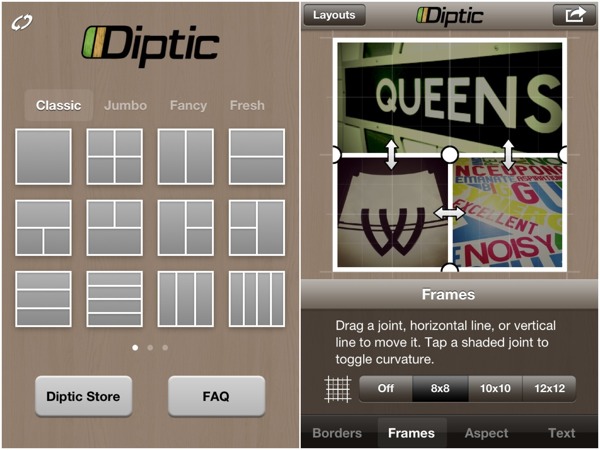
Whenever I need to make a photo collage on my iPhone, or put two screenshots side by side for a blog post, I use Diptic (99¢). It’s easy to use with plenty of options and sends your creations to pretty much anywhere you can think of, including, of course, Instagram.
It’s Universal too, and works great on the iPad, or Diptic for Mac (99¢) is also available if you’d prefer to make collages from the comfort of your laptop or desktop Mac.
Check Diptic out on the App Store, or read on for my quick review of how the app works.
Getting started with Diptic
To start making collages, launch Diptic and pick a layout. All the layouts that come with the app produce a square collage, as befits something destined for Instagram, but the range of photo frame shapes and sizes that fit within that square is wide enough to meet most needs, starting simple and getting as fancy as stars in circles – you can even start dragging the frames around to make new shapes that fit your photos.
The frames themselves can be tweaked all sorts of ways, including roundness of corners, colour and thickness, or using a texture. Want your frames to sport a classy zebra-skin effect? No problemo…
What if you want a rectangular montage, comprising two square photos side by side for example? Well, then you’d have to purchase an upgrade to unlock an aspect ratio control.
There’s a variety of in-app purchases in Diptic: new sets of layouts, new textures for the frames, and the aspect ratio control. All these are 99¢/69p and none are essential so it’s fair enough, but if you really want to use Diptic for anything aside from Instagram I recommend getting the aspect control as it’s really useful – I used it to put the two screenshots above together as one image.
Adding and editing images
Adding photos to your collage is as easy as shooting them for each frame, or choosing from your Photo Albums, Facebook or Flickr. Once in place there’s a handful of editing options (brightness, contrast, saturation and tint) and a whole range of filters that can be applied to individual snaps, useful if you used the camera in-app to fill a frame. Any blank frames you want to keep can be filled with a colour if you like.
There’s also some limited options to add text to your photos, offering a variety of fairly standard fonts, outline and drop-shadow effects, rotation and background. It definitely does the job, although if you’re looking for funkier fonts and more options for adding text to iPhone photos take a look at an app called Over (read my review of Over here).
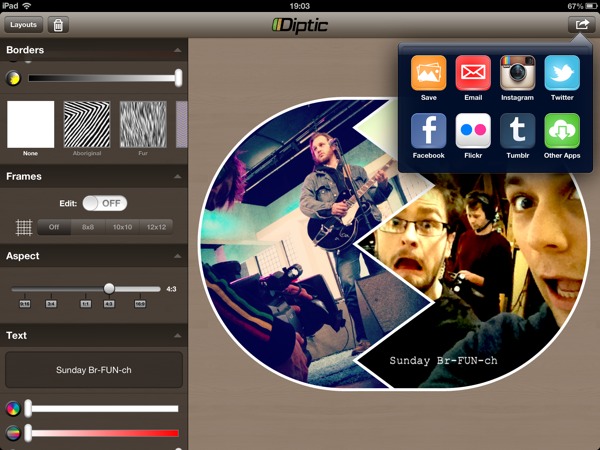
When you’re finished you can save and upload your collage right from the app, to Instagram, Twitter, Facebook, Flickr, Tumblr or Twitter; or export to any compatible apps you have installed. Recent updates have even added the ability to order a postcard and mail it anywhere in the world using Sincerely.com.
Plus, it’s Universal so you get the iPad version thrown in. There’s me using it to throw together something a little different with a couple of photos from my day job as a TV camera operator.
In conclusion
Diptic is by far the most popular option for creating photo collages on your iPhone or iPad, with good reason. I keep it installed because of the easy-to-use interface and the flexibility of creating non-square collages, which are good for so many more places than just Instagram. And don’t forget to give the Mac version of Diptic a try too!
I used to love Instagram. It had become my favourite iPhone photo app due partly to the ease of sharing to various sites at once but mainly because of it’s lovely filters which struck a good balance between light and heavy effects and had a subtle film-like quality to them at times.
Then it was updated to 2.0 and so many horrible things happened to it at once that I pretty much frickin’ hated it, and boy did I blog about it. In the many months that have passed, I have got over many of my issues with it and started to love it again. It is still flawed, but I love it nonetheless.
(If you fancy, you can check out what I’ve been doing with it at Instagrid, and I’m told that Carousel on the Mac App Store is also very good if you like browsing Instagrams on a desktop computer.)
My original issues with 2.0
If you haven’t already, you may want to read my assessment of the 2.0 update; it’s fairly long but there’s lots of pictures to look at.
Too long, didn’t read? Here’s the bulletpoints:
all the filters lost something of their character and in one or two cases became very different (Lord Kelvin particularly); while casual users may not have noticed or cared, as a user who came for the freebie but stayed for the filters, I definitely noticed and cared.
much-loved filters were dropped, notably the contrasty B&W Gotham filter. New filters introduced didn’t seem to have much to say for themselves and felt too similar to each other.
the tilt-shift tool lost the gradient slider that dictated the abruptness of the blend from sharp to soft, making it a much less satisfying effect to apply
I came to the speculative conclusion that the developers had re-written how the filters were applied in order to speed up the app and allow for a new ‘live preview’ function, and that the new method hadn’t captured the same film-like quality, leaving a more sterile feel overall.
At the same time, it crossed my mind that perhaps another factor was an intention to move away from the sort of look that Hipstamatic has typified and give Instagram a chance to outlive the current craze for over-the-top retro effects.
Either way, I decided to stick with version 1 and not update, but of course in time that proved to be too impractical and a few weeks and a couple of maintenance updates later I reinstalled and, yes, despite my complaints it has gone back to being my favourite photo app. So, I thought it time to post…
My updated thoughts on Instagram 2
I have niggles, but generally I’ve fallen back in love with it. It is back to being my go-to app for snapping a nice moment, and the availability of some less extreme filters contributes significantly to that.
I don’t use the live previews, good as they are; I might miss the moment trying to pick one so I shoot first and choose filters later. Occasionally I forget what that arrowhead bottom-right does so I tap it and up come the previews and I check them out, and they’re pretty cool. Seeing the moving image filtered makes me wish I could record footage with some of them, particularly Amaro.
I like how they’ve listened to users and changed how the filter scrolling works so filters don’t activate when you touch them as you scroll, and the list doesn’t wrap when it gets to the end. The new UI is smart and modern and on the 4S everything is super snappy.
A recent addition that wasn’t in 2.0 is the Lux button; it’s sort of an instant HDR effect, bringing out detail in shadows and highlights. On the downside it can introduce a lot of noise and the effect isn’t always even across the image, but it works as a toggle you can turn on or off at any time while choosing an effect so it’s dead easy to just try it and see if you like it; when it does ‘work’ it can be fantastic.
Another big bonus is how I can essentially post a Twitter update with image attached from the Save screen, so much so that it would be really cool if the app could optionally show you an effective Twitter character count; it’s too easy to type a long description in Instagram that gets cut off when the text and link is posted to Twitter.
As for their own social features, I follow a couple of friends and some people are following me but I don’t often check the Favourites page or keep up with ‘liking’ other people’s images other than friends, so I can’t comment on any bugs in that area; I understand several have crept into older versions of the app.
One thing I will say about the social side; on the rare occasions I dip in I find an awful lot of images that were not taken with the app. That annoys me. I don’t want to see your DSLR-shot HDR image you transferred onto your iPhone and uploaded, whether it’s been treated or not. I just want to see iPhone (and soon Android) images. Perhaps this could be mitigated by somehow encoding ‘100% Instagram’ captures with a tag that users can search for?
What about those filters?
The bulk of the app is the filters, of course, so here’s my big confession: while there’s simply no denying that in comparison to the originals they have lost something and look more sterile, my eye has, in time, gotten used to them. I’m finding increasingly often that I want to use a subtler filter on an image than I might have used in the past as I grow out of the habit of turning everything into a contrasty, super-saturated, fuzzy retro-look snap.
That’s not to say there isn’t a time and a place for that stuff, of course, and sure, sometimes I wish the new look filters didn’t look so damned clear and sharp under the colour layer (particularly Early Bird, which still doesn’t quite capture the mood of the original) but that’s the way they are now and as an alternative to the much-loved skeuomorphism of Hipstamatic, I’ve warmed to it.
A few new filters were added in 2.0 and I originally dismissed them for being too similar and subtle but it turns out that Amaro has become one of my most used filters, alongside other favourites X-Pro, Lo-Fi, Sutro, Brannan and Hefe.
Amaro is not too heavy, not too contrasty, and lends photos a subtle cold blue hazy wash that often summons up a sense of early morning light and imbues images with an indescribable character; there’s just something about it I love. If anything it makes me wish it’s companion filter, Rise, was a little warmer as an alternative.
Only one b&w filter?
What Instagram really lacks right now is black and white options. Black and white is a whole school of photography in itself and is noticeably under-represented in the filters with just one example, Inkwell, which I’ve rarely made a pleasing B&W with. They could fix this just by adding back Gotham, or something like it, a lovely contrasty B&W filter that got the chop in 2.0.
(An aside: I realise you can put a shot through Instagram more than once; you could use Inkwell twice, or follow it with something like Amaro to give it toning, but then you have to deal with something I’ll come to shortly – autosharing every version.)
Resurrect the gradient slider!
Another big disappointment in version 2.0 was the gimping of the tilt-shift tool. As it originally worked you set the size and shape of the sharp area then used a slider to increase or decrease the distance of the transition from sharp to soft. Version 2.0 removed the gradient slider and used a noticeably hard transition as the only setting. It mellowed a little in updates but the gradient slider is gone.
The reasoning, I would guess, is either that it didn’t fit any more, or that simpler is better. Perhaps both? Instagram has been a major success; a recent story at Lies, Damned Lies & Statistics suggests 20-25 million users as of the start of March 2012. Even more recent headlines suggest 27 million, and it’s coming to Android shortly.
Now, one key to reaching and maintaining a mass market of everyday users like that would seem to be a certain user-friendliness (often mistranslated as the removal of options) – Apple knows that only too well. Is that what’s going on here? Or was that gradient slider just not fitting onto the screen in the new design?
I would really like to see it come back. As it is now the tilt-shift can be quite inflexible as a creative tool. Sometimes you want a hard transition; other times you need it to be really subtle (such as creating believable depth of field in a fake tilt-shift). With a very soft feathering setting one could feasibly control the amount of blur in the image. Instagram 1.x gave you the tool to control all this; Instagram 2.x thinks you can’t handle it or don’t need it.
Perhaps the slider and the Gotham filter could stage some sort of comeback event, throw a party, make a it A Retro Thing. Both are sorely missed.
Auto-sharing niggles
Finally, and this really is a small gripe but one I wanted to explore, much as I love the easy sharing to Twitter, Facebook etc (if I want to), there is no easy way of taking a photo in Instagram and not sharing it to their own social network automatically the second you save it.
It’s fairly obvious why this is, of course; the social side is Instagram’s Whole Thing. There’s a reason Instagram is most easily described to newcomers as ‘like Twitter but for photos’ and put in that context, suggesting there’s a switch for turning off automatic publishing to their network seems like a pretty dumb ask. In most respects I agree but I’ll ask anyway because sometimes I really want to turn it off temporarily.
Thing is, I love the app and the pictures I make with it, but sometimes I don’t want to share. Maybe they’re personal family images, or maybe I’m at work on something I can’t talk about publically, or maybe I’m processing a photo several times before it’s ‘final’, or maybe I’m photographing multiple examples of every single letter of the alphabet to make a Christmas card, and I don’t want to spam my followers.
(These are all real examples in my case.)
Yes, I could use Hipstamatic or any of the hundreds of identikit photo apps instead.
Or, I could do that thing where you go into Airplane mode first so the auto-upload fails but the image is saved to your Camera Roll, and then turn Airplane mode off and remove the failed upload from the list.
Or, I could just deal with the fact that this is how the app works, and what their as-yet-unknown business model revolves around, so workarounds it is.
But still, it’s a niggling annoyance and one I’ve had to explain to friends at work who picked up the app after seeing me use it and then discovered they had to share all their pics with the world. Some people don’t want to, at least not all the time.
Maybe the app’s not for them. Or maybe there could be a switch that turns all sharing options off, including Instagram’s, kind of like Airplane Mode for Instagram. Go on. There’s so many people actively participating in the social side that I wonder, would it hurt to grant some of the users some privacy if and when they’d like it?
Not a biggie, though, even though I just wrote nine paragraphs on it and actually stopped to count them twice just so I could write this tenth one.
The bit at the end
Well, that’s my thoughts on Instagram 2 these days; the old filters are dead, long live the new same-but-different filters.
There is too much love in my heart for using Instagram but in the hope that asking nicely will maybe cut some ice at Insta-HQ, pretty please can we have Gotham and the tilt-shift gradient slider back, and how about my cool ‘Airplane Mode for Instagram’ switch, eh? 🙂
The creators of Hipstamatic have a new app in the Store. It’s called Hipstamatic Disposable (App Store link), it’s free, and if nothing else you should download it just to experience the user interface because it’s gorgeous.
As iOS photo apps go it’s as accomplished as you’d expect from Synthetic. However, despite how much fun it is to use, it’s quirks may put you off in the long term. I also have a bit of a problem with the in-app purchase model, and there seems to be a bug that causes unpredictable crashes. There’s lots I want to talk about because the app deserves it, but this is a fairly long post so you might want to get comfy, send it to Instapaper, or skip to the end…
First, some context
You may already know that I love toy camera photo apps. I know there are those who balk at the irony of emulating retro photography on a digital camera (and that’s fine, although if you’d like to share such opinions in the comments below, please don’t) but I really enjoy using them when they are done well, an achievement which is as much about the user interface and experience as it is about the final output. I loved the simplicity of Instagram until their 2.0 update left their filters feeling kinda neutered so I went back to Hipstamatic to sate my fetish for digital toy camera emulation.
The original Hipstamatic (App Store link) is the archetypal toy camera app: a detailed skeuomorphic UI that replicates the front and back of a plastic camera; interchangeable lenses and films; and a realistically vague viewfinder. Where it suffers is the abundance of choice – over 260 different lens and film combos alone. Thankfully, there are now settings to disable films, lenses or flashes you don’t like, plus a ‘shake to randomise’ feature that only uses filters you’ve approved for inclusion. This is how I use Hipstamatic now – launch, shake and snap – it’s quicker than hand-picking a combination and introduces an element of surprise when the resulting photo pops up.
Enter the D-Series with it’s crazy new ideas
The new app, Hipstamatic Disposable, keeps up the tradition of wonderfully detailed UI design but deviates from the template in a couple of significant ways.
First, instead of one camera into which you load different lenses and films, Disposable introduces you to a fictional range of disposable plastic cameras called the D-Series, each with their own effect and a slider to alter the intensity of each shot.
You get three cameras for freeChoose from a range of extra camerasEach camera has it's own realistic packaging
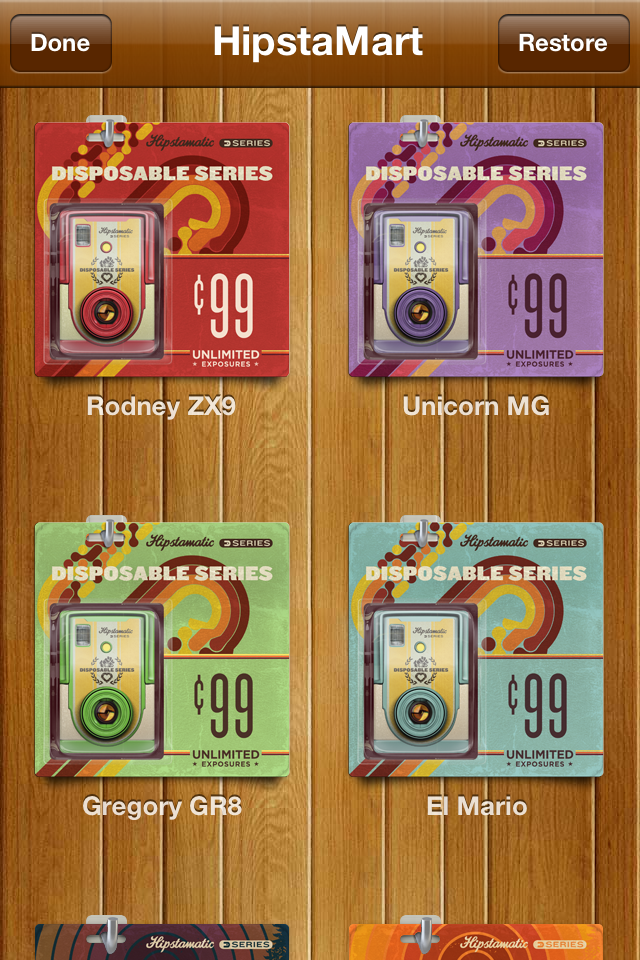
The app comes with two camera types pre-installed with a third free if you connect to Facebook (this is just to provide a network of friends to share cameras with, and no other purpose; more later). As in Hipstamatic, further cameras, or rather effects, are sold in-app via their HipstaMart where each camera hangs on a rack in its own cute cardboard-and-plastic retail packaging, just like Star Wars figures; like I say, they’ve put a lot of care into the details.
Currently four of the purchasable cameras are priced at 69p (99¢) for unlimited uses – that means that when the camera is ‘used up’ the camera itself respawns and you can start another (the included cameras are also unlimited); three further cameras/effects are priced in bundles with limited uses; nine uses costs 69p; 36 uses is £1.49 and 99 uses is £2.49. When those cameras are used up, that’s it. More on this feature later.
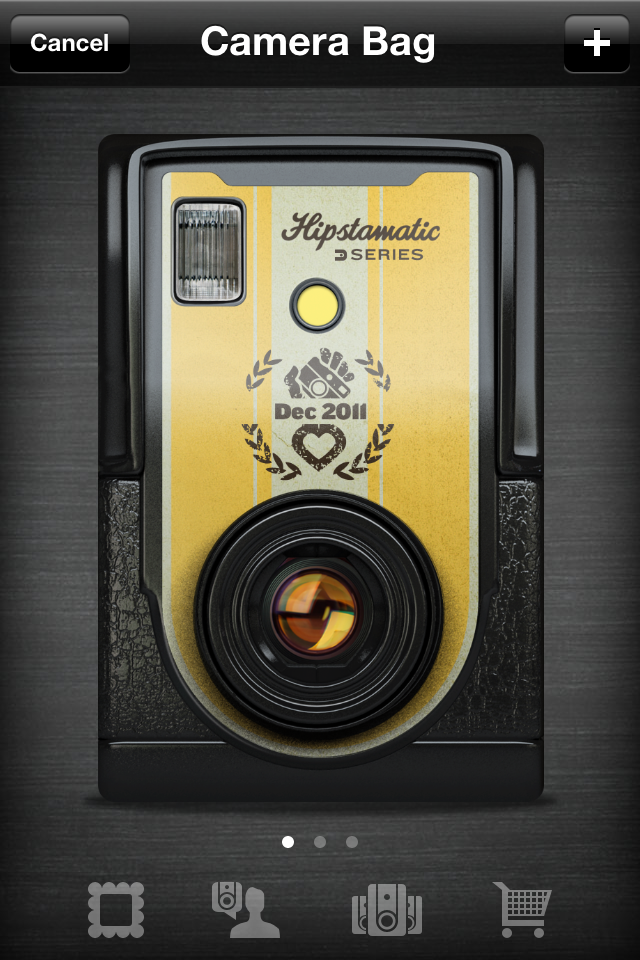
Swipe through active cameras or navigate to other screensPrint sets from completed cameras are collected hereSelect a print to see metadata and sharing options
The second big deviation from photo app tradition is that each of these cameras has 24 frames available to shoot and you don’t get to see any of the photos you’ve taken until you’ve shot all 24 frames, at which point the shots are processed and presented to you – just like the old days! From here you can save either the entire set or just individual images to your iPhone’s Photos app; by default the app automatically saves the entire set to Photos upon completion but I’ve turned that off while I test the app for this review.
Highlighting individual images shows you metadata including who shot the image, which camera was used, the intensity slider setting, location and date. One for the real camera users out there: the intensity slider appropriates f-stop numbers for the scale, from 2.8 up to 22. Nice touch.
The 24-shot nature means that, yes, I’m likely to often end up processing cameras that contain images from weeks ago as I drift between cameras taking ages to finish one; that could be frustrating if you value chronological order in your Photos app, but it’s not the end of the world.
Much more importantly, it brings a new sense of fun and discovery to getting ‘films’ back weeks after shooting them (just like the old days!). The sense of glee at re-discovering shots you’d forgotten ever taking has almost completely died out with the slow extinction of film cameras and the rise of digital, so kudos to Synthetic for bringing it back.
Also, such a limitation makes for a superb motivation to find projects that I can shoot in 24 frames – and then make them count; necessity is the mother of invention and all that.
Personalise each camera with a name and stickerSticker designs are bold and fun; names default to the dateI like the vertical design but it can be awkward to use
One of the most enjoyable aspects of using this app is the real attention that’s been lavished on every stage of the process. Every camera is so lovingly rendered they beg to be used. When you first pick a camera you get to name it, perhaps for the event you’re attending, but hey, why not call it Lord Percy? This is incorporated into the retro-inspired label you pick for the camera shell, each with three choices of colour scheme. The camera layout itself is nice and obvious, using a vertical orientation with the viewfinder at the top, the effect slider, flash, and a large friendly shutter release button below.
So, what if you don’t want to use the same camera for 24 shots before trying a different one? No problem – you can have more than one camera on the go at any one time (another reason you may want to name the cameras), switching to a different camera whenever you fancy.
The effects generally mark a welcome move away from the grungy extremes of Hipstamatic. Some will be familiar to Hipsta veterans such as the BlacKeys 44 and Foxy X69 (both premium purchases). An effect slider adds some variety; for example, on the Rodney ZX9 it adjusts the amount of zoom applied to a ghosted double-exposure that overlays your shot; on the Unicorn MG it controls the opacity of the rainbow-coloured light leaks.
The majority of effects are pleasing to my eye in some way although of the purchasable cameras I’d say they’ve definitely picked the right ones to charge more for; at least if you only go for the 69p options you’ve not lost much if you don’t use them often. But remember, once you’ve picked a look you’re stuck with it for 24 shots so pick well!
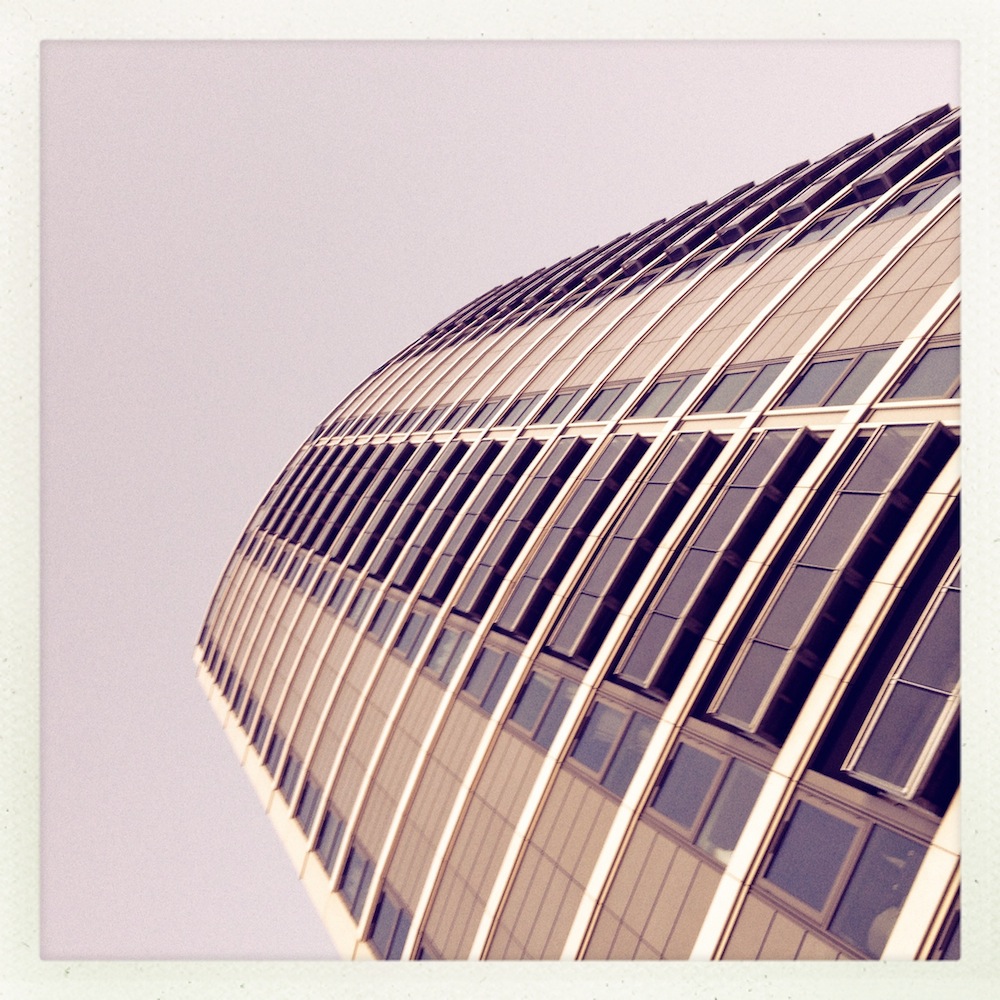
At the bottom of this review I’ve posted some of my favourite shots from the test reels I made while writing it. They aren’t going to win any awards but they might give you some idea.
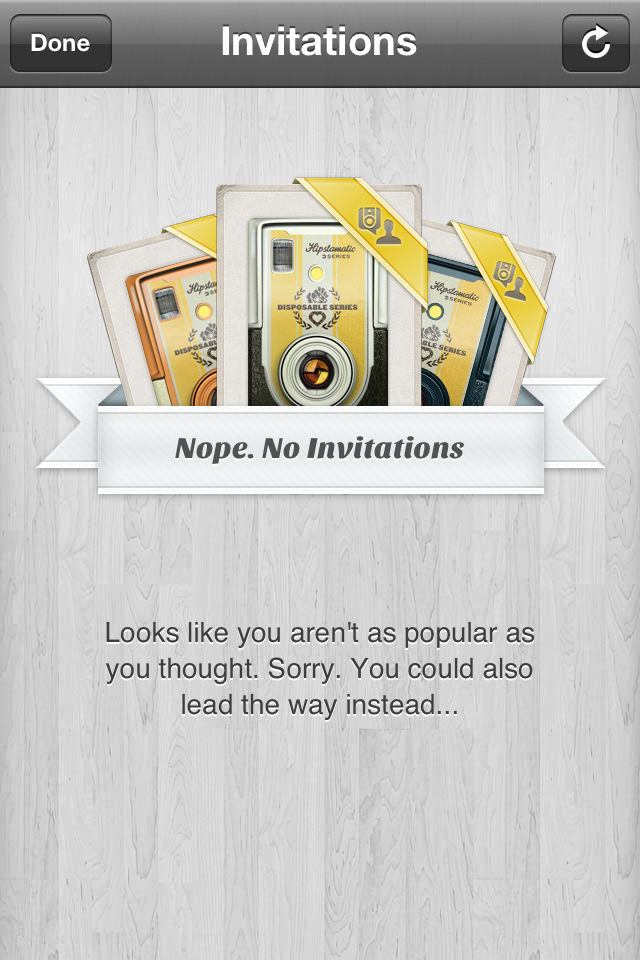
The Invitations screen if you're Billy No-Mates. Like me, usually.When starting a camera you can invite friendsJoining a camera invitiation from my brother
Disposable also has a social feature in which you invite friends via Facebook to start a shared camera (I know, I know; I hate Facebook too). Each invited participant starts a new camera and shoots images on their own phones. When all the cameras are finished everyone’s images are pooled, resulting in an album that gives a much wider range of moments than any one photographer would have captured. It’s Synthetic’s in-app version of having everyone dump their digital pics in a Flickr or Facebook event pool, basically.
(At least, I think this is how it works – I encountered some serious problems while exploring the social feature which I’ll explain shortly)
I love the idea in theory but it feels best suited to social events and I’m an antisocial bugger so there will be few such opportunities for me to make the most of it. However, I can see this being a big hit at a wedding or a party so long as there’s at least a few attendees that are Facebook friends and have the app (which is free of course, so no excuse there). In fact the more I think about how well this would work at events the more I think that social animals are the real target market.
For this review I asked my brother, all the way back home in Glasgow, to download the app and we shared some shots using the MegaZuck 84 camera. Or at least we tried to when we weren’t experiencing an appalling, almost non-stop…
… CRASH!
This is a real stinker; this version of the app (12, according to iTunes) has some unidentified issues which can cause a regular crash – as often as 10-20 seconds into launching the app. Although the app had been completely stable for several hours while I tinkered with it on my own, shortly after I connected with my brother via Facebook and started a camera with him I experienced my first crash and they kept coming. While we were shooting our cameras we had the same experience, no matter what we tried.
Once we’d both managed to complete our reels and our images were downloading to the other’s phone we continued to experienced crashes, but later on once my app stopped receiving new images from him it became almost completely stable again with very rare crashes.
Incidentally, the one camera we both managed to finish together despite the crashes isn’t displaying 48 images as I’d expected it to. There are 19 of my images, 8 of his. That doesn’t even add up to 24 so I’m not sure what’s going on there.
Later on I accepted two invites from him to start new cameras; I think he sent these earlier and I just didn’t get them amidst my crashiness. I was able to finish both cameras with just one crash towards the start both times. At this time he wasn’t using the app so perhaps it’s an active connection to another user that causes it.
(UPDATE, 24th Dec 2011: this morning my bro sent me a camera invite and started shooting on it himself and didn’t get a single crash. Later, when I accepted the invite and started shooting I didn’t get any crashes either. However, in both cases the other user wasn’t using the app at the same time. I still think it’s related to an active connection – or maybe the bug is related to server-side software as opposed to bugs in the app code, and has been fixed already?)
Either way, there’s lots of complaints on Twitter and the App Store review page so it’s the sort of thing that will probably be fixed very soon and then perhaps I’ll be able to work out how it’s actually supposed to work. Worth bearing in mind for now.
My niggles
… are a bunch of things that niggled at me but wouldn’t put me off completely. I just think that if they did it my way it would be that little bit better, obviously.
First, you have to shoot with the phone in the vertical position; if you go landscape the camera doesn’t auto-rotate. This fits with the ‘phone-as-toy-camera’ metaphor (real film doesn’t detect orientation) but limits how you can use the app; getting the lens very close to a horizontal surface (e.g., for a shallow depth of field effect) is harder and I found that surprisingly often it’s more comfortable getting the shot you want by turning the phone sideways. I know I could rotate specific prints once saved into the iPhone’s Photos app, but that’s just hassle, man.
Between Hipstamatic and Disposable I prefer the vertical alignment of the D-Series controls and also the fact that the viewfinder is close to the iPhone lens. However, I’d prefer it more if unlocking the auto-rotate ability was an option for those of us willing to break the illusion of a real toy camera.
I’ll briefly list my other niggles, in no particular order:
prints are square but the viewfinder is ever so slightly rectangular – wider on the horizontal. I was disappointed when I first realised my prints weren’t the same; there’s so many square camera apps on my phone that the variety would be nice.
on some cameras, particularly the Dreamy, moving the effect slider around didn’t appear to change anything noticeably
the only option to connect with friends is via Facebook. I would dearly like to delete my Facebook account forever but apps like this (and websites that choose to use the Facebook login APIs exclusively) force me to keep it hanging around. I asked @Hipstamatic if there was any chance of adding Twitter for friend connection and they replied that there was a chance, but not quite yet. They’d be mad to leave that on the back-burner.
in-app, you can view individual images with their notes but you can’t tap again to make the image full-screen on black and zoom in on details; you can in Hipstamatic and it would nice to have it here.
when shooting you can’t tap to set the focus or exposure point. You also can’t pinch to zoom but that really would break the metaphor so that’s fine. However, the camera’s getting to choose the focus and exposure so why can’t I? S’not fair.
once you’ve purchased cameras, you can’t change the order they are listed in your camera bag. I like to organise things in a way that makes sense to me; just needs an ‘Edit’ button.
if you start a camera and then don’t use it and want to remove it from your active cameras, you can’t; make sure you pick the right camera and the right name.
similarly, you can’t decide to have a film processed with blanks left; you could choose to do this in real life so technically it should be there, right? 😉
(okay, the last two are really picky. I realise the option to end an unfinished camera would rather kill the mood but what if there’s a handful of event snaps at the start of a camera and then you have to shoot 20 unrelated snaps just to get access to them? Nnnngg, dammit)
About those IAPs
As mentioned above, some of the purchasable cameras (effects) in the app are not unlimited. These limited-use cameras follow the real-world metaphor that when they’re done, they’re done, and you gotta buy new ones.
When I first heard about this idea of charging per shot in a digital camera app, I was pretty damn outraged. In the original version of this post at this point I went on for several paragraphs wrestling with outrage versus the fact that the prices really won’t break the bank and the app is free as it is and even a 36-pack will take so long to get through it may as well be ‘unlimited’, but then again it still doesn’t assuage my disapproval of charging per shot for digital, and so on…
(At current prices I calculated the use per 24-shot-camera at 7p each for the 9-pack, 4p for the 36-pack and 2p for the 99-pack)
As I considered and reconsidered, I slowly realised that… actually… I find it strangely appealing that in this fantasy world of the iPhone-as-disposable-camera I have to pay for opportunities to use a particular model of camera and then shoot all the shots before I get any back. It does actually lend a certain sense of importance to each frame you shoot, because you’re paying (hardly anything whatsoever) for it.
And I hate that I have to admit this because I do think it’s a dangerous precedent to set for IAPs in photo apps simply because unlike film, digital photos don’t incur a cost-per-shot in the same way; however, I’m forced to admit Hipstamatic Disposable actually gets away with it purely by virtue of the effort that’s gone into maintaining the illusion of reality throughout the experience.
So don’t anyone else get any funny ideas.
I should add that although I haven’t verified it, I think that when Synthetic first released the app their rates for the IAPs were not as good value as they are now and may have been pressured into bettering them by user complaints. So long as they spread the love with a mix of unlimited and limited IAPs in future I could live with grabbing a 36-pack of my favourite premium cameras. I doubt I’d run out any time soon.
In conclusion
Realistically this won’t completely take over from the other apps I use daily due to the convenience of their one-shot nature, but the enjoyment I get from using the D-Series cameras is such that I want to find ways to use them; I’ve got a couple of cameras on the go right now and I’m looking forward to the day I get them all back, whenever that may be.
And the IAPs? I still think it’s a bold step to charge users per shot to take digital pictures but look; the rates aren’t bad for the actual usage you’ll get; it makes some crazy sort of sense in terms of the whole package; and, perversely, it really does immerse you in the experience of using the D-Series cameras, which is what I’ve been raving about throughout this post.
Sadly, at this time it certainly seems to me that the social features, which appear to work in principle, are the cause of such a persistent crash bug that I can’t recommend using them – my brother was so unimpressed with a crash every ten seconds that he’s not bothered to launch it again since he completed one shared camera with me. If it had been my only experience of the app, I’d have deleted it by now as well.
So overall? It’s such a fun app with such new ideas to change your iPhone snapping that you’d be daft not to give it a go and see how it might fit into your day. Maybe just wait until they fix the crippling crash bug first (or stay well away from the social features until they do).
Thanks for reading. If you’d like to comment on anything (except about how fake toy camera apps are the reason proper photography is dying and all that stuff) I’m @myglasseye on Twitter.
 Bartender, by Surtees Studios, is a natty wee Mac menu bar app that whisks up some or all of the clutter over on the right hand side of your menu bar and keeps it hidden away behind an icon of your choice. It’s perfect for keeping in check all those handy third party apps that put an icon up there, and can even manage the system items like the Airport, Date & Time, Bluetooth and Notification Centre menus.