Categories
iOS & Mac how-tos

Migrating from Google Reader

July has arrived, almost, and that means Google Reader has just days left. If you haven’t taken steps to migrate your RSS data out of Google Reader, now’s the time.

The best solution is to download a backup of your subscriptions from Google Reader to import to whichever Reader alternative you go for. You can also simply sign in to Feedly with Google Authentication and they’ll automatically import the same info to their new cloud system.

I recommend you do both:

Download your feeds from Google Reader

Log in to Google Takeout and select Choose Services, then select Reader in the list. Click Create Archive, wait until it’s compiled, and download the file.

You can import this file into one of the new RSS sync services that’s springing up to take Reader’s place; more on those in a second.

Auto-import to Feedly

This is a quick backup plan but also serves as the easiest way to get started come June 1st. Head over to feedly.com, or on a mobile device grab their app (iOS or Android), and log in with Google Authentication.

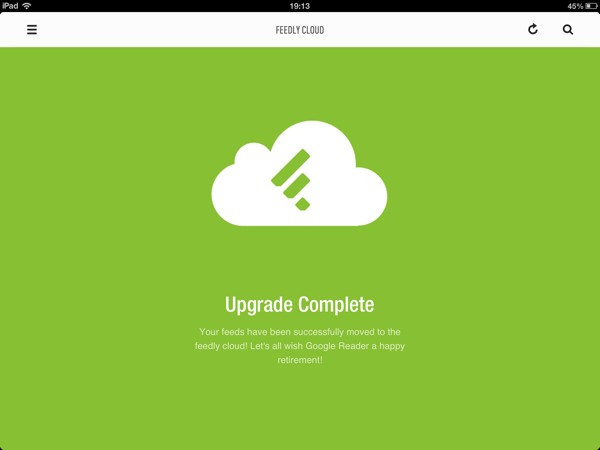
Until July 1st this will give Feedly access to your Reader feeds as per usual, but it will also automatically sync those feeds over to Feedly’s own cloud service in the background. When Reader shuts down, you can continue to log in to Feedly with Google Auth but all your feeds will now be served by Feedly.
Feedly google reader sync

End result, you now have a copy of your feeds you can take anywhere, and a Feedly sync option already set up to use in any of the apps that currently support it.

Which RSS service and apps to use?

Three of the big syncing services are Feedly (free), Feed Wrangler or Feedbin (both paid) but the decider will likely be how you want to read your feeds because not all apps support every sync option.

Lex Friedman at Macworld has got you covered with a look at all of the RSS services and some of the best apps. One very good point he makes is that Feedly being free should be a red flag:

To me, that’s a knock against it. If Google—Google!—couldn’t figure out a way to monetize this kind of service, I’m not sure anyone can.

I’m waiting to see which of the paid options offers the best experience before I put down money, although to be honest neither are remotely ‘expensive’ for the peace of mind a paid service offers, but for now I’m running with Feedly for feed syncing.

I’ll be able to keep using Reeder on the iPhone but I’ll have to switch to something else on my iPad and my Macs as neither of those versions of Reeder supports Feedly yet. I’ve decided to try out the much-recommended Mr Reader on my iPad, and… Well, nothing on my Macs. I’ve found that since getting iOS devices that I use my Macs much more for work than for play so not even having the temptation for procrastination via feed-refreshing might be a good thing.

If you’re dependant on a Mac reading option the newly released Readkit ($4.99) supports Feed Wrangler and Feedbin, and Feedly works in your browser of choice, but there’s precious little else supporting it right now on Macs.

Not long now… Goodbye, Google Reader!

Categories
Editorial Other how-tos

The music of Harry Bosch on Rdio and Spotify

Michael Connelly’s series of crime thrillers featuring LA detective Harry Bosch are amongst my favourite reads of all time, rubbing shoulders with the creations of Chuck Palahniuk, Douglas Adams, Douglas Coupland and Jo Nesbo. The books are flavoured with references to the music Harry unwinds to and it was through these references that I was introduced, ashamedly late in life, to the likes of Miles Davis, Duke Ellington, Art Pepper and more.

There’s a handy page over at Michael Connelly’s site listing the artists, albums and tracks mentioned in all his books (including the non-Bosch books), and a link to a short Spotify playlist but that only has a dozen or so tracks so I thought I’d put together a fuller version using Connelly’s list.

I’m an Rdio subscriber so I’ve done one for both Rdio and Spotify:

The Music of Harry Bosch on Rdio

The Music of Harry Bosch on Spotify

Where only artists are mentioned I’ve left them out for now until I can research the best tracks to add. There’s also some gaps due to unavailability (the elusive Tomasz Stanko, please stand up) and I’ve elected not to include a few things (sorry Rod Stewart, you’re just not my bag, baby), but with around 50 tracks there’s plenty to get your ears around.

Enjoy – and if you’d like to suggest some additions feel free to get in touch in the comments.

Categories
iOS & Mac how-tos

How to sync Mac XCOM saved games using Dropbox

UPDATE: XCOM is now available on Steam for Macs, but beware – it’s not the Elite Edition. You can buy the standard edition and the relevant DLC from Steam but at regular prices it’s cheaper to just buy the Elite Edition elsewhere. If you want to sync your saves over Steam, that’s the version to buy. If you’re using the non-Steam version, read on 🙂

ORIGINAL STORY: XCOM: Enemy Unknown – Elite Edition for the Mac ($50 on the Mac App Store) is not available on Steam and doesn’t use iCloud so there’s no way to sync your saved games between multiple computers running XCOM. Don’t despair! Here’s how you can use a free Dropbox account to do just that.

First off, this is all much easier if you install the Symbolic Link service I wrote about in this post, otherwise you need to use the Terminal command line. If you know how to create symbolic links in the command line and prefer that method, go for it, but this tutorial assumes you’ve installed the symlink tool available here.

You’ll also need a Dropbox account with a few MB free to store the XCOM SaveData folder. If you don’t have one, a basic free account is all you need and you can even get a bit of extra storage by signing up via my links.

Locate the Mac XCOM saved games

First, choose the computer which contains your ‘master’ saves, the ones you want to sync to other machines. They are stored in the Application Support folder, which lives in the user’s Library folder, which is hidden by default. To open it, in the Finder select the Go menu, then hold down Alt and select the Library item which appears. Now navigate to Application Support -> Feral Interactive -> XCOM Enemy Unknown – Elite Edition’.

Alternatively, from the Finder type Command-Shift-G and enter ‘~/Library/Application Support/Feral Interactive/XCOM Enemy Unknown – Elite Edition’ and press Return.

See the SaveData folder in the XCOM folder? That’s what we’re going to sync in Dropbox.

Move the saved games to Dropbox

Now open up your Dropbox folder in a second Finder window, for ease of dragging-and-dropping. It doesn’t matter where in Dropbox you move the SaveData folder to, but because I have a few apps using this syncing system I’ve replicated the Library -> Application Support -> ‘ApplicationName’ folder hierarchy so I can always find things later.

Drag the SaveData folder from the XCOM folder into your chosen location in Dropbox, making sure it’s moved rather than copied.

Now right-click the SaveData folder in its new home in Dropbox and select ‘Make Symbolic Link’ in the contextual menu.

Move the newly-created symlink (which will probably be called ‘SaveData symlink’) back to the original location in the XCOM folder in Application Support, then edit the name so it just reads ‘SaveData’.

Set up your other computers

On each computer you want to use, find the newly-synced SaveData folder in your Dropbox and create a new symlink to it as before, then drop that symlink into that computer’s XCOM Application Support location described above, delete the one that’s already there (assuming there are no saves in there you want to keep!), and rename the symlink to ‘SaveData’.

That’s it!

Now whenever you manually save in XCOM the game saves to the SaveData folder in Dropbox; once the new save file uploads to DB you can continue the game on any Mac or PC you link to your DB account.

A few notes:

• this doesn’t sync AutoSaves so remember to manually save before you quit;

• if you later move the SaveData folder to another location in Dropbox you’ll need to recreate the symlinks or they’ll stop working;

• finally, with this unofficial method of Dropbox syncing it’s usually advisable to only run the app on one computer at a time in case conflicts are introduced, but it shouldn’t matter in this case as saves are only read once while loading so technically you shouldn’t need to worry about it.

You’re all done – enjoy!

mac-app-store-available

Categories
iOS & Mac how-tos

Star Command tips & tricks to avoid frustration

Star Command is a frustrating, fiddly, poorly-thought-out attempt to put you in command of a starship. If you need some tips and tricks to make it less frustrating and tedious, you came to the right place.

Tip 1

Head over to the FTL site, buy their game for Mac, Linux and PC.

Tip 2

Delete Star Command and try to forget about the coffee you could have bought with that cash instead.

Tip 3

Play FTL and get to really command a starship, with crew that don’t need to change jersey just to fire a phaser or pick up a spanner, and weapons that don’t require you to play a stupid timing game just to fire them at the enemy, where dying and starting over with a new crew and a new map is all part of the fun and is actively encouraged, and you can pause the action to issue orders to your crewmen, which doesn’t slow down when things get tricky, and doesn’t crash because you’re using a device that’s just over a year old…

There, that was easy! 😉

Categories
How-Tos

How to watch Classic Doctor Who on Netflix from the UK

netflix classic doctor who

The problem with Netflix is that they don’t have permanent rights to any of the films and shows on there (apart from their own creations like House of Cards and Arrested Development 4 of course) and they don’t like to tell anyone how long is left on any given show. So when almost all the classic Doctor Who Netflix episodes were suddenly removed from the UK library in April, a lot of subscribers were pretty unhappy and many considered ending their Netflix sub.

While there’s now only a handful of classic Who eps on UK Netflix, there’s still dozens on US Netflix. In fact, the UK Netflix is pretty lousy across the board, especially compared to what’s available in other countries. If only there was a simple, cost-effective way to watch any Netflix title from anywhere in the world…

And there is! There’s a fantastic service called Unblock Us that costs just $4.99 a month (with a free 7 day trial) and gives you access to not just global Netflix, but any website or video service anywhere in the world, from whichever device you like.

And that means that a wealth of classic Doctor Who episodes are suddenly yours to watch again, mostly spread across the US and Canadian Netflix libraries. For an up-to-date list of what classic Who stories are available and where, check out this custom search at MoreFlicks.com then head over to Unblock Us and set your account to the relevant territory – easy peasy.

Welcome back, Doctor – it’s about time!