
A couple of days ago I wrote about my new iCade and how much fun it is, but that I don’t like the stiff, clicky buttons or the way the stick can slip into the diagonal directions too easily. The parts I ordered to improve the experience have arrived so in case you fancy trying the same thing, here’s a guide on how to fit them; click on any photo to enlarge it.
The new parts

Clockwise from top left I have:
- Sanwa Ball Top Joystick JLF-TP-8Y – I went with Pac Man yellow for my ball top, but the original red iCade ball will fit too. Make sure when ordering that you don’t get the widely-available 8YT version as that comes with a metal plate attached which is apparently a pain to remove. If you’re interested in what the letters and numbers in the name mean, there’s a good explanation in this Shoryuken forum post.
- 8 x Sanwa Snap In Pushbuttons OBSF-30 – these need a 30mm hole in the control panel to fit them whereas the iCade stock buttons are 28mm so you’ll need to widen those holes a little with sandpaper or a sanding tool. They have a slightly convex top and are far quieter with a much lighter tap required to trigger them. The lip around the buttons is pretty much the same size as the stock buttons so they should all fit okay. I went with red, yellow, white and black to match the iCade’s panel designs (didn’t fancy blue).
- 5 Pin Joystick Cable JLF-H – one end plugs neatly into the new joystick. The other ends will need to be attached to the wires that currently run from the circuit board to the stock joystick, either by soldering or using a screw terminal. I went with the latter because I’ve never soldered anything in my life.
- Sanwa Octagonal Restrictor Plate GT-Y – this is the ‘gate’ that restricts how the joystick moves. The joystick actually comes with a square gate that can be rotated 45 degrees (see my iCade review) but I’ve read that octagonal is the way to go for total control.
Total delivered from Gremlin Solutions: £50.36. Birthday, remember?
You’ll also need a few tools:
- the hex allen key that came with the iCade (or similar)
- Phillips screwdriver
- small flathead screwdriver (if you’re using a screw terminal)
- possibly a Security Torx screwdriver – my iCade control panel had two Security Torx screws but I read that other modders had no such screws in theirs. I guess Ion changed the design at some point. Security Torx heads are like regular Torx heads but with a pin in the centre that requires your screwdriver to have a hollow tip.
- soldering kit or 5-way screw terminal
- sandpaper or a Dremel sanding tool
- a cable tie
Let’s get cracking
First we need to open the control panel. Remove the sides of the iCade and turn the control panel upside down to reveal the screws you need to remove.


There’s 16 in total, including those pesky Torx screws (if you don’t have them it’s just 16 Phillips head screws). Keep them in a dish!
Then rest the iCade on it’s back and lift off the panel carefully.


You need to remove the wires from the switches but before you do so draw a diagram of the underside of the board and note which coloured wire is attached to each button; they all have one black ground wire as well, you don’t need to note that.
Mine were tough little buggers to remove and nervous sweaty hands didn’t help, so I used my Leatherman pliers to grasp the necks of the metal clasps and tug firmly.

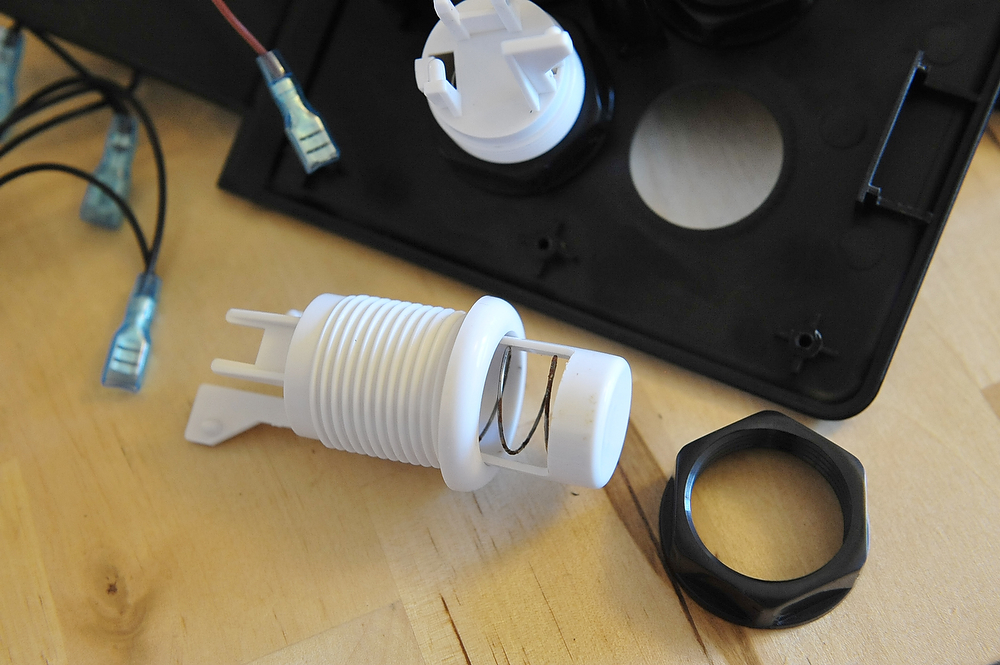
The black switches need to be removed next. Pull gently on the tall strut holding each in place and you can wiggle them out easily.
Finally unscrew the nuts and slide the buttons out; some of those blighters are tight but rest assured that none are glued on even though it bloody well felt like it.
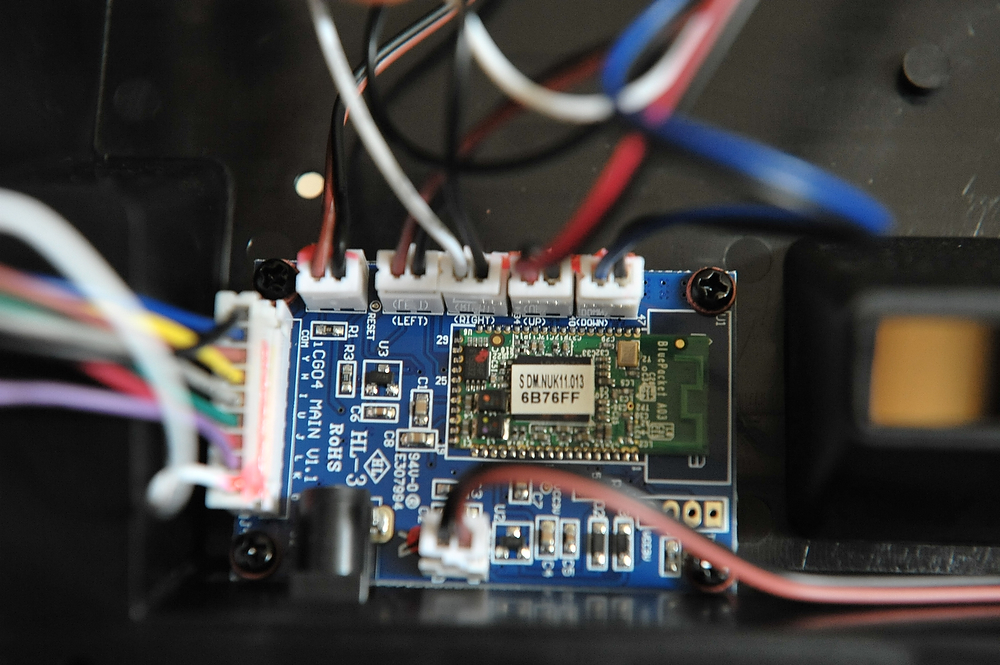
Before you remove the joystick, take a look at the iCade’s circuit board; where the joystick wires are attached there should be the directions printed in tiny lettering on the actual board. If so, great. If not (highly unlikely) then before removing the stick take a note of which of the coloured wires is attached to each directional switch on the stick.

Now pop the ball and dust protector off, remove the four screws and keep hold of them for later; then slide the stick out and cut the wires as close to the switch connector as you can so you have some spare when soldering/connecting.

The new buttons need a wider hole, by a couple of millimetres. I have no sanding tools so I got some sandpaper and did it by hand which was easy enough but took me about an hour, and boy did my wrist hurt the next day.
You’ll also need to sand the hole for the stick by a millimetre or so, to fit the lip at the base into it.

The buttons clip in easily; make the re-wiring easy on yourself by aligning the buttons so the switches beneath line up the same way. Then, looking at the buttons so SANWA is printed the right way up, clip the appropriate coloured wire onto the left contact and the daisy chain of black wires onto the right contact.
The joystick is a little trickier. Technically it doesn’t matter which orientation you mount it so long as you connect up the wires appropriately, but our hand is forced because we need enough room to clip on the 5-wire bundle safely. The best position is to have the stick connector (or PCB) facing the iPad, towards the back of the case.
However, if we just rotate the entire stick to achieve this, the iCade’s screw connector gets in the way of the stick’s plastic moulding; you can see them sticking out either side in the first image below. Therefore, we have to mount the base with the protruding mouldings top and bottom. That would place the PCB on the left or right side, so we have to rotate that as well, to take account of the stick mount rotation.
Don’t worry, it’s easy 🙂


Unclip the existing square gate from the stick (again, note that this gate can be rotated forty-five degrees into a 4-way stick if you prefer). The PCB and four switches are all one piece and can be lifted off together, rotated ninety degrees and replaced. Then attach the octagonal gate (or your original if you’re happy with that) and you’re done.
Position the stick so the PCB faces up towards the back of the case, making sure the mounting ring sits properly in the widened hole, then attach it with the four screws that held the original stick.
Nearly there! All that’s left is to connect the directional wires to the 5-wire bundle. It’s best not to clip it on just yet, so that you don’t risk pulling on wires while making the joins.
Because we rotated the connector and the switches, we need to re-map the directions and as luck would have it there’s a brilliant guide to doing just that available here, which for ease of reading I’ve reproduced below with full credit to the original creator, rtdzign.

The guide shows the view of the stick from beneath. With our PCB in the top position we want the bottom left picture. I have a Sanwa stick so on the 5-wire bundle I need to connect yellow to the UP wire, green to DOWN, red to LEFT, orange to RIGHT and black to ground.
You’ll have noticed there’s 4 black ground wires coming from the circuit board. As the stick uses a common ground you only need to use one of those four, doesn’t matter which; you should tape up the ends of the others so there’s no chance of metal contact in the future. I’ve read of people merging all four into one and connecting that, but I preferred the simpler way.
I used a screw terminal but if you fancy a spot of soldering then you might like this soldering guide on the Touch Arcade forums.
So, got your wires all connected up? Time to clip them onto the PCB and then fire it all up and make sure it works.
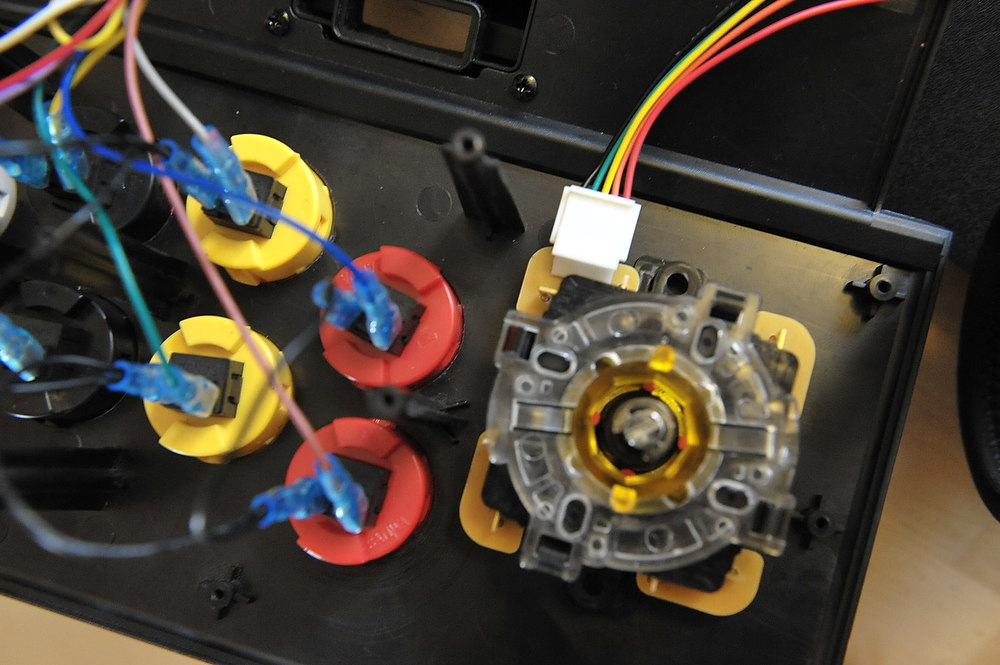

And assuming it does, you’re done! I got it right first time, thankyouverymuch 🙂

Grab a cable tie and tidy up that bundle of joystick wires, then tuck everything in neatly, make sure nothing’s trapped and start screwing the case back up, casually tossing into the bin any Torx Security screws you may have encountered along the way…

I have to tell you, the difference is huge. It was well worth the effort. Games like Pac Man, Silverfish HD, Hard Lines and Forget-Me-Not are so much more pleasurable due to the improved accuracy of the U/D/L/R directions with the octagonal gate; your high scores will improve, guaranteed.

The buttons are a different world. A feather-light press is all that’s needed and when hammered they make nothing like the cacophany the stock buttons do, plus you don’t feel like you’ve been for a workout. In something like Super Crate Box where reaction speed is key (thanks to the crazy big collision box around your character), the hair-like trigger on them is superb.
If you’re on the fence about trying this but fear of cracking the iCade open is holding you back, rest assured if I can do it, you can*.
Thanks for reading, and good luck!

* By the way please don’t hold me to that. It really is simple but if you’re disasterously bad at stuff like this and you go ahead and try it and screw it up by doing something stupid like cutting all the wires at the wrong ends or something, all bets are off and I will deny any legal responsibility to my claim that “if I can do it, you can”.
But seriously, you probably can.
UPDATE: a fellow iCade modder called Tom got in touch in the comments:
It was all going so well, up until it came time to attach the new joystick. The 4 original screws do not fit the new joystick, the holes are just slightly too large. I did purchase the same joystick, so I’m not sure what happened.
At first we thought this may be because some iCades appear to have been built slightly differently – the Torx screws don’t show up on every iCade, for example – but he got back in touch shortly afterwards by email to explain the solution:
It turns out that the screw holes on the joystick (both of them) are not threaded, they are just smooth holes. If you take the joystick apart, there are some hex nuts behind those smooth holes and that’s what the screws go into that secure it to the panel. It’s impossible to see this without taking the joystick apart. You may have mentioned this in your page, but I don’t recall seeing it. On the original joystick the nuts are glued inside the holes, so it takes a bit of work to get them out, but once you do, they fit into the new joystick no problem. Problem solved!
There were 2 nuts in each socket, so eight nuts total. I used a small socket and a hammer to get them out. Make sure the socket is big enough to not go into the threads.
I had the security torx screws too and managed to get them out with a very small straight slot screwdriver. There’s way you can leverage that nipple to actually unscrew it without having the tool, but again, you have to have a really small screwdriver.
He also included the following photo, adding:
You can see where the hex nuts would go quite easily in this pic. This is the old controller, inside view.
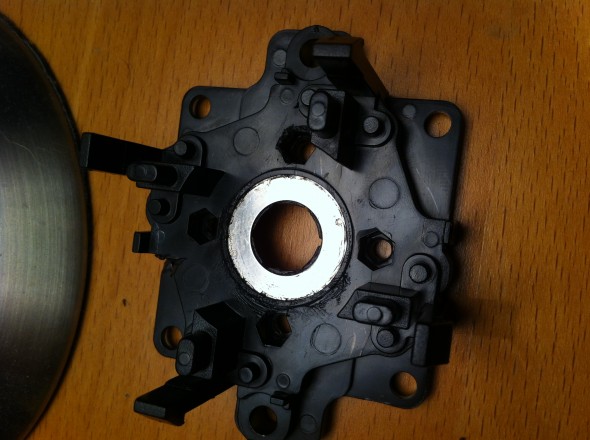
So if you’re having similar problems, hopefully this will help. Thanks, Tom!


