
Categories
iOS & Mac how-tos iOS & Mac reviews

How to add text to Instagram photos with Over (and Photolettering)

Instagram text 06Recently I’ve often found myself wanting to add a bit of amusing or descriptive text to a photo I’m tweeting, sending to friends or posting to Instagram. Of course, there’s no option to add text to Instagram photos within the app itself, so you’ll need to look to other apps.

I did a little asking around and two apps came back in recommendations so I gave them both a good go. After a few short bouts there was a conclusive winner, which I will now present to you by employing an over-stretched boxing metaphor:

The Contenders

In the Red Corner, suggested by friends, we have Over ($1.99), a Universal app which includes 30 eyecatching and fun fonts and offers dozens (and dozens!) more ‘standard’ fonts for a single in-app-purchase of 99c. To be fair, you can easily do without these as the ones included are great.

In the Blue Corner, recommended by no less than John Gruber amongst others, we have Photolettering (Free), an iPhone-only app which offers 3 fonts at first, with 20 more fonts available to purchase for 99c each, or $9.99 for all 20. The complete set is comparable in style and diversity to those included in Over.

Round one – value for money

On this basis Over clearly wins. Photolettering might be free but buying its full complement of fonts will run to five times the price of Over’s basic cost, and Over still has more choice. Furthermore, the three basic fonts it comes with are pretty bland.

It could be that for what Photolettering is offering, their ‘buy everything’ price is more realistic and fair to both them and the customer, and I’m all for that. But Over offers considerably more variety for the same price Photolettering charges for just two extra fonts, let alone Over’s vast range of standard fonts included in the single in-app purchase available.


A selection of Over's thirty available fonts The three fonts that come free with Photolettering

Round two – functionality

This is more evenly matched with each app offering some unique features, as well as the usual standards they both share such as social sharing, and a postcard function via Sincerely.

On the ‘unique feature’ front, Photolettering lets you rotate text easily using two fingers, something Over doesn’t offer at all. It also offers several two-tone fonts and control over each colour, background colours (if you don’t want to use a photo), and a choice of three basic filters which amount to Sepia, B&W, and Vivid.

On the other hand, Over offers multiple layers of text, meaning you can place several different text elements on your photo and style each one differently. It also includes a crop tool which only has one shape – square – but is perfect for setting up an image for Instagram, and the ability to darken the background photo to give your text some pop.

Photolettering has a crop tool, but only at the end of the process, and only if you decide to send to Instagram, so if you’re wanting to post it you need to plan for that as you add your text.

If you try to load in a pre-squared image, add lettering and then post to Instagram, Photolettering still forces you to crop a portrait-shaped image out of it, then add the text, then crop a square image out of that. You can avoid this by pinching the square image size to fit into the portrait crop, but the whole process is pretty ridiculous compared to how Over offers the same tool.
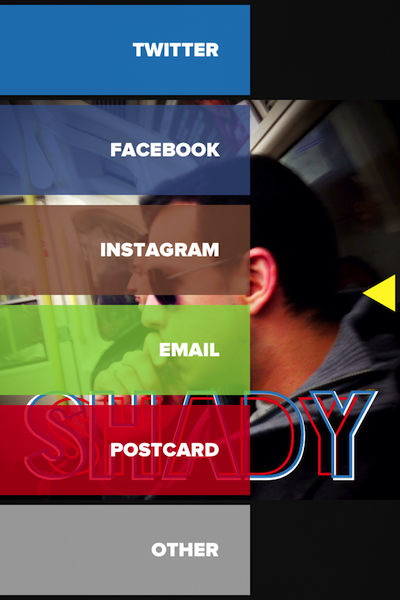
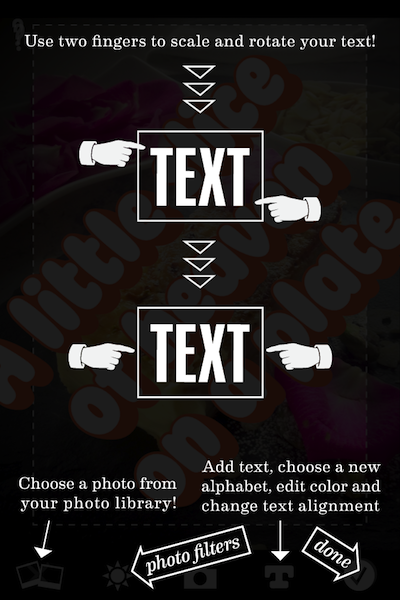
The sharing screen in Over A tutorial screen in Photolettering

Round three – experience

Okay, ‘experience’ is a little fancy-sounding, but that’s what we love about apps, right? How fun, easy, intuitive, and satisfying they are to fiddle with?

Photolettering is by far the plainest app, both in presentation and workflow, with one text layer and a simple tab-based navigation. It’s functional, it gets the job done – and you can rotate text, which is cool, but the whole cropping/Instagram process it uses is pretty dumb.

Over is much more stylish with a slick dial-based navigation and semi-transparent menu overlays. The dial can be a little disorienting at first, and they waste ‘More’ on an advert page for other apps, but the overall effect was more compelling.

But Over clearly wins the round with multiple layers that let you give every word its own font, position and colour, or create interesting effects by overlaying – something that works particularly well with the Blackout Sunrise font, and more than makes up for its lack of two-tone fonts.

Instagram text 06

Instagram text 01

The Winner

It wasn’t really a fair fight, was it? Over very clearly takes the crown for me. The only thing I’d nick from Photolettering is rotating text which sounds like a very update-friendly feature to me, hint hint.

So for all your text-on-iPhone-photo fun, my hearty recommendation would be to check out Over ($1.99) on the App Store.

Thanks for reading!

Categories
Other

Creation, consumption & the ‘post-PC world’

I am getting frustrated with continuing arguments over whether the iPad, or tablets in general, are capable of ‘content creation’ or whether they are only good for ‘content consumption’; and what ‘post-PC world’ even means when PCs are still the most used device in professional computing.

The whole “is it any good for content creation?” question needs to be taken out back and quietly disposed of – for one thing because the answer is “Yes” (that’s why there’s so many text editors, photo editors, drawing apps and music apps available in the App Store), and for another thing because the question is a classic strawman, limiting respondents to a binary answer that doesn’t accommodate all the options.

iPads are, I would wager, largely bought by average members of the public. How many average members of the public ‘create content’ on any device at all, even on their desktops and laptops? Just because a lot of people don’t create content on the device does not by any means relegate it to being purely a consumption device by default, and yet that seems to be the argument so many critics subscribe to.

A much better question to ask, if we’re going to analyse how the iPad is used, is “how can it be used to assist you in your job or hobby?” or to spell it out, “how can it be used for things other than reading books, watching videos, listening to music, and other activities typically referred to as ‘consuming content’?

(And don’t get me started on the glibness of reducing the appreciation of an artists work into mere ‘consumption’ of their ‘content’ – I imagine the sorts of people who use the phrase willingly as soul-less shallow husks of humans. Just so you know.)

Off the top of my head, here’s a few that are neither creation nor consumption as usually defined in this argument:

  • using it as a teaching aid
  • making photo selects during a shoot
  • taking payment via Square
  • flogging wares on eBay
  • running a stocktake from a spreadsheet
  • using a reference book/app specific to your vocation (hello doctors and pilots!)

Why ask this question of tablets, anyway?

Let’s take an average multi-functional office in an average industry that doesn’t focus on creation (think ‘The Office’ if it helps) in which everyone uses a computer for variety of officey-things, such as analysing finances, making purchases, organising shift patterns, closing deals, chasing leads. Whatever. I don’t work in this (or any) office so I don’t have much experience, but you can’t tell me that everyone in that office that uses a computer in some way for their work would categorise everything that they do that isn’t ‘consumption’ as, by virtue of it being the only other option, ‘creation’. Their computer is a tool.

If you wouldn’t demonstrate a computer’s validity as a tool by asking “But can it do content creation?” why is it appropriate for a discussion of tablets?

Of course, just because you can do something work-related on a tablet doesn’t always mean you would want to. I could perform tweaks to my RAW photos on an iPad using Snapseed, but unless I need to in order to send a client a shot quickly, I’d rather just wait till I got home and put them through Lightroom due to the extra power, screen space, functionality and finesse of control.

Instead I use my iPad on a shoot to transfer photos, review them with the client and make selects there and then while still shooting. I’m not creating content with it in this instance but it’s still a valuable work tool and far more than the dumb consumption device it’s often made out to be purely because a sizeable segment of users do nothing else with it.

(I could do this on a MacBook Air and gain powerful on-site editing, but I rarely need the editing, it’s harder to pass around, and the client navigates it less intuitively without my guidance, so I don’t.)

The Post-PC World

That’s another phrase that’s getting everybody riled up for nothing, “the post-PC world” – it’s a currently-hot phrase often used by those looking for a zippy buzzword to tie their computing article to, but it’s been mis-appropriated or at least misunderstood ever since it was handed to them on a platter by some cunning tech man (Steve Jobs?) looking to neatly highlight the shift in computing trends towards tablet-like devices.

The way it’s being mis-used to portend the imminent death of the desktop or laptop is not how it was intended, in my opinion. It doesn’t mean we are in a ‘PC Is Dead’ world, because it’s clear the PC is not dead at all. It means we are in a world where PCs are no longer the only way to compute. Tablets, particularly iPads I guess because that’s all I really know, are computers that have adapted to a new way of using them: with our fingers. So are smartphones, frankly, in so far as they are computing devices that allow you to do computery stuff.

So ‘post PC world’ to me means ‘post All-Computer-Stuff-Must-Be-Done-On-A-Desktop-Or-Laptop world’, which clearly isn’t as slick.

Am I making any sense at all? I do to me, but sometimes I lose sight of what I’m saying as I spew it across the screen. Feel free to get involved in the comments.

(Test link to Skimlinks)

Categories
Other

moo.com: a tale of excellent customer service

When was the last time you were blown away by amazing customer service, and who was it? For me it was yesterday, and Moo.com.

It’s the start of the year and I’m planning to take my event and fine art photography business up a notch, so my website is down for a redesign and I’m in the market for new business cards.

I only trust Moo with my business cards these days. I discovered them a few years ago when the only other well-known option for small order business cards was Vistaprint (yuck) and Moo’s cheerful website, design flexibility and all-round friendliness won me over. But the real draw is their business cards (and stickers, labels, postcards and minicards!), which are beautiful quality and very affordable.

This really sounds like a sales pitch but honestly, they’re great. I always get a compliment when I hand one of my cards out, which each carry a different photo full-bleed on the reverse. Given that most business cards end up in a bin eventually, that “Oooh!” moment when I produce them from my pocket really matters.

Well this weekend my mum, who has been on their mailing list since she discovered their sticky labels and minicards, sent me a 30% discount code she’d just received in one such newsletter. I’ve been unsubscribing myself from anything that isn’t important in an effort to de-clutter my inbox so I didn’t get that newsletter but I could certainly use the code. Over the next couple of days I settled on 30 new reverse photos, uploaded them and went to order 100 as well as a couple of holders that display the cards in a fan arrangement – very useful for embellishing that “Oooh!” moment.

Plans: foiled

Except – tragedy! The code didn’t work; it turns out everyone had received their own code, locked to their own account. And I didn’t have one. That’ll teach me for hitting Unsubscribe.

The offer was due to end in a few hours – what to do? Try and send the designs to my mum via Dropbox and have her upload them and order? (That was bound to end in strained family relations) Sign up to the newsletter and leave my order until the next discount code? (Maybe, but there’s no time like the present, seize the day, etc) Chalk it up to experience and order anyway? (And miss out on a potential £15 saving?!)

Or email Moo Support, explain the situation and cheekily ask if I could have my own discount code to replace the one my mum was never going to use, pretty please?

I’m becoming a believer in at least giving the milk of human kindness a chance, so I went for the last option, then closed the browser window and forgot about it.

Just a few hours later (the same day!) Moo support got back to me:

Dear Owen,

Thank you for getting in touch with the MOO Team.

Yes that’s fine! Please use the following code for 30% off your order:

(my secret code was here and it’s all gone now :D)

This one-time use code expires one year from today. Enter this code when you reach the payment screen during checkout. Be sure to enter the code before you input your payment information.

Please feel free to contact us again if you have any further questions.

Best regards,

Ron C
MOO

Now that’s customer service. They didn’t need to do that – they could have apologised and suggested I sign up for the newsletter (which I have done anyway). Instead they guaranteed a sale, saved me some money and increased my loyalty to the point where I’m now writing this blog to share the love, like the corporate shill I most definitely am not.

When was the last time a company’s customer support blew you away like that?

10% off your first Moo order

Full disclosure – the links to Moo.com on this page use my referral link – you can get 10% off your first order and I’ll get a credit towards a new pack of cards in return – thank you! Alternatively if you prefer to pay full price, you can use this plain link.

They don’t just do business cards – there’s minicards, stickers, labels and postcards, all customised with your own designs or some of their free templates. Use them to seal your customer packages, or put your website address on and hand them out in the street – there’s plenty more suggestions on their site.

Enjoy, and thanks for visiting!

Categories
iOS & Mac how-tos

How I got my old A1088 Airport Express plug to work on Mountain Lion

I have a really old A1088 Airport Express plug, which I believe is one of the first. The latest version of the Airport Utility for Mountain Lion doesn’t work with the A1088, and requires you to install version 5.6 from Apple. I’ve had this version installed since Lion so when I updated to Mountain Lion it was already on my system, but I’ve read that installing it fresh onto ML is problematic.

This article is not about that installation issue, but if you’re having problems with this step I’ve read that this post by Frank Tisellano will solve those problems for you with an Automator script that will extract the utility onto your ML system with the minimum of fuss.

My issue was coaxing the Airport Express back onto my network after I had to get a new router recently. It was much trickier than I’d expected, but then I’ve always found the AE plugs a little bit flakey so perhaps I was expecting it after all, and just hoping it would be easier.

The flashing amber light of mystery

What I had was a blinking amber light and no idea what it meant. Turns out it means there are error messages waiting to be reviewed, and the only way you can review them is to get the Admin page for the plug up in Airport Utility 5.6.

Problem: I couldn’t get Airport Utility 5.6 to see the plug.

Solution: Hard reset the plug.

This is achieved by unplugging it and pushing down on the tiny grey button visible underneath the plug where all the sockets are, using the tip of a pen or paperclip. While still holding that down, plug it back in, and keep that button held down until the AE plug flashes a light at you. I’ve read it should be amber and flash rapidly, but mine was green and flashed more slowly.

Release the button and the AE plug should restart in due course, and eventually become visible in Airport Utility 5.6. It shows a yellow dot on the Summary screen and clicking that reveals any errors. I had two: it couldn’t detect an ethernet cable, and it was running on Default Settings which needed to be changed. I ignored the first as I intended to run on a wireless network, not cabled.

The problem I encountered was this: no matter how many times I reset or hard-reset the plug and entered all the correct information (that I wanted to use it for AirTunes; a custom name for the plug, and a password; and my existing wifi network and password) and Airport Utility updated the device and let it restart, it would not be able to connect to my network and would become inaccessible via the Utility again, requiring another reset. I got really familiar with that flashing amber light.

At least one of the next two steps will probably fix it

In the end, I got it all working after having made two changes at once to the settings I was entering; I know, I know, you’re only supposed to change one thing at a time when troubleshooting, but I was getting bored and lazy at this point.

1) I made absolutely certain the plug was on the correct channel when attempting to connect to my wifi…

2) … and I changed my password mode from WPA+/WPA2 to just WPA2. This required also changing the password settings on the router to match, but having read that some people isolated a WEP issue with the same model of AE, I thought it might be worth a shot.

I only caught the channel issue by accident when I reviewed the Summary page for the AE before confirming the update, and it’s a sneaky one. The plug had stored all the correct details except for the channel. I hadn’t seen an option to change the channel anywhere in either the automatic nor manual setup pages for getting the plug onto my own wifi network, so I dug around in the other options.

In the settings for extending an existing wireless network (as opposed to just joining that network) there is an option to change the channel. I set it to the correct channel then switched the setup mode back to ‘Join a wifi network’ – the option to change the channel disappeared but switching back to the Summary page revealed that the channel change had stuck even though I was set to ‘join’ and not ‘extend’ my network.

And this time when the device restarted it flashed amber for a few seconds and then switched to a much more pleasing solid green. Success!

tl;dr

So in summary, if you’re having these issues with an A1088 Airport Express plug (or a similarly decrepit model) and Airport Utility 5.6:

  • first check the channel it’s searching on
  • and then check the password type (just in case that does make a difference)
  1. first check the channel it’s searching on
  2. and then check the password type (just in case that does make a difference)

A couple of people have got in touch to say it worked for them, so maybe it will for you too. Good luck, and thanks for stopping by!

Update: I first wrote this post in late 2012 – it’s now summer 2013 and my Airport Express is still going strong, even surviving a full house move and new network setup!

Categories
Photographic

Instagram up to their tricks again

When Instagram 2.0 came out I was pretty pissed off with it. There's a lot of retro Photo filter apps out there but Instagram 1.x had a good range of looks, a lovely atmosphere to many of the filters, and a great sharing mechanism that really kept the number of taps required to a minimum.

2.0 made a number of significant and subtle changes to the filters. They added Live Previews before you take a shot, but they removed much of the character of the filters including all the textures that gave the a filmic feel. They removed some filters altogether, notably a particularly lovely black and white called Gotham leaving just a watery contrast-free effort that rarely has much to offer, especially compared to the b&w options in something like Hipstamatic. And they added a few new filters, which all looked kind of similar to me.

I ranted about it, to no avail obviously. In time I was back using the app daily and grew to like some of the new filters (I find myself using Amaro almost exclusively) but I almost never posted another B&W with it again. I concluded that the muting of most of the filters had to do with the tech they put in place to do live previews.

Whatever the reason was, it seems that with the latest update, iPhone 5 users can't do Live Previews any more. I'm happily sticking with my 4S and I have the feature still available, but I never use it so I don't really care; I take the photo first and pick the filter later or I'd miss the moment.

Some believe the live previews being on their way out could be a symptom of Instagram dragging the iOS app down to the same capability of the Android version, so there is 'parity'. That is, giving iOS users the same experience Android users get because that's easier for Instagram to maintain, and/or presents a more unified experience (which to me, if they actually used that latter claim, would reek of a bullshit excuse).

On the other hand, it occurs to me that maybe they figured that live previews are kind of pointless because you can pick any filter you like after shooting your snap and not save it until you're happy. To me it seems plausible that they could just be streamlining out a feature that doesn't offer all that much; keeping it simple Jobs-style, knowing when to say no?

This change certainly won't make any difference to the way I use Instagram when it drips down to us 4S users, but nonetheless I would love to know the real reason why they're doing it. Objectively, I can't decide. Cynically, I know exactly which one I'd bet on.