Categories
Editorial

Juliette Garside’s clickbait Apple articles in The Guardian

In the last couple of days, the Guardian newspaper published two brilliant pieces by Juliette Garside about Apple, and why they’re going down the pan one way or another.

I say brilliant, I mean brilliantly trashy. Pure and utter click bait. And it worked, hundreds upon hundreds of comments piled in below the speculative, lazy bullshit and bollocks she spewed out onto the page. Brilliant for page hits, brilliant for advertising revenue for the Guardian.

This week I took Guardian Tech out of my bookmarks, they don’t need my eyeballs when they’re publishing that sort of crap. I prefer to read well-reasoned insight, not have my time wasted by clickbait. It’s why I avoid anything by Daniel Eran Dilger these days – life’s too short.

To be honest, after the Guardian’s resident Apple cheerleader published of Apple Maps "don’t worry – its very good", a pronouncement he based on having given it a bit of a go between his house and the Guardian offices and that’s all, I should have stopped reading their nonsense then.

Categories
iOS & Mac how-tos

How to change the menubar icons in Radium 3

Purchased Radium 3 and hate the new menu bar icon? Me too. Would you like to change the menubar icon back to the radio from Radium 2? Me too! Welcome 🙂

I was a long-time user of Radium 2 and recently purchased the update to Radium 3 on the Mac App Store. While the functional improvements are worth the upgrade, the new icon feels like a huge step backward. It used to be a lovely radio and it’s now a chocolate heart – apparently because when you think ‘internet radio streaming for Mac’ you think of the sort of gift-box confectionary you buy your girlfriend on Valentine’s Day, right? I know I do.

radium-icons

I can put up with the main icon because I’ll never see it (the app launches automatically at startup), but I’d love the radio back in the menu bar because it makes more sense to me. With a tiny bit of effort, and your copy of Radium 2, you can change it yourself, so I did.

Let’s fix Radium 3’s menubar icons

I happen to still have Radium 2 but some may not. I considered putting just the pertinent image files together in a zip and putting it online but I have a feeling somebody would object to that on the grounds of copyright. Technically you could drop any images in there, though.

If you do still have your copy of Radium 2, select it in the Finder, then right-click and select Open Package Contents. If you’ve never done this before, it isn’t dangerous if you follow these instructions. An application icon is just a fancy folder that ‘runs’ its contents instead of showing them to you when you double-click its icon. So long as we only touch the image files we want to change, we’ll be fine.

Open ‘Contents’, then ‘Resources’, then scroll down the list until you come to a bunch of .png files that start with ‘Radium-status’. There should be six of them, highlighted in the picture below.

radium-menubar-icons-1

Keep that window open on your desktop. Now open a new window, navigate to your copy of Radium 3 (the Magical Musical Chocolate For Your Ears) and do the same thing; right-click, Open Package Contents, click on Contents, click on Resources. Again, this isn’t dangerous if you follow these instructions, but if by some chance you do mess something else up, don’t worry! Just delete the entire Radium 3 app from your computer and re-download it from the Mac App Store for free, done!

Okay, so now scroll down the Resources list until you find a series of files that start ‘menubaricon‘, highlighted in the picture below.

radium-menubar-icons-2

What we’re going to do is copy over the relevant image files from Radium 2 and drop them into Radium 3’s Resources folder, replacing the heart icons. This means the replacement files need to be named exactly the same as the existing files.

Go back to the window with the Radium 2 Resource window. Select all six ‘Radium-status’ icons. Hold down Alt and drag those six icons to your desktop; note that a green + symbol appears next to your cursor. That means we’re duplicating the icons onto the Desktop, rather than working with the only copies we have, which will remain in the Radium 2 folder.

Once copied, select all six again, right-click and select ‘New Folder with Selection (6 items)’. Call this folder something like ‘Radium 2 icons’.

All this is just house-keeping, making sure you keep your copy of Radium 2 safe. The important stuff is next.

Now select the Radium 3 Resources window in the Finder and let’s take a look at the icons we’re about to replace. There are two ‘busy’ icons (the heart with the dot that switches sides), a ‘disabled’ version, a ‘regular’ version, a ‘pressed’ version and a ‘success’ icon which is just a checkmark.

So we need to decide which icons from Radium 2 we’re going to use to replace the Radium 3 hearts. First off, we can ignore the checkmark – just leave that as is. Next, the ‘busy’ icons; I selected the ‘Radium-status-c0’ and ‘Radium-status-c1’ icons for this – they show the radio icon with the antenna fully and partially extended.

Rename ‘Radium-status-c0.png‘ to ‘menubar_icon_busy_1.tiff‘, making sure to spell it exactly right, including underscores, and when your Mac asks you if you really want to use the .tiff extension, confirm that you do.

Next, rename ‘Radium-status-c1.png‘ to ‘menubar_icon_busy_2.tiff.’ And that’s the ‘busy’ icons done.

For the ‘disabled’ icon I chose the ‘inv’ version from Radium 2. So rename ‘Radium-status-inv.png‘ to ‘menubar_icon_disabled.tiff‘.

Next we replace the ‘pressed’ version; this is what’s shown when you click on the menubar icon to display the drop-down interface. Radium 2 doesn’t really have an equivalent so I chose to forego the effect (it’s barely noticeable anyway) and just duplicated the standard R2 menubar icon and used that; select ‘Radium-status.png’, duplicate it with Command-D to create ‘Radium-status Copy.png‘, then rename this new file to ‘menubar_icon_pressed.tiff‘.

Now rename the original copy of ‘Radium-status.png‘ to ‘menubar_icon_normal.tiff‘.

You should now have seven icons in your ‘Radium 2 icons’ folder on your desktop, as pictured below; five renamed icons, and two leftovers that we haven’t touched.

radium-menubar-icons-3

Now to insert them into Radium 3! Bring up your Radium 3 Resources window, then select the five icons we renamed in the ‘Radium 2 icons’ folder, and drag them into the Radium 3 Resources window. You’ll be told the operation can’t be completed and asked for your Admin password. Enter that and the files will be copied. Select to ‘Replace’ each one when asked.

Now your Radium 3 Resources window should look like this (I’ve highlighted the bits you should be looking at):

radium-menubar-icons-4

Notice that where there were five variations on a heart, and a checkmark, there are now five variations on a radio, and a checkmark.

Now launch Radium 3 and hope for the best! If you see this:

replace-menubar-icon-radium

… then you’re all done!

N.B.

This is a total hack. It will probably revert back to the heart icons again if you apply a future update from the Mac App Store – that’s if the MAS even recognises it as an official app now that we’ve dropped new resources into the package. But your re-icon’d copy of Radium 3 should function just fine and if you do need to revert back at any point you can simply delete the app manually and re-download for free.

Enjoy your new, old version of Radium 3!

Categories
iOS & Mac reviews

Radium 3: an excellent radio app for Macs, with a dumb icon

Almost all my music needs at home are satisfied by either my iTunes collection or, increasingly in recent months, my Rdio subscription, but sometimes I want to listen to the radio. TuneIn Radio, the excellent iOS app, runs for free in your desktop browser but you may prefer to use a dedicated app.

For the last few years I’ve been using Radium, by CatPig Studios ($9.99 on the Mac App Store). It’s a lightweight radio app for Macs that lives in your menu bar and with a simple interface lets you search for, play and save internet radio stations. It recently got an update to version 3, which also saw CatPig stop selling it from their site and make it a Mac App Store exclusive.

They put it on sale for the first few weeks to make up for Apple’s lack of support for discounted upgrades so I grabbed it to check out the new features.

What’s new?

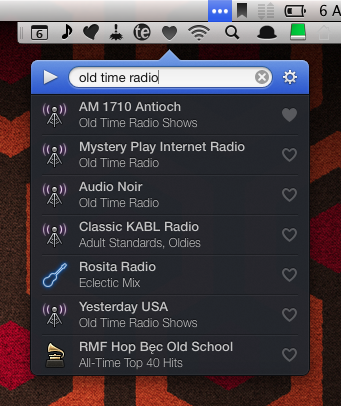
The interface has had a makeover from a rather plain blue-and-white to, well, blue-and-black, but the overall feel is much slicker. For most of the time it’s just a search bar and results/favourites list, with everything else hidden behind a gear icon.

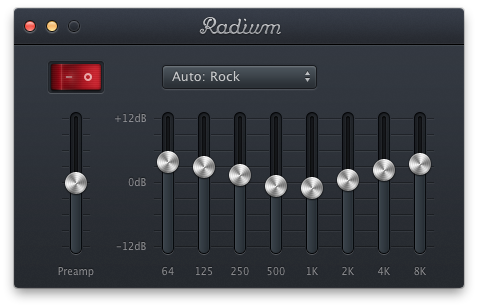
There you’ll find options to output to any Airplay receivers in the vicinity, view album art which doubles as a mini-controller, save tracks you like to a wish-list, or pop out a graphic equaliser, plus there’s support for your existing digital radio subscriptions, including K-PIG, JazzRadio.com, Live 365 and SiriusXM Canada and USA.

radium-interface

radium-mac-radio-app

Also new is the selection of icons next to stations in the list; once you save a station to your favourites you can change these to whatever you like. And of course you can tweet what you’re listening to, ‘Love’ it on Last.fm, or visit the station’s own website.

radium-custom-sorting-icons

I’ve got two stations in Radium right now – BBC Radio 6 and AM 1710 Antioch – so I really don’t need much in the way of organising or sharing. All I want is a simple, reliable radio streaming app that looks good and stays out of the way until I need it, and Radium really nails that so there’s not much more to say other than to highly recommend it.

Except… there’s this one thing…

Okay, so this really makes barely any difference to the utility of the app but it bugs the heck out of me and that’s the change of icon design. I’m going to talk about this for a fair bit now, better get the popcorn out, or skip to the end

Still here? Okay, here’s the current and old icon side by side:

radium-icons

One of those is a lovingly crafted old radio; its menubar icon is also a radio. The other is a chocolate heart and its menubar icon is also a heart.

Radium 3’s icon is the chocolate heart. Now, it’s a delicious looking chocolate I have to say. I imagine biting slowly into it and discovering a delicious chocolate goo, with perhaps a touch of Cointreau running through it… Anyway, it doesn’t strike me as a music app. I mean, why, right?

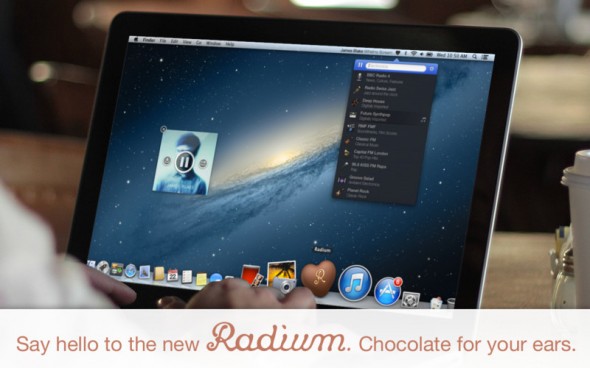
I haven’t really followed any of the marketing for Radium 3, I just saw there was an update, was confused by the icon, checked it was the same Radium, shrugged and bought it. Looking through the actual Mac App Store listing in detail, I found this:

radium-catpig-assholes

So I guess that’s why it’s a chocolate now. Or did the icon come first and the slogan a result of that?

Either way, to me it feels like it’s an attempt to detach from the ‘old school’ definition of radio by making the icon less referential of the technology of yesteryear, where Radium 2’s icon was firmly rooted, and push something more conceptual and abstract.

But chocolate for my ears? Well, that’s just unhygienic, who even puts chocolate in their ears while listening to music? Why would you do that? Or even encourage it? Wouldn’t it have to be melted and therefore hot? It’s very confusing.

I’m being ridiculous to make a point; I’m very curious how they came to this decision as the permanent representation of the app for the future because it’s so far away from anything I’d choose, and I have an annoying need to understand whyyy. I think I know why, I just don’t understand it. Or… agree with it. I talked to CatPig about it over Twitter but they prefer to insult people who don’t “get it”. Rude, unprofessional, immature… yep, they’re all those things, but their app is good and that’s what I’m recommending, not their lack of inter-personal skills.

Heart icon, I heart you not

The new icon design extends to the menubar, where Radium is also a heart. I tuck most of my menubar icons away with Bartender, and when I’m up there I don’t want to have to think about which is which, which is usually fine because they’re all pretty descriptive.

radium-menubar-icon

Look, there’s Alfred’s bowler hat and Hazel’s feather duster, both apt for those apps; TextExpander uses its ‘balloon’ icon and also has the decency to offer a choice; Droplr, Airfoil, Fantastical and Dropbox are also pretty self-explanatory. In fact most everything up there is.

It’s really just Skitch and Radium letting the side down, and what do they both have in common?

So does anyone know an easy way to hack the menubar icon out of Radium 2 and apply it to Radium 3? Because until then some irritably logical perfectionist side of me won’t be happy.

In conclusion

Radium 3, the app, is excellent. The icon concept is… different, and the devs really believe in it, but if you’re not as fussed as me about that sort of detail (and I suspect I’m outnumbered 😉 ) and you’re looking for internet radio on your Mac, this is the one to look at first.

mac-app-store-availableVersion 3 of Radium, the most delicious radio-streaming chocolate you’ll ever put in your, um, ears is available on the Mac App Store for $9.99 via that handy button over there.

P.S. – a word about Antioch

Just another quick mention for AM 1710 Antioch again – it’s a fantastic little station run by this one guy who’s got loads of recordings of radio dramas and comedies going way back to the 30s – including Jack Benny, Abbott and Costello, Superman, The Whistler, The Lone Ranger and more, and often featuring the actual adverts for cigarettes and Kraft cheese products.

They play on an automated system that tries to match for the date so you’re usually listening to something that originally aired that day many decades ago. I love it and recommend it for a historical and entertaining listen.

Categories
Featured iOS & Mac how-tos

Nimble Quest Tips & Tricks

Or ‘How to not suck at Nimble Quest’

nimble-quest-tips-tricks-guideNimble Quest (iOS App Store, Free; Mac App Store, Free) is the first freemium game I’ve not deleted the moment I felt the inevitable pinch of its in-app currency model, because it turns out even when you’re grinding for gems it’s still a great game of Snake. You can read my review of Nimble Quest over here (including my thoughts on its not-so-welcome freemium aspects).

Death is not the end!

Well, it is and it isn’t. Nimble Quest is as much a ‘Roguelike’ as it is a ‘Snakelike’ which means you’re expected to die, a lot. Don’t let it get you down – every play earns you Gems, Tokens and EXP so pick a new Leader and head back in.

Pleasingly, there’s some tactical depth you can use to help make your next run that bit longer. Here’s some tips and tricks I’ve picked up that should guide you through your next Nimble Quest, ranging from the best choices for leader to tactical advice on the field.

These are just what works for me, but feel free to contribute your own suggestions in the comments.

  • pull a 180 – approach an enemy from the front, or aim to cross it’s path from the side, and quickly turn twice timing it so the U-bend in your chain is in range of them as they pass, walloping them with blows from your heroes. This works to keep your Leader out of trouble and the enemies exposed to the widest range of attacks.
  • don’t stretch out too often – once your chain is filled out, moving in a long straight line too often leaves you open to unexpected attacks from the side that you won’t be able to react to quickly enough; ‘slither’ your snake in a loose pattern to keep them closer together and able to defend each other.
  • do your best Spidey – crossing the center of the map as enemies are swarming can be fatal. By staying closer to the sides of the maps as you move around your team will be able to focus on fewer enemies at once, taking them out quicker. Just don’t get too close to the walls! zThis also leads nicely onto:
  • keep your distance – there’s no need to get too close to enemies once you’ve got a healthy selection of ranged weapons in your lineup – fireballs, arrows, bullets, bombs, magic, and so on. Keep a ‘tank’ like Uther and his long lance in the front in case anyone gets in your face, then let the ranged weapons pick everyone off from a distance in combination with pull a 180 above.
  • cut off the head – if you can manoeuvre into position without taking too much heat yourself, vanquishing the leader of an enemy chain will take out the whole chain. Attack from head-on rather than running up alongside an enemy chain because if they turn across your path unexpectedly it’ll be curtains for your team, but when doing so try to give yourself a good run up so you don’t get close enough for an accidental collision.
  • "it came from… behind!" – enemies like knights can’t attack behind them, so bring your team in from the rear to pick them off. You’ll not have as good access to the enemy chain leader, but you’ll be in a much stronger defensive position.
  • lead with Gizmo or Uther – leading with your bomb expert is risky at the start as he’s a little underpowered to take 100% of the heat, but once you get him levelled up his ranged bomb attacks are very effective at softening up the enemies for the rest of your team to mop up effortlessly; just get used to keeping him away from close combat. Uther makes a great ‘tank’ style Leader with a long lance that’s perfect for leading head-on attacks although bear in mind he’s almost useless attacking anything that’s not in front of him, making him one of the least effective heroes when not in the lead. But just brushing up on your attack and defence manoeuvres can make any hero a fun choice to lead with, really.
  • Gems heal – the only way to heal your chained Heroes is by collecting elixirs, but your Leader can also be healed by collecting Gems so when on their last legs divert them away from head-on action and let the rest of the chain take the heat, then swoop back in to hoover up the booty
  • save Retries for times of need – when you tragically faceplant off a wall it’s tempting to spend a Token on a retry, especially as you retain all your purchased power-ups, but unless you’re more than a dozen levels in or close to unlocking a new Hero consider just starting another run and spending that Token on the Attack Speed power up instead. Remember each subsequent Retry that run will cost you double the Tokens – 1, 2, 4, 8…
  • power up early – at the start of the game and between arenas you can spend Tokens on power-ups. It lasts for the entire run so buy them early to get the most ‘value for money’ from them.
  • pick the right power-up for the job – if Tokens are tight I recommend the Attack Speed as the one to go for, particularly if you’re leading with a strong but slow hero. Works particularly well with ranged heroes, especially if it’s stacked with a dropped Attack Speed. Health makes a strong second purchase if you have the Tokens to spare, but it’s not worth getting for the the early levels once you have an experienced team, just in case you lose to a clumsy mis-turn…
  • level up early – get all of your team up to One Star as soon as possible. The boost applies even if they’re not the Leader, and a chain of half a dozen One Star heroes is considerably more effective than ten Zero Star heroes. But resist the temptation to buy those One Star levels.
  • spend Gems on power-ups first – you can spend Gems to buy Stars for your heroes, or on permanently increasing the effectiveness of power-ups. Spend it on the power-ups first; it’s tempting to spend it on your heroes but you’ll get far more from the improved power-ups in the short and long term.
  • “why are you hitting yourself?” – the longer your chain grows, the more likely you are to accidentally double back on yourself when it gets hectic – unlike traditional Snake games, this won’t result in Instadeath, but it will wipe out every hero you bump into in the process, so be careful out there!
  • enter the Arena – the online Arena competition costs a Token per game to enter, but once you’ve upgraded your team and picked up some skills it’s a good way to earn a few Tokens every couple of days, awarded for placing inside the top few hundred in your guild if your guild places well themselves. Try #TOUCHARCADE to join players from the popular iOS gaming forum.
  • follow the bullets – enemies are often off-screen, but your ranged heroes will fire at them if they come within their range. If you can’t find the next enemy and there’s only a few left (check the bar at the top of the screen which fills as you eliminate enemies), carefully lead your conga-line into the middle of the arena and pay attention to where your team are firing.

Okay, that’s yer lot for now – if you’ve got more tips that deserve to be on the list, drop them in the comments below!

Categories
iOS & Mac reviews

Nimble Quest: a freemium game I don’t hate

Remember that mobile game, Snake? Of course you do; for a time it was probably up there with Tetris and MineSweeper as one of the most-played games in the world, especially if you owned a Nokia mobile phone, a fact knowingly referenced in the tutorial of the very game I’m about to review…

Nimble Quest (iOS App Store, Free; Mac App Store, Free) is what happens when you take Snake and stick it through a blender set to ‘SNES-era RPG’, and it’s almost the best Snake game ever.

Wait – “almost”?

Well, Nimble Quest just happens to be the latest twin-currency freemium game, which means the gameplay is skewed against your unfettered enjoyment of it one way or another right from the start. The question is, does the Awesome outweigh the Sucky?

(SPOILER: yes, just about…)
nimble-quest-review

To battle!

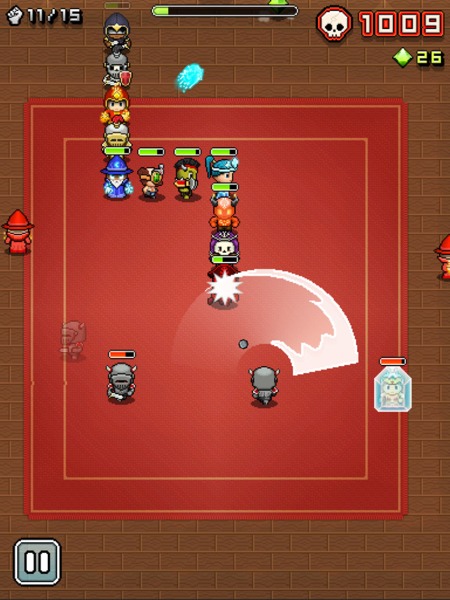
In Nimble Quest your snake is actually a conga-line of heroes ranging from warriors to wizards and everything in between; enemies are similarly themed characters which drop power-ups as you vanquish them; the arenas cover locations like sewers, graveyards and castle courtyards; and it’s all presented in 16-bit style graphics, much like the last two NimbleBit’s releases, Pocket Planes and Tiny Tower.
nimble-quest-freemium-0

Selecting a hero to lead the line, from an initial choice of three, you swipe to turn as he or she marches around the map. As you approach enemies your hero opens fire automatically, and if the enemy ‘drops’ a new hero as they die they’re added to your chain when you march over them. The new hero will then be available to select as a leader in your next game, and each hero has their own strengths and weaknesses so you’ll need to experiment to discover which heroes work best in the lead.

As you stomp around the arena enemies with their own unique skills and weapons will attack your heroes whenever they’re in range. Each completed arena showers you with Gems, and completing a previously un-reached arena unlocks a new type of hero and extends the maximum length of your chain. Meanwhile those enemies get stronger and swarm more heavily, and you’ll start learning tactics to protect your lead hero and expose the enemies to the widest variety of attacks, particularly once enemy healers start showing up.

And it does get tough. I reckon most people will really feel the pressure by level 8 or 9, where the swarms of enemy conga-lines seem endless and require constant avoidance. And every time you die, at the hands of an enemy attack or by piling your leader into a wall, an enemy or your own chain of heroes, you have to start back at Level 1 with just one hero in your chain, unless you spend a Token to retry that level.

nimble-quest-freemium-2

This is one of those games where you’re inevitably going to die – it’s just a matter of how soon – but by levelling up your heroes and purchasing power-ups to take in with you, your team will get further and further each time. Every death is an opportunity to tweak the team, pick a new leader and head back in for more and in that respect it’s quite similar to a ‘Rogue-like’, a style of adventure game that’s never the same twice and is designed to be played over and over.

Experience is only earned by the hero playing Leader, although the skills they learn are used no matter where in the chain they appear. Levelling up can also be bought with Gems which are reasonably plentiful within the game but, again, also available to purchase as IAPs. So although certain heroes are not ideally suited to the lead position (too slow, too lightly armoured), it’s worth levelling them all up at least once as soon as possible as the extra power they bring starts to pay off in those later arenas that once proved too much for your merry gang.

This time it’s The Real Thing

All in all, it’s a solid package, and for me it’s NimbleBit’s best yet as it’s quite simply a Proper Game. I’ve played their last three games and while each was an improvement over the predecessor, none of them have been particularly ‘gamey’ if you looked too closely:

  • Pocket Frogs was diverting for a few moments but ultimately I just didn’t care about collecting pretend frogs that didn’t do anything besides cross-breed at your whim;
  • Tiny Tower was delightfully charming in its presentation with a lot to occupy your prods and pokes, but before long it boiled down to the same old freemium pay-indefinitely-to-remove-ridiculous-timers mechanic with not a whole lot else going on in those cute little tower blocks;
  • Pocket Planes added a considerable dollop of strategy and medium-term purpose to the same mechanic, but over time its lack of a single over-reaching goal made me start to feel I was wasting my life on it for no real reason, as compelling as the desire to build the next biggest airplane was; read my review of Pocket planes here.

But Nimble Quest replaces the ‘gotta catch ’em all’ mechanic the last three favoured with a traditional score-based gaming model – level up, get further, score higher – and an online mode in which you can join clans and compete in daily challenges to win prizes and power-ups (try #TOUCHARCADE to join readers of the popular iOS games forum).

This simple fact – it’s a Proper Game – is why it’s still on my iPad despite the currency-based IAPs lurking in the background.

One more play! Next time I won’t double-turn back in on my own heroes, and I’ll definitely get to the next level! Argh, dead again, next time I’ll use a stronger hero at the front… one… more… play…

So, about those IAPs

I read a thread in the SomethingAwful forums in which it’s claimed you could fully level up a hero from zero stars to three stars in around 20 games with that hero in the lead. I suspect that might be a conservative figure; the first star can definitely be earned with just a few games in the lead, but the next requires a hell of a lot more EXP – I played three games in a row to Arena 9 with a one-star hero and the EXP bar increased by less than a tenth. And there’s at least a dozen heroes to unlock and level up.

nimble-quest-freemium-1

So the alternative is to buy the next level in Gems, and although the price for the first star is highly affordable you should probably try and save that cash for later as buying the second star costs around 10,000 Gems.

Without IAPs I was collecting about 1,500 Gems getting as far as Arena 9, so that’s six or seven good runs per hero to get their second star, and of course the price drops a little as they earn EXP. However, your third star will set you back a lot more and bear in mind you can also spend Gems on upgrades to the various power-ups that drop so that’s going to eat into your ol’ bank balance there, and so eventually you begin to think about considering looking at those IAPs…

But a freemium game always has two currencies, and Nimble Quest’s second is the Token. These drop very rarely, maybe once or twice every five or six arenas. They’re used to purchase power-ups that last your entire next game, to retry arenas when you die, add random heroes to your conga-line before the next arena, that sort of thing. Usually the cost is just one Token, but repeated retries of the same arena cost double the last amount, so be careful.

You start with ten Tokens and by not going nuts on retries unless I was on a particularly good run, making only occasional use of the health and attack-speed power-up purchases, and keeping my eyes peeled for Tokens in-game I’m still not quite out of stock, but I really have to think carefully before spending one as they’re too infrequent.

nimble-quest-freemium-IAPs

So what’s on offer in the IAP screen? You can buy packs of just Gems, just Tokens, or a mixture of both, and the tariffs within each category are a little odd, at 99¢, $4.99 and then a huge leap up to $19.99.

For my money if you were going to get an IAP the $4.99 mixed pack offers 180,000 Gems and 120 Tokens which should easily be enough to put together a nice strong line-up of heroes with plenty of retries and power-up options, making progress much less of a grind.

Alternatively, or additionally, there’s a one-time unlock of Red Gems which offer ten times the value of a standard Green Gem (or twice the value of a Blue). This gives your Gem balance after each run a considerable boost making it much easier to level your characters by paying, and doesn’t leave you with that unpleasant wallet-gouging sensation when your purchased Gems and Tokens inevitably run out.

There’s no denying that like all the most hateful most traditional freemium games, the mechanics have been skewed against the player so they’ll consider an IAP sooner rather than later. The question is to what extent it bothers you in this particular game.

There’s none of the annoying timers that plague Real Racing 3, The Blockheads, and other could-have-been-great games that decided it would be a Really Good Idea to perpetually annoy their players – instead Nimble Quest freely hands out the currency in-game but is, shall we say economical with it, making it a question of how much time you want to spend replaying the early arenas until you’re strong enough to progress, as opposed to how long you’re prepared to do something else entirely while a timer counts down.

And now, a short rant about freemium

The only freemium I don’t have any problem with is the kind that gives away part of the game – the first 3 arenas, for example – and puts the rest behind an IAP that reflects a decent one-time price for the game. But even so, Nimble Quest hands out enough Gems and Tokens that with some skill and persistence most people could probably get more than enough fun out of the game for the ridiculous asking price of FREE and have nothing to complain about, and a purchase of $4.99, a fair price for a casual game of this quality, would unlock enough Gems and Tokens that they could feasibly tire of the game itself before they spend them all.

The problem I have is, I am one of those weird, rare App Store users who doesn’t have a problem paying a fair, single price for a good app. I want to support the developer, but I hate the notion that I’m buying an expendable, entirely arbitrary ‘resource’ that I’ll have to keep buying if I enjoy and want to keep playing the game, which is why the only purchase I’ve made is the Red Gem unlock, and yet I still feel I’m being driven towards the IAPs as it’s still a grind.

nimble-quest-freemium-4

If NimbleBit make the currency drops too frequent they won’t make any money from their only income stream, IAPs, and be left in a similar position to the developers of the beleaguered Punch Quest, a freemium game which also included currency and power-up IAPs but gave so much currency away in-game that barely anybody bought the IAPs and it nearly killed their company.

Then again, that’s the whole point of freemium, that most people will put up with the arbitrary frustrations, but a small percentage (known as ‘whales’) will pour enough money into the IAPs that the developer makes enough income to cover all of the freeloaders. By making the app free that small percentage can easily swell to a significant number as free apps attract an exponentially higher number of downloads. To take just one example, read this Gamesbrief article from 2010 to see how well IAPs performed in NimbleBit’s own Pocket Frogs, or this PocketGamer article from 2012 that looks at how much money high-priced IAPs can bring in for a developer.

Unfortunately, thanks to the race-to-the-bottom pricing which was, I believe, originally driven by the poor discoverability on the App Store which meant that getting onto the Top 50 charts was the only sure-fire way to get decent exposure on the App Store, there is now a mass-market expectation of low prices, and ideally no price, and a fascinating seam of outrage is always bubbling up somewhere on the internet over the ‘greed’ of developers asking more than a dollar for their hard work. It is to this culture of expectation that we owe the freemium phenomenon’s current prominence on the App Store.

(I originally wrote "the freemium phenomenon’s undeniable success of the App Store" but I realised that really, it isn’t much of a success objectively-speaking; customers demand free, which isn’t sustainable, so developers are forced to sustain free by adding IAPs, which necessitates the arbitrary breaking of their game in order to annoy enough people to pay to remove the annoyance, while the casual market continue to freeload; the high downloads and statistical likelihood of netting a few whales sustains the belief that freemium is the way to go, which leads wankers at EA to say things like "the market has spoken and it loves freemium" when in fact the market is these days left with little choice but freemium.

But I digress…)

However, Nimble Quest has two things in its favour in the freemium argument: that grinding for Gems by just playing the game is a fairly effortless task insofar as, well, that’s the game, and it’s therefore far less of a chore than, say, hunting for time crystals in the Blockheads; also, the offer of the one-time Red Gem unlock to permanently boost your Gem gathering. These make the optional packages of currency less of a slap in the face for someone enjoying the game, plus, the price of that Red Gem unlock ($4.99) is very fair if it’s the only thing you buy. If you’re enjoying the game I think you’ll want it anyway.

Play on all your Apple devices, sync on none

Nimble Quest is on the Mac App Store as well as the iPhone and iPad, and it plays well on all three. It’s the perfect iPhone game in much the same way as Snake was the perfect Nokia game 20 years ago, but the screen is a little small so you often obscure a bit of the action with your swipes.

On the iPad it’s a delight as there’s much more space to swipe around, and while it’s not the sort of thing I tend to play on my Mac, it’s exactly the same game assigned to the arrow keys, giving that little bit more precision to the controls if you want that.

nimble-quest-freemium-mac

But thanks to the unreliability of iCloud, NimbleBit haven’t added any form of save-game syncing or backup between different versions. That means if you spend the day on your iPhone heroes but get home and want to pick up on your iPad from where you left off on the iPhone, you can’t – your iPad heroes live completely separate lives, as do your Mac heroes.

In a SomethingAwful forum thread a chap called empiremonkey who appears to work at NimbleBit posted in response to a question about device syncing:

Sorry but nope. Our experience with iCloud was interesting and we are not ready to try it again.

And when asked if other services like Dropbox could be used instead:

… once you get into requiring the player to turn it on or popup a 3rd party login screen the uptake will drop off dramatically and you can actually push people away from the game. That and if someone only uses a service with your games and actually signs up with it in your game you now become the expected place of support for everything about that service including all login issues.

Over at the Touch Arcade forums, NimbleTim from NimbleBit posted the following:

iCloud support in Pocket Planes was an interesting experience. Because of that we don’t have plans to support it in Nimble Quest right now. However I will not say it is off the table permanently.

iCloud’s notorious unreliability has been a recent bone of contention in the iOS and Mac development community but if the only option available for save-game syncing doesn’t work reliably, it’s hardly NimbleBit’s fault. I started on the iPad and put a lot of time in on it before realising my iPhone would start over, which is a shame as it’s a perfect iPhone game, but I don’t have time to waste grinding two sets of heroes up to scratch.

In conclusion

Nimble Quest is a freemium game done about as affordably as you could hope for in the era of hateful timer-based freemium ‘games’, although that doesn’t change the fact that the Gem and Token drops have been arbitrarily crippled to drive as many people as possible to purchase expendable IAPs, which almost ruins the whole thing. If you attempt to avoid paying for currency, which is certainly possible, you’ll probably feel the grind starting to chip away at the fun once you get all your heroes up to One Star.

But it’s still a great twist on a classic game that I had never considered could be refreshed in such an endearing way, and the fact that it’s perfectly possible to play without dropping a cent on the expendable IAPs will probably make it all the more successful in terms of downloads.

If you’re enjoying it, even if you’re against currency-based IAPs like me, consider a one-time purchase of the Red Gems, or the $4.99 Gems & Tokens pack, as that’s the price the game would be worth on it’s own, then get on with playing what’s almost the best Snake game ever.

app-store-availablemac-app-store-availablePick it up from the iOS and Mac App Stores using these handy buttons.

(P.S. I still hate freemium, and would like to urge you all to stop ignoring great games that ask a single, one-time purchase price of more than a couple of dollars!)