Categories
iOS & Mac reviews

Nimble Quest: a freemium game I don’t hate

Remember that mobile game, Snake? Of course you do; for a time it was probably up there with Tetris and MineSweeper as one of the most-played games in the world, especially if you owned a Nokia mobile phone, a fact knowingly referenced in the tutorial of the very game I’m about to review…

Nimble Quest (iOS App Store, Free; Mac App Store, Free) is what happens when you take Snake and stick it through a blender set to ‘SNES-era RPG’, and it’s almost the best Snake game ever.

Wait – “almost”?

Well, Nimble Quest just happens to be the latest twin-currency freemium game, which means the gameplay is skewed against your unfettered enjoyment of it one way or another right from the start. The question is, does the Awesome outweigh the Sucky?

(SPOILER: yes, just about…)
nimble-quest-review

To battle!

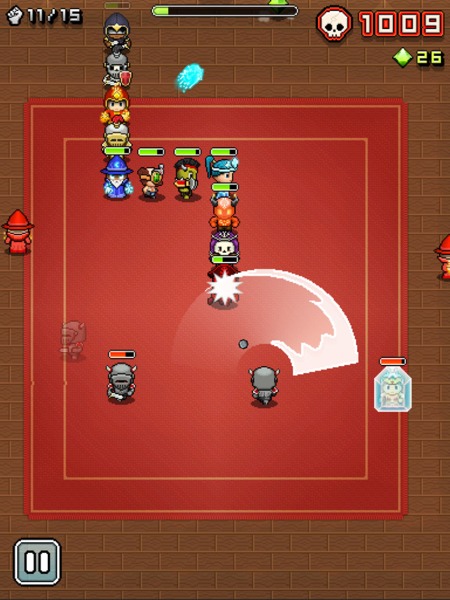
In Nimble Quest your snake is actually a conga-line of heroes ranging from warriors to wizards and everything in between; enemies are similarly themed characters which drop power-ups as you vanquish them; the arenas cover locations like sewers, graveyards and castle courtyards; and it’s all presented in 16-bit style graphics, much like the last two NimbleBit’s releases, Pocket Planes and Tiny Tower.
nimble-quest-freemium-0

Selecting a hero to lead the line, from an initial choice of three, you swipe to turn as he or she marches around the map. As you approach enemies your hero opens fire automatically, and if the enemy ‘drops’ a new hero as they die they’re added to your chain when you march over them. The new hero will then be available to select as a leader in your next game, and each hero has their own strengths and weaknesses so you’ll need to experiment to discover which heroes work best in the lead.

As you stomp around the arena enemies with their own unique skills and weapons will attack your heroes whenever they’re in range. Each completed arena showers you with Gems, and completing a previously un-reached arena unlocks a new type of hero and extends the maximum length of your chain. Meanwhile those enemies get stronger and swarm more heavily, and you’ll start learning tactics to protect your lead hero and expose the enemies to the widest variety of attacks, particularly once enemy healers start showing up.

And it does get tough. I reckon most people will really feel the pressure by level 8 or 9, where the swarms of enemy conga-lines seem endless and require constant avoidance. And every time you die, at the hands of an enemy attack or by piling your leader into a wall, an enemy or your own chain of heroes, you have to start back at Level 1 with just one hero in your chain, unless you spend a Token to retry that level.

nimble-quest-freemium-2

This is one of those games where you’re inevitably going to die – it’s just a matter of how soon – but by levelling up your heroes and purchasing power-ups to take in with you, your team will get further and further each time. Every death is an opportunity to tweak the team, pick a new leader and head back in for more and in that respect it’s quite similar to a ‘Rogue-like’, a style of adventure game that’s never the same twice and is designed to be played over and over.

Experience is only earned by the hero playing Leader, although the skills they learn are used no matter where in the chain they appear. Levelling up can also be bought with Gems which are reasonably plentiful within the game but, again, also available to purchase as IAPs. So although certain heroes are not ideally suited to the lead position (too slow, too lightly armoured), it’s worth levelling them all up at least once as soon as possible as the extra power they bring starts to pay off in those later arenas that once proved too much for your merry gang.

This time it’s The Real Thing

All in all, it’s a solid package, and for me it’s NimbleBit’s best yet as it’s quite simply a Proper Game. I’ve played their last three games and while each was an improvement over the predecessor, none of them have been particularly ‘gamey’ if you looked too closely:

  • Pocket Frogs was diverting for a few moments but ultimately I just didn’t care about collecting pretend frogs that didn’t do anything besides cross-breed at your whim;
  • Tiny Tower was delightfully charming in its presentation with a lot to occupy your prods and pokes, but before long it boiled down to the same old freemium pay-indefinitely-to-remove-ridiculous-timers mechanic with not a whole lot else going on in those cute little tower blocks;
  • Pocket Planes added a considerable dollop of strategy and medium-term purpose to the same mechanic, but over time its lack of a single over-reaching goal made me start to feel I was wasting my life on it for no real reason, as compelling as the desire to build the next biggest airplane was; read my review of Pocket planes here.

But Nimble Quest replaces the ‘gotta catch ’em all’ mechanic the last three favoured with a traditional score-based gaming model – level up, get further, score higher – and an online mode in which you can join clans and compete in daily challenges to win prizes and power-ups (try #TOUCHARCADE to join readers of the popular iOS games forum).

This simple fact – it’s a Proper Game – is why it’s still on my iPad despite the currency-based IAPs lurking in the background.

One more play! Next time I won’t double-turn back in on my own heroes, and I’ll definitely get to the next level! Argh, dead again, next time I’ll use a stronger hero at the front… one… more… play…

So, about those IAPs

I read a thread in the SomethingAwful forums in which it’s claimed you could fully level up a hero from zero stars to three stars in around 20 games with that hero in the lead. I suspect that might be a conservative figure; the first star can definitely be earned with just a few games in the lead, but the next requires a hell of a lot more EXP – I played three games in a row to Arena 9 with a one-star hero and the EXP bar increased by less than a tenth. And there’s at least a dozen heroes to unlock and level up.

nimble-quest-freemium-1

So the alternative is to buy the next level in Gems, and although the price for the first star is highly affordable you should probably try and save that cash for later as buying the second star costs around 10,000 Gems.

Without IAPs I was collecting about 1,500 Gems getting as far as Arena 9, so that’s six or seven good runs per hero to get their second star, and of course the price drops a little as they earn EXP. However, your third star will set you back a lot more and bear in mind you can also spend Gems on upgrades to the various power-ups that drop so that’s going to eat into your ol’ bank balance there, and so eventually you begin to think about considering looking at those IAPs…

But a freemium game always has two currencies, and Nimble Quest’s second is the Token. These drop very rarely, maybe once or twice every five or six arenas. They’re used to purchase power-ups that last your entire next game, to retry arenas when you die, add random heroes to your conga-line before the next arena, that sort of thing. Usually the cost is just one Token, but repeated retries of the same arena cost double the last amount, so be careful.

You start with ten Tokens and by not going nuts on retries unless I was on a particularly good run, making only occasional use of the health and attack-speed power-up purchases, and keeping my eyes peeled for Tokens in-game I’m still not quite out of stock, but I really have to think carefully before spending one as they’re too infrequent.

nimble-quest-freemium-IAPs

So what’s on offer in the IAP screen? You can buy packs of just Gems, just Tokens, or a mixture of both, and the tariffs within each category are a little odd, at 99¢, $4.99 and then a huge leap up to $19.99.

For my money if you were going to get an IAP the $4.99 mixed pack offers 180,000 Gems and 120 Tokens which should easily be enough to put together a nice strong line-up of heroes with plenty of retries and power-up options, making progress much less of a grind.

Alternatively, or additionally, there’s a one-time unlock of Red Gems which offer ten times the value of a standard Green Gem (or twice the value of a Blue). This gives your Gem balance after each run a considerable boost making it much easier to level your characters by paying, and doesn’t leave you with that unpleasant wallet-gouging sensation when your purchased Gems and Tokens inevitably run out.

There’s no denying that like all the most hateful most traditional freemium games, the mechanics have been skewed against the player so they’ll consider an IAP sooner rather than later. The question is to what extent it bothers you in this particular game.

There’s none of the annoying timers that plague Real Racing 3, The Blockheads, and other could-have-been-great games that decided it would be a Really Good Idea to perpetually annoy their players – instead Nimble Quest freely hands out the currency in-game but is, shall we say economical with it, making it a question of how much time you want to spend replaying the early arenas until you’re strong enough to progress, as opposed to how long you’re prepared to do something else entirely while a timer counts down.

And now, a short rant about freemium

The only freemium I don’t have any problem with is the kind that gives away part of the game – the first 3 arenas, for example – and puts the rest behind an IAP that reflects a decent one-time price for the game. But even so, Nimble Quest hands out enough Gems and Tokens that with some skill and persistence most people could probably get more than enough fun out of the game for the ridiculous asking price of FREE and have nothing to complain about, and a purchase of $4.99, a fair price for a casual game of this quality, would unlock enough Gems and Tokens that they could feasibly tire of the game itself before they spend them all.

The problem I have is, I am one of those weird, rare App Store users who doesn’t have a problem paying a fair, single price for a good app. I want to support the developer, but I hate the notion that I’m buying an expendable, entirely arbitrary ‘resource’ that I’ll have to keep buying if I enjoy and want to keep playing the game, which is why the only purchase I’ve made is the Red Gem unlock, and yet I still feel I’m being driven towards the IAPs as it’s still a grind.

nimble-quest-freemium-4

If NimbleBit make the currency drops too frequent they won’t make any money from their only income stream, IAPs, and be left in a similar position to the developers of the beleaguered Punch Quest, a freemium game which also included currency and power-up IAPs but gave so much currency away in-game that barely anybody bought the IAPs and it nearly killed their company.

Then again, that’s the whole point of freemium, that most people will put up with the arbitrary frustrations, but a small percentage (known as ‘whales’) will pour enough money into the IAPs that the developer makes enough income to cover all of the freeloaders. By making the app free that small percentage can easily swell to a significant number as free apps attract an exponentially higher number of downloads. To take just one example, read this Gamesbrief article from 2010 to see how well IAPs performed in NimbleBit’s own Pocket Frogs, or this PocketGamer article from 2012 that looks at how much money high-priced IAPs can bring in for a developer.

Unfortunately, thanks to the race-to-the-bottom pricing which was, I believe, originally driven by the poor discoverability on the App Store which meant that getting onto the Top 50 charts was the only sure-fire way to get decent exposure on the App Store, there is now a mass-market expectation of low prices, and ideally no price, and a fascinating seam of outrage is always bubbling up somewhere on the internet over the ‘greed’ of developers asking more than a dollar for their hard work. It is to this culture of expectation that we owe the freemium phenomenon’s current prominence on the App Store.

(I originally wrote "the freemium phenomenon’s undeniable success of the App Store" but I realised that really, it isn’t much of a success objectively-speaking; customers demand free, which isn’t sustainable, so developers are forced to sustain free by adding IAPs, which necessitates the arbitrary breaking of their game in order to annoy enough people to pay to remove the annoyance, while the casual market continue to freeload; the high downloads and statistical likelihood of netting a few whales sustains the belief that freemium is the way to go, which leads wankers at EA to say things like "the market has spoken and it loves freemium" when in fact the market is these days left with little choice but freemium.

But I digress…)

However, Nimble Quest has two things in its favour in the freemium argument: that grinding for Gems by just playing the game is a fairly effortless task insofar as, well, that’s the game, and it’s therefore far less of a chore than, say, hunting for time crystals in the Blockheads; also, the offer of the one-time Red Gem unlock to permanently boost your Gem gathering. These make the optional packages of currency less of a slap in the face for someone enjoying the game, plus, the price of that Red Gem unlock ($4.99) is very fair if it’s the only thing you buy. If you’re enjoying the game I think you’ll want it anyway.

Play on all your Apple devices, sync on none

Nimble Quest is on the Mac App Store as well as the iPhone and iPad, and it plays well on all three. It’s the perfect iPhone game in much the same way as Snake was the perfect Nokia game 20 years ago, but the screen is a little small so you often obscure a bit of the action with your swipes.

On the iPad it’s a delight as there’s much more space to swipe around, and while it’s not the sort of thing I tend to play on my Mac, it’s exactly the same game assigned to the arrow keys, giving that little bit more precision to the controls if you want that.

nimble-quest-freemium-mac

But thanks to the unreliability of iCloud, NimbleBit haven’t added any form of save-game syncing or backup between different versions. That means if you spend the day on your iPhone heroes but get home and want to pick up on your iPad from where you left off on the iPhone, you can’t – your iPad heroes live completely separate lives, as do your Mac heroes.

In a SomethingAwful forum thread a chap called empiremonkey who appears to work at NimbleBit posted in response to a question about device syncing:

Sorry but nope. Our experience with iCloud was interesting and we are not ready to try it again.

And when asked if other services like Dropbox could be used instead:

… once you get into requiring the player to turn it on or popup a 3rd party login screen the uptake will drop off dramatically and you can actually push people away from the game. That and if someone only uses a service with your games and actually signs up with it in your game you now become the expected place of support for everything about that service including all login issues.

Over at the Touch Arcade forums, NimbleTim from NimbleBit posted the following:

iCloud support in Pocket Planes was an interesting experience. Because of that we don’t have plans to support it in Nimble Quest right now. However I will not say it is off the table permanently.

iCloud’s notorious unreliability has been a recent bone of contention in the iOS and Mac development community but if the only option available for save-game syncing doesn’t work reliably, it’s hardly NimbleBit’s fault. I started on the iPad and put a lot of time in on it before realising my iPhone would start over, which is a shame as it’s a perfect iPhone game, but I don’t have time to waste grinding two sets of heroes up to scratch.

In conclusion

Nimble Quest is a freemium game done about as affordably as you could hope for in the era of hateful timer-based freemium ‘games’, although that doesn’t change the fact that the Gem and Token drops have been arbitrarily crippled to drive as many people as possible to purchase expendable IAPs, which almost ruins the whole thing. If you attempt to avoid paying for currency, which is certainly possible, you’ll probably feel the grind starting to chip away at the fun once you get all your heroes up to One Star.

But it’s still a great twist on a classic game that I had never considered could be refreshed in such an endearing way, and the fact that it’s perfectly possible to play without dropping a cent on the expendable IAPs will probably make it all the more successful in terms of downloads.

If you’re enjoying it, even if you’re against currency-based IAPs like me, consider a one-time purchase of the Red Gems, or the $4.99 Gems & Tokens pack, as that’s the price the game would be worth on it’s own, then get on with playing what’s almost the best Snake game ever.

app-store-availablemac-app-store-availablePick it up from the iOS and Mac App Stores using these handy buttons.

(P.S. I still hate freemium, and would like to urge you all to stop ignoring great games that ask a single, one-time purchase price of more than a couple of dollars!)


Categories
iOS & Mac how-tos iOS & Mac reviews

How to add text to Instagram photos with Over (and Photolettering)

Instagram text 06Recently I’ve often found myself wanting to add a bit of amusing or descriptive text to a photo I’m tweeting, sending to friends or posting to Instagram. Of course, there’s no option to add text to Instagram photos within the app itself, so you’ll need to look to other apps.

I did a little asking around and two apps came back in recommendations so I gave them both a good go. After a few short bouts there was a conclusive winner, which I will now present to you by employing an over-stretched boxing metaphor:

The Contenders

In the Red Corner, suggested by friends, we have Over ($1.99), a Universal app which includes 30 eyecatching and fun fonts and offers dozens (and dozens!) more ‘standard’ fonts for a single in-app-purchase of 99c. To be fair, you can easily do without these as the ones included are great.

In the Blue Corner, recommended by no less than John Gruber amongst others, we have Photolettering (Free), an iPhone-only app which offers 3 fonts at first, with 20 more fonts available to purchase for 99c each, or $9.99 for all 20. The complete set is comparable in style and diversity to those included in Over.

Round one – value for money

On this basis Over clearly wins. Photolettering might be free but buying its full complement of fonts will run to five times the price of Over’s basic cost, and Over still has more choice. Furthermore, the three basic fonts it comes with are pretty bland.

It could be that for what Photolettering is offering, their ‘buy everything’ price is more realistic and fair to both them and the customer, and I’m all for that. But Over offers considerably more variety for the same price Photolettering charges for just two extra fonts, let alone Over’s vast range of standard fonts included in the single in-app purchase available.

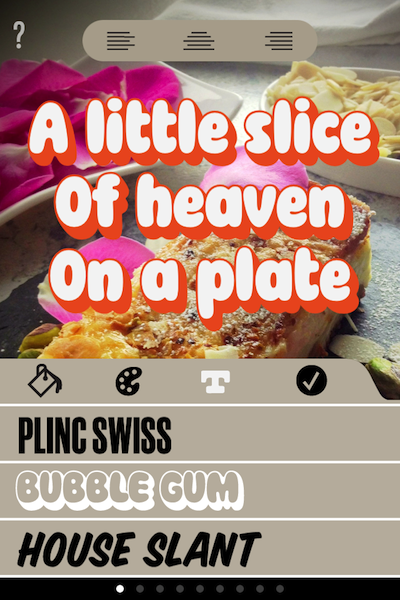
A selection of Over's thirty available fonts The three fonts that come free with Photolettering

Round two – functionality

This is more evenly matched with each app offering some unique features, as well as the usual standards they both share such as social sharing, and a postcard function via Sincerely.

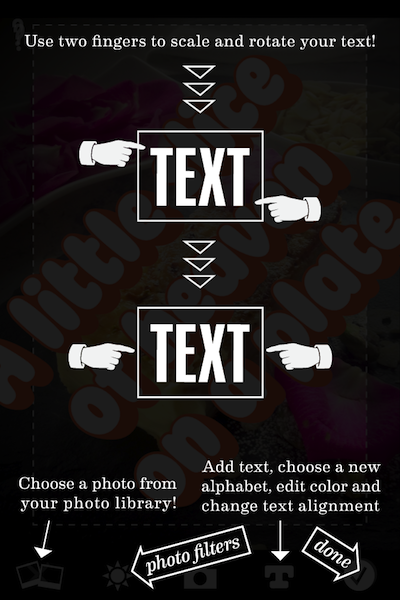
On the ‘unique feature’ front, Photolettering lets you rotate text easily using two fingers, something Over doesn’t offer at all. It also offers several two-tone fonts and control over each colour, background colours (if you don’t want to use a photo), and a choice of three basic filters which amount to Sepia, B&W, and Vivid.

On the other hand, Over offers multiple layers of text, meaning you can place several different text elements on your photo and style each one differently. It also includes a crop tool which only has one shape – square – but is perfect for setting up an image for Instagram, and the ability to darken the background photo to give your text some pop.

Photolettering has a crop tool, but only at the end of the process, and only if you decide to send to Instagram, so if you’re wanting to post it you need to plan for that as you add your text.

If you try to load in a pre-squared image, add lettering and then post to Instagram, Photolettering still forces you to crop a portrait-shaped image out of it, then add the text, then crop a square image out of that. You can avoid this by pinching the square image size to fit into the portrait crop, but the whole process is pretty ridiculous compared to how Over offers the same tool.

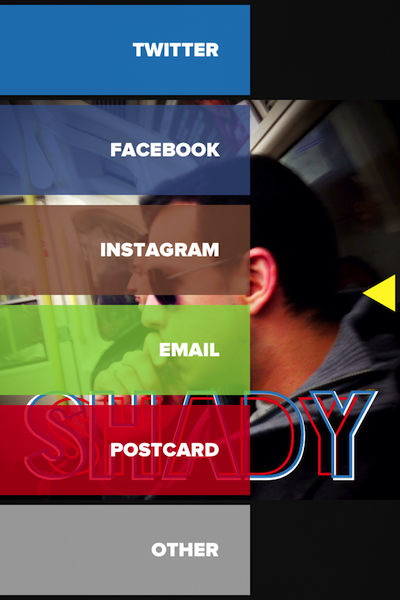
The sharing screen in Over A tutorial screen in Photolettering

Round three – experience

Okay, ‘experience’ is a little fancy-sounding, but that’s what we love about apps, right? How fun, easy, intuitive, and satisfying they are to fiddle with?

Photolettering is by far the plainest app, both in presentation and workflow, with one text layer and a simple tab-based navigation. It’s functional, it gets the job done – and you can rotate text, which is cool, but the whole cropping/Instagram process it uses is pretty dumb.

Over is much more stylish with a slick dial-based navigation and semi-transparent menu overlays. The dial can be a little disorienting at first, and they waste ‘More’ on an advert page for other apps, but the overall effect was more compelling.

But Over clearly wins the round with multiple layers that let you give every word its own font, position and colour, or create interesting effects by overlaying – something that works particularly well with the Blackout Sunrise font, and more than makes up for its lack of two-tone fonts.

Instagram text 06

Instagram text 01

The Winner

It wasn’t really a fair fight, was it? Over very clearly takes the crown for me. The only thing I’d nick from Photolettering is rotating text which sounds like a very update-friendly feature to me, hint hint.

So for all your text-on-iPhone-photo fun, my hearty recommendation would be to check out Over ($1.99) on the App Store.

Thanks for reading!

Categories
iOS & Mac reviews

Bartender: tidy up your Mac menu bar

Bartender, by Surtees Studios, is a natty wee Mac menu bar app that whisks up some or all of the clutter over on the right hand side of your menu bar and keeps it hidden away behind an icon of your choice. It’s perfect for keeping in check all those handy third party apps that put an icon up there, and can even manage the system items like the Airport, Date & Time, Bluetooth and Notification Centre menus.

For example, without Bartender my menu bar looks like this:

mac-menu-bar

With Bartender running I can reduce all of that to just one icon:

mac-menu-bar-tidy

Or I can tweak the settings to keep the most essential icons visible, like this:

mac-menu-bar-organizer

The app comes with a selection of icons to choose from, or you can create and use your own. Clicking the icon brings up another row containing all your other menu items, and clicking on one of those brings up it’s menu, like so:

mac-menu-bar-manager

The settings screen contains all the menu item appearance controls:

mac-menu-bar-icon-hide

Select each menu item, select where you want it to live, and that’s all there is to it; it’s that simple.

Bartender is in beta right now and available for free from their website. Once it’s out of beta you’ll have to buy a license to update to the final version but if you buy one while it’s still in beta it’s half price, less than £5.

Being in beta also means you shouldn’t be surprised to maybe find a bug here or there, but the big ones have all been ironed out and the most recent builds are perfectly stable. I highly recommend you pick it up and get some calm back in your menu bar.

And now, an insight into how my brain works

I tried turning off both Notification Centre and Spotlight, so the Date & Time is right up against the right edge of the screen and I didn’t like it, it felt unbalanced and ugly. I’m used to the clock being snuggled up next to the pleasingly angled Spotlight magnifying glass but since I got Alfred I rarely use Spotlight, and certainly never invoke it by clicking the icon, appealing as it is.

I had originally taken Notification Centre out too because the gesture is more intuitive and faster for me and I didn’t want unused icons up there. But, aesthetics are winning the battle and as I can’t (yet?) shift one of the other icons over there manually, I’ve reinstated Notification Centre for the balance.

I’ll probably change back to the Spotlight icon in the end, it just feels better…

Thanks for reading!

Categories
Featured iOS & Mac reviews

Launch Center Pro: my review after a week

Last week I installed AppCubby’s Launch Center Pro for iPhone (App Store link) after it got some good write-ups in the tech press. It’s described as ‘speed dial’ for your apps, giving you an alternative way of organising and launching your most-used apps more conveniently.

It’s not just a launcher, though. The headline attractions are ‘action hooks’ in certain apps that give you a shortcut to a function of the app. For example, you can set one-tap shortcuts for launching directly into a new Omnifocus note, a new Instagram snap or a new Tweetbot tweet.

Some apps offer more hooks than others. Evernote, for example, offers none other than launching the app itself, whereas Tweetbot offers a shortcut to pretty much every screen in the app. This is done by use of valid URLs within the app code so support has to be built in by app developers, not AppCubby. More on that later.

First impressions

It’s such a tantalising notion, to completely change how you use your iPhone. At first I found that although it’s easy to design your own LCP setup for quick launching, unless you have use for the actions available you may not see much point in it.

To make an example of Evernote, if the app is already on your homescreen (or your dock) and you put it on the top level of LCP, you’ll actually tap more times to get the same result.

(With the app on your Homescreen you tap Evernote to launch, then tap ‘New Note’; in Launch Center Pro you tap to launch LCP, tap Evernote to launch, tap ‘New Note’.)

On the other hand, if you regularly use a core collection of productivity apps like Things, Omnifocus, Tweetbot, Drafts, Simplenote, that sort of thing, and throughout the day you’re constantly jumping in and out of them, making notes or sharing links or whatever, clever setup of LCP could streamline a significant amount of that use and save you enough time and taps to really feel the benefit.

I’m not quite a power user but I am a sucker for experimenting with new and more efficient ways to play with my phone so I’ve spent the last week using LCP and tweaking my setup. Here’s a look at how I’ve been using it and what I’ve noticed.

Customisation

The UI is attractive and well thought out with plenty of room for customisation, which is where Launch Center Pro comes into it’s own. The tap-swipe-release method for accessing the second layer (where you keep groups of Actions) is particularly nice, making it feel like you’re only tapping once. Get fast at that and it begins to feel more like you’re performing gestures to launch apps rather than searching them out and stabbing at them.

I’ve tweaked my layout so many times, moving apps around until they find their intuitive home under my thumb. This could very well have changed by tomorrow (and in fact it changed between writing this and capturing the screenshots) but today my layout looks like this:

As you can see, in the folders I’ve tried to place actions so that they won’t be obscured by my thumb – I tend to hold the phone in my right hand most often as I keep it in my right jeans pocket.

Switching into edit mode brings up a neat blueprint background while you rearrange the furniture, and you can go into the icons for every action or folder and create new ones to suit your taste or the way your brain works.

For my ‘Wife HQ’ screen I gave phone buttons a metallic look and messaging icons a pinstripe, and stuck to the colours that iOS uses for those functions; when placing apps I try to keep it intuitive, for example by putting Hipstamatic in the same space in a folder as Instagram occupies on the home screen.

So now my Home screen now looks like this:

It’s so calm there now. I had the phone in the dock too but eventually realised I only really call my wife and that’s covered, so I moved it out. It’s just that gorgeous metallic LCP icon now, twinkling at me wherever I am.

Of course, all the apps have to go somewhere…

I changed all my folder names from things like ‘Productivity’ to these verb-focussed titles as I read it was more intuitive, and so far it’s working out well. I put my games on a third screen because I wanted to keep that aspect a little apart from the rest of the phone. And I really wish I could hide Newsstand without a hack.

Launch speed

Launch Center Pro almost always launches incredibly fast. Like, tap it and you’re in, that fast. Maybe loads faster if you’re using it often enough that it’s never pushed completely from memory, but a few times on launch the screen would remain blank for a couple of seconds – the most infuriatingly long couple of seconds, at that. Or, my layout would appear but was unresponsive momentarily.

It didn’t happen every day, but a couple of days it happened a couple of times. It’s not enough to let the side down, though. 95% of the time the only thing slowing me down was my own brain and my poised thumb as I adjusted to using LCP regularly.

App compatibility

LCP works with any apps that employ valid URL systems in their code; it detects compatible installed apps and adds them to it’s list of Actions. As noted above, some developers employ more URLs than others, but many don’t appear to at all. One major omission for me is Money, by Jumsoft, which I launch many times a day. For this reason Money is now the only third party app left on my Home screen.

Since I installed it I’ve noticed at least a dozen apps appearing in the list that weren’t there at first. Not sure if this is because I downloaded updates to them or that LCP just didn’t get through with scanning my iPhone at first. At this point 51 apps out of 95 installed are compatible in some way, including Apple apps.

Well, some of them.

Apple doesn’t always play ball

After the release of the original Launch Center, which hooked directly into system settings like the 3G toggle and Brightness control, Apple withdrew access to a lot of their own app URLs. For example, there’s nothing at all for their Clock, Notes or Camera apps, but you can launch Music, Calendar and Reminders, amongst others.

You also can’t launch the Phone, Mail or Message apps but you can set an action that allows you type in a name or number and immediately email, call or message that person, bypassing the front end of the respective app. I’ve used this to turn it a one-tap hub for contacting my wife, which is really cool, but otherwise it’s quicker for me to use these apps ‘the old fashioned way’.

Drafts is a perfect partner

Drafts (App Store link) is a great app by Agile Tortoise that I’d not heard of before installing LCP, but they complement each other perfectly. It’s a simple notes app with the killer feature of being able to send the text to a wide range of apps and sharing services – I suppose you could call it Launch Center Pro for text – and it turns out it’s better for getting notes into Evernote through LCP than Evernote is.

I recently switched to Evernote from Simplenote because I can keep more kinds of stuff in it, but for text alone Simplenote is faster to use and easier to search and I miss that. Drafts, especially kept on the top page of LCP, gets me into a new note immediately and sends it to Evernote with one tap; I could even send it to Simplenote too if I wanted, or Day One, Tweetbot, Echofon, Mail, Messages, Agenda, Dropbox, Facebook, Omnifocus… and of course each note is saved and searchable in Drafts itself.

With Drafts on the left and Reminders on the right my bottom row is dedicated to capturing something quickly, be it an idea, an Instagram, or something I need to do.

Brightness

Although LCP can’t launch the Brightness setting, AppCubby have made a workaround that lets you set brightness values to buttons; the compromise is that whenever the screen locks it resets to the value set on the official Brightness slider in Settings.

One way to take advantage of this is to set the Brightness slider to something comfortable for normal use, then in LCP set a button for bright daylight, one for night time, one set to the same as the slider value, and maybe a button that toggles between medium-low and medium-high. Then you can switch to your bright setting if you’re in daylight and either switch back when you go inside or if your screen locked in between it resets anyway.

In the end I found that diving into LCP to find the brightness buttons every time I was outside was not worth the hassle versus however much battery is allegedly spent leaving Auto-Brightness turned on, which serves my needs fine.

Flashlight

One of the built-in hooks on offer turns on the flash, effectively giving you a flashlight app for free. In occasional use over the week I found it was way quicker than any flashlight app I’d used so it got pride of place on the top screen.

Search

The built-in Search hook takes any text you enter and sends it to Google in Mobile Safari. It may not be that much less effort than doing the same through Safari but the momentary pauses waiting for Safari to get up to speed can make it feel longer than doing it through LCP. If you’re an Alfred or Launchbar user it feels a lot like using that as your Search box.

The stuff I haven’t mentioned

There’s plenty of other uses I haven’t touched on. For example, if you visit some sites in Safari regularly a Bookmarks group would be perfect for you; I use RSS to keep track of favourite sites so I skipped that.

Alternatively, you might want to delve into the Custom URL tool that lets you build your own hooks if you know the language. There’s so many actions available already, however, that I barely touched it except to try and trick the Clock app into working; I failed.

You could even set up a whole folder of stock-response emails; say you’re the company IT guy and people are always emailing you about their computer not working, you could have a ‘switch it off and on again’ email saved to a button, with just an address required. Or, if you’re a particularly tardy person, you could set up a whole range of ‘excuse’ emails that are always just a tap away.

I’m sure there’s even more stuff you could set it up for that just doesn’t apply to me, so I can’t think of it right now.

A week later

It was a slow start for me but I love it, especially since adding Drafts as well. I’ve got the layout pretty much how I like it and just need to get a bit of muscle memory going on. As I’ve mentioned before, LCP has a very distinct feel; from the visual feel of the buttons to the physical feel of tapping, sliding and releasing (sometimes without looking), it feels good.

It really boils down to how you use your phone and if Launch Center Pro can do some of the lifting for you. It has a definite target market and if none of the above features have sounded appealing then you’re probably not it.

If your interest has been piqued, though, just go ahead and buy it and start putting together your own shortcuts. Play with the setup, move buttons around, tweak it how you like it, and enjoy using your phone a new way.

Categories
iOS & Mac reviews

Pocket Planes for iOS: a review

What’s this, a game review on my glass eye? Well, I’ve been in a gaming mood lately so I haven’t been ‘making’ much and thought writing a quick review would keep my hand in on the writing front. Also, a fleeting review of this game at Wired has been getting a lot of criticism today but I found it touched on some salient points about the game that I wanted to talk about myself.

Pocket Planes (App Store link, free) comes from Nimblebit, whose last game, Tiny Towers, was set in a charming 8-bit style world and involved populating a skyscraper with shops and ‘bitizens’ to run them, then keeping them stocked and supplied with visitors. As appealing as the presentation was the gameplay boiled down to the busy-work of restocking shelves and delivering bitizens to their desired floor in order to grind coins and bux to buy more stock and increasingly expensive floors. There was barely any strategy or simulation and my interest waned quickly.

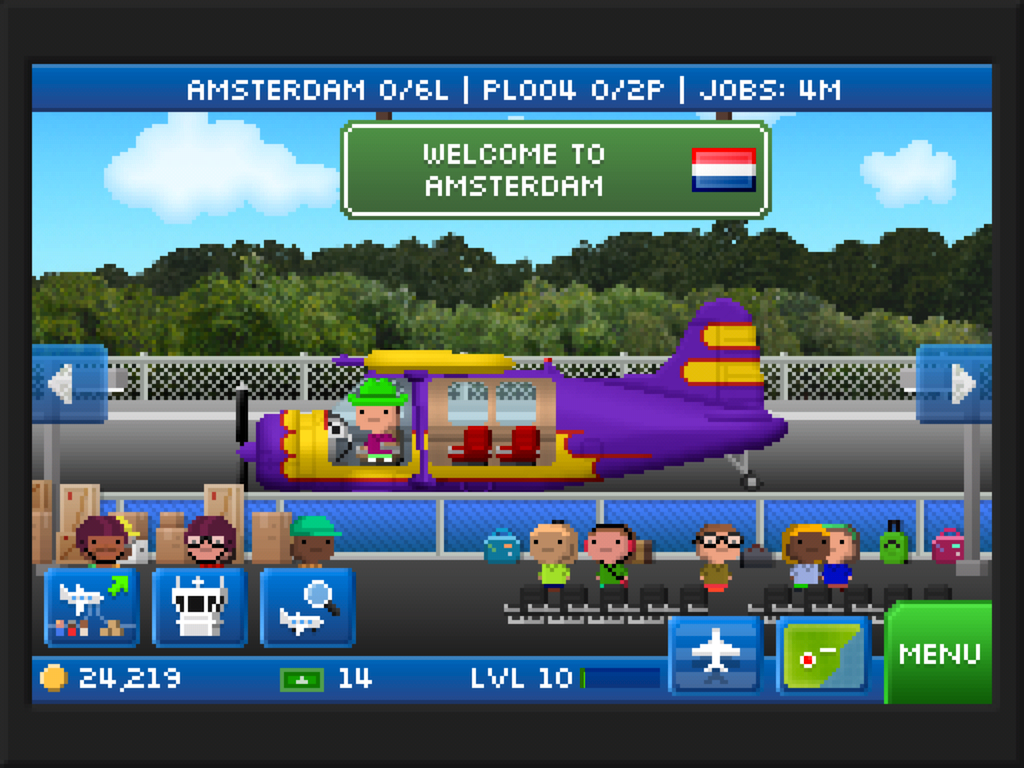
Pocket Planes has a lot more to it, although at first glance you might not notice as you’re still ferrying goods and bitizens to their destination, but this time aboard your very own airline.

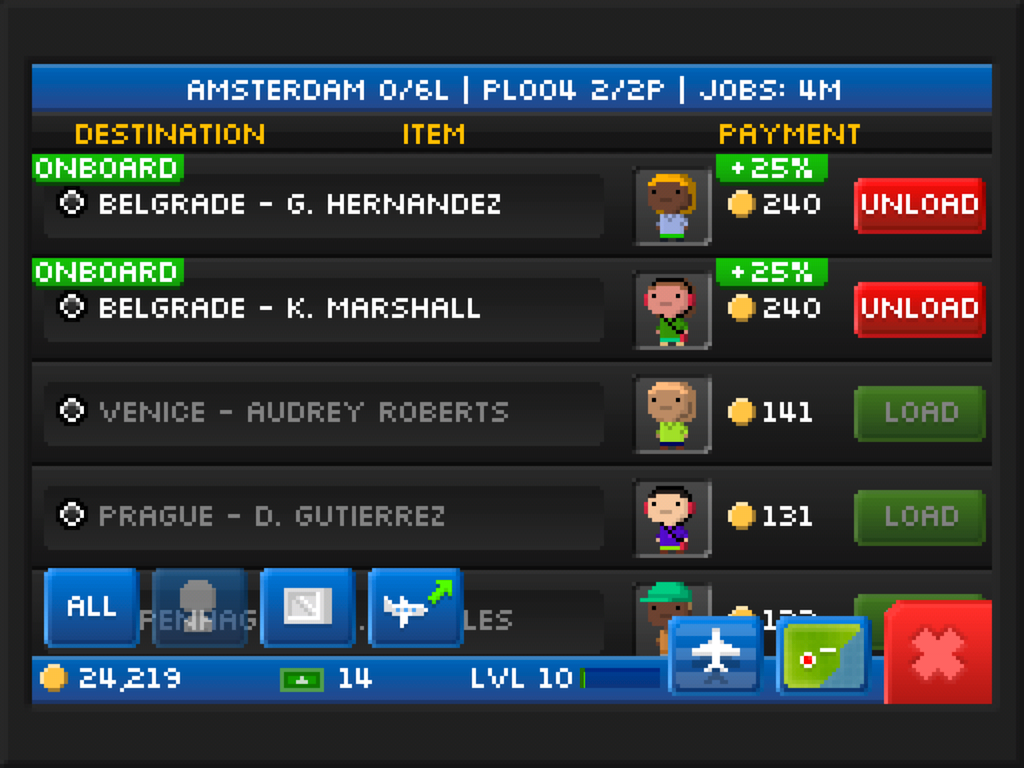
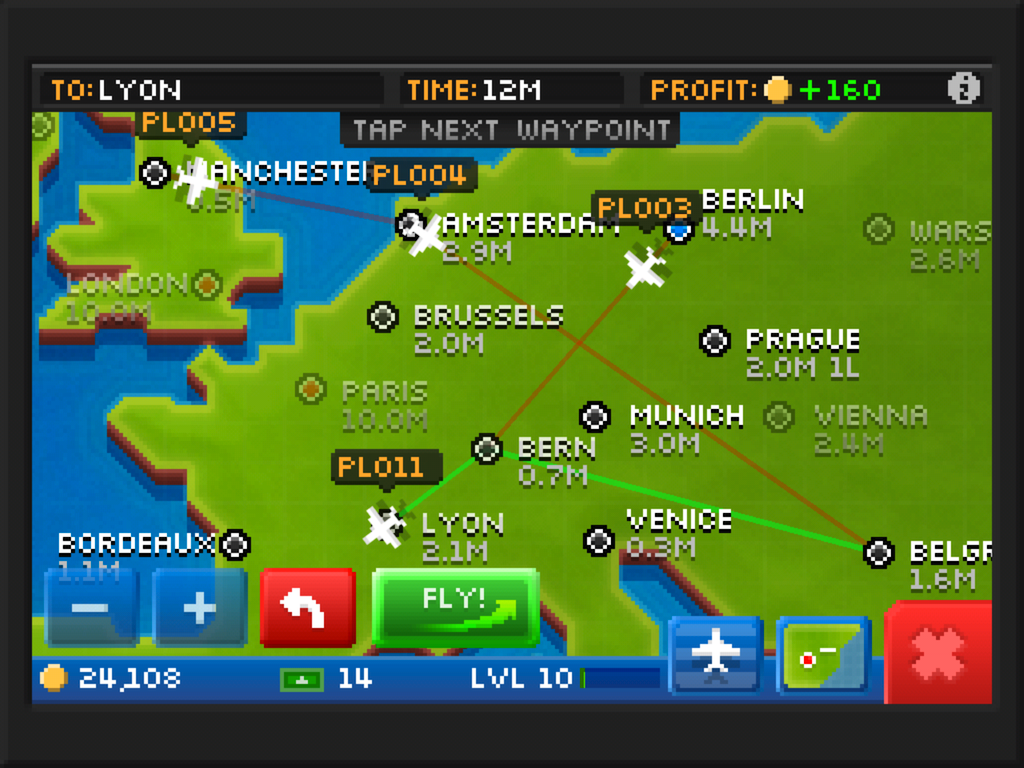
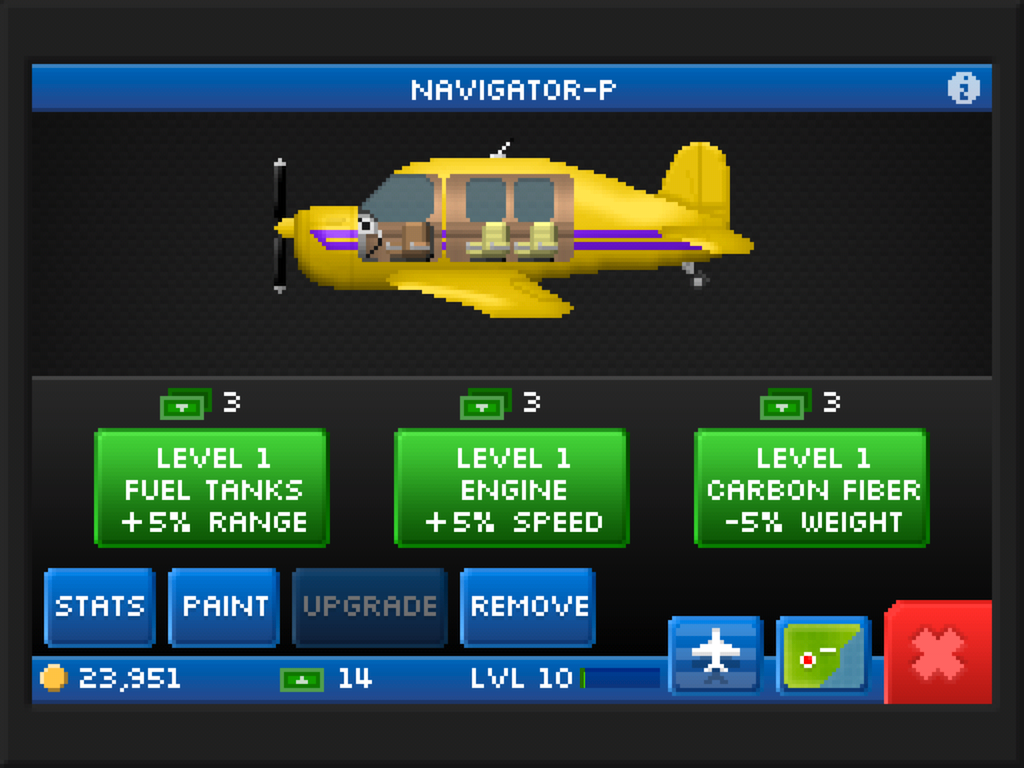
Starting in your choice of territory you receive a small fleet of 1- and 2-seater planes and a handful of airports to despatch them to where they can pick up passengers, cargo, or both depending on the plane type. Each job’s fare is proportionate to how far away it is and larger airports have more jobs on offer; the list refreshes every few minutes, as does the marketplace where you can buy new planes either in whole or in part. The planes start small and get huge, with their own range, weight, speed and capacity stats, custom paint options and quirky nicknames inspired by their real-life counterparts.

Once you have your customised fleet up in the air and the cash starts to slowly roll in you’ll want to start expanding. There are two forms of currency to spend on expansion; coins, earned from the majority of flights; and bux, earned from occasional special deliveries and levelling up.

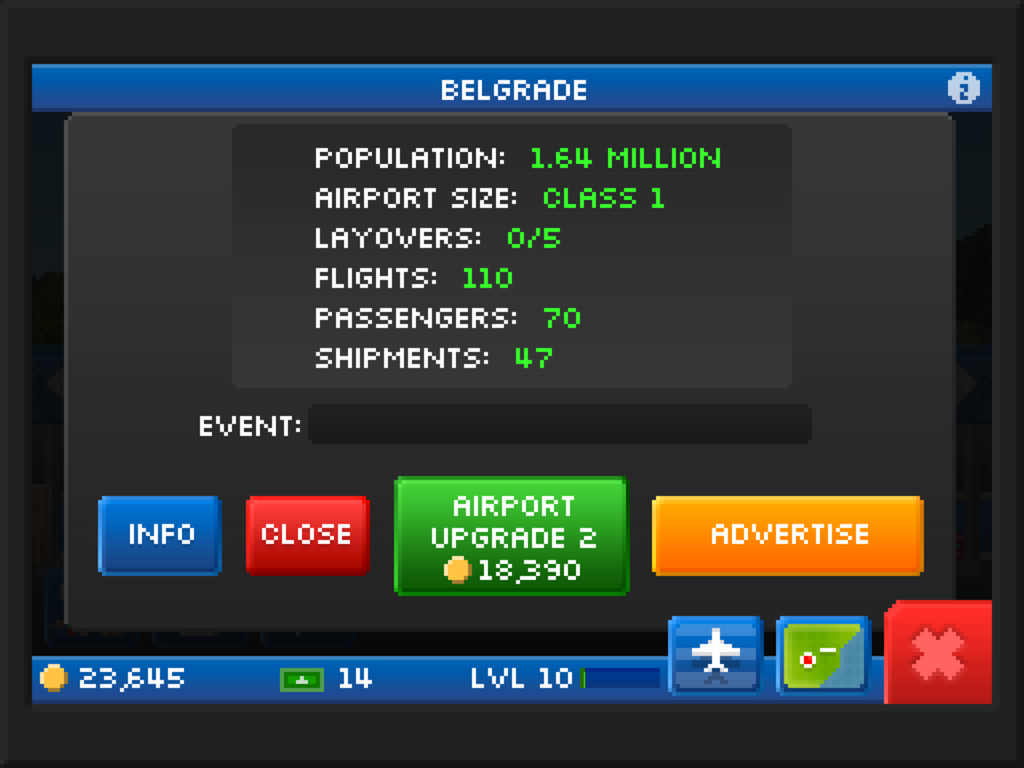
Coins are readily come by assuming your airline is running with even the slightest efficiency and will buy new cities to fly to, extra slots for new planes, airport size upgrades or airport advertising (a rush of jobs at that airport for 8 hours).

Bux are by far the rarer currency and are spent on new planes or the parts to build your own; hurrying a plane to it’s destination; upgrading a plane’s range, speed or weight; or giving your pilots fun costumes (fly with me and you better hope Elvis took flying lessons).

Finally, fill the Level meter by completing jobs and you get a handful of bux, an increase on the number of airports you can own, and better planes in the marketplace.

Online play is served by Global Events, Flight Crews, and the swapping of spare parts you don’t need (at the cost of one bux). Form or join a crew by entering it’s name on the Flight Crew screen and all jobs you do that are connected to a Global Event go towards a Crew score. The Crew with the highest score at the end of the Global Event period (usually several realtime days each) shares bux and coin rewards amongst them. The events, including the special Global Event that Crews take part in, can take place anywhere in the game world and can offer small bonuses or shut your airports down for period of time. If you haven’t got an airport in that part of the world, you can’t take part or be affected.

Where you go from here is completely down to you but what you’re supposed to do is buy better planes, make more money, and expand your airline across the globe, which brings me to the criticism Wired had, that there’s not much else beyond the ‘despatch planes, earn cash, upgrade, repeat’ cycle. This is not entirely true; in fact, Pocket Planes successfully hides a fair bit of depth and strategy away in the gameplay, but you have to find it for yourself.

For example: if you choose jobs so that everyone on board is going to the same place you get a 25% bonus on the fare; if you’re not careful with the jobs or flight plan the fuel can cost more than you’re earning, running the business into a money pit early on; with multiple destinations on board you can make the effort to stop at each leg and refill the empty seats, or do the whole thing as one journey which requires less attention at the expense of profits; you could run an inefficient but still-profitable airline flying stuff wherever it needs to go as you find it, or you could be more organised and allocate some 2-seaters to ferry longhaul passengers to a hub city to be picked up by dedicated jumbo jets, while the rest of your fleet make quick cash doing the shorthaul stuff.

Efficient flightpath planning is definitely where the depth lies in Pocket Planes. Your opening strategy will always be to pick up the most valuable cargo at every airport, drop it all off and get some more. However, as your web of destinations widens and the long-distance fares go up, so does fuel cost and the need to strategically balance longhaul with intermediate dropoffs to keep profits up, then evolving that strategy further as you thread your way across the globe.

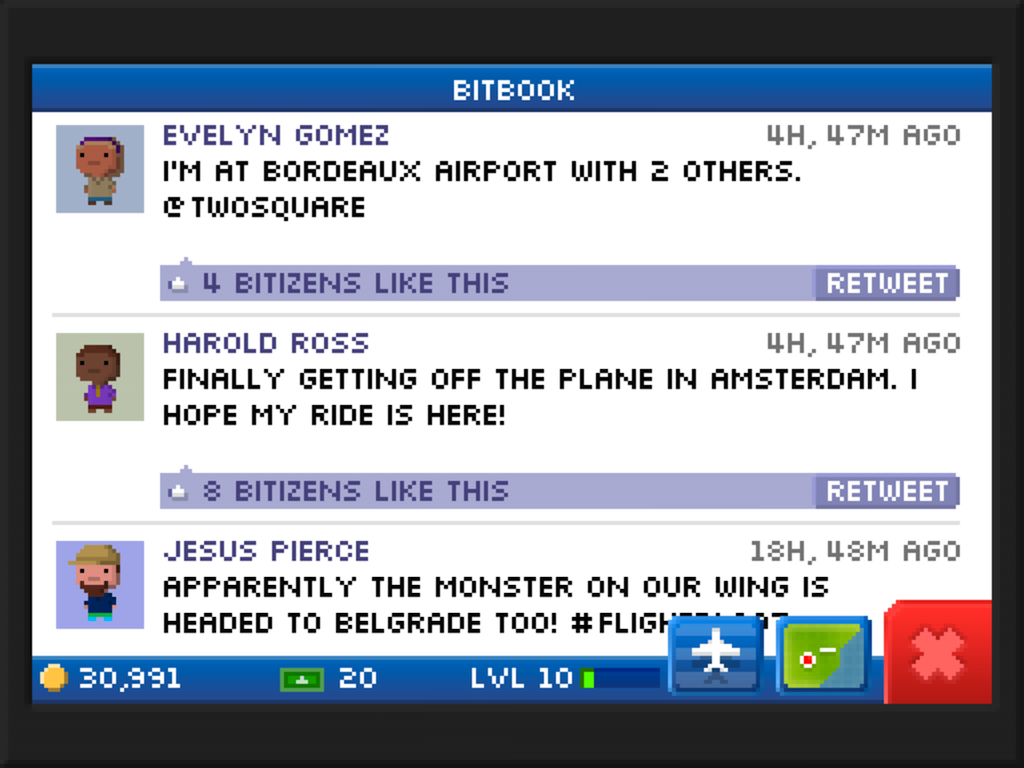
(This game and Plague Inc. have improved my knowledge of global geography an embarrassing amount.)

But while it’s undoubtedly satisfying to have planned and executed such a strategy, without deeper flightpath management options like you find in such desktop management sims as Railroad Tycoon it can get tricky to keep track of just what you’ve tasked each plane with. This organisational effort is perhaps why a more casual player may never even consider evolving from their initial strategy, dooming themselves to low margins and slow expansion.

However you play it, your interaction with the game for 90% of the time consists of picking jobs and sending the planes up; there are no other gameplay distractions or money-spinners. For example, you can’t invest in businesses at the airports to earn money outside the jobs system, compete with other airlines in-game, research particular technologies to suit your style of play, or task your planes with anything more out of the ordinary than the global ‘Flight Crew’ jobs. And once you start to need 30+ bux per new plane or 50,000 coins for a decent airport the amount of work you need to do to earn it can start to feel more like joyless grinding unless you buy some bux with real money.

But this is critiquing on a high level; I didn’t expect a deep management simulation, especially after Tiny Tower, so to find any sort of emergent depth to the gameplay is an unexpected treat. Three days in and I’m still embarrassingly addicted to ferrying my bitizens around the world while I work towards my next planned expansion. In fact, I’ve enjoyed it so much that I think just on principle it’s worth the £2.99 they’re asking for a healthy 200 bux.

If you’ve skipped to the end, there’s plenty to enjoy in Pocket Planes for anyone that likes casual management and simulation games, but it will probably hold your attention longer if you invest some thought into an efficient strategy for your airline’s expansion. Otherwise, the basic grind might lose you after a few days.