Categories
Featured iOS & Mac how-tos iOS & Mac reviews

How to put two photos side by side in Instagram

instagram collages with DipticWhenever I need to make a photo collage on my iPhone, or put two screenshots side by side for a blog post, I use Diptic (99¢). It’s easy to use with plenty of options and sends your creations to pretty much anywhere you can think of, including, of course, Instagram.

It’s Universal too, and works great on the iPad, or Diptic for Mac (99¢) is also available if you’d prefer to make collages from the comfort of your laptop or desktop Mac.

Check Diptic out on the App Store, or read on for my quick review of how the app works.

Getting started with Diptic

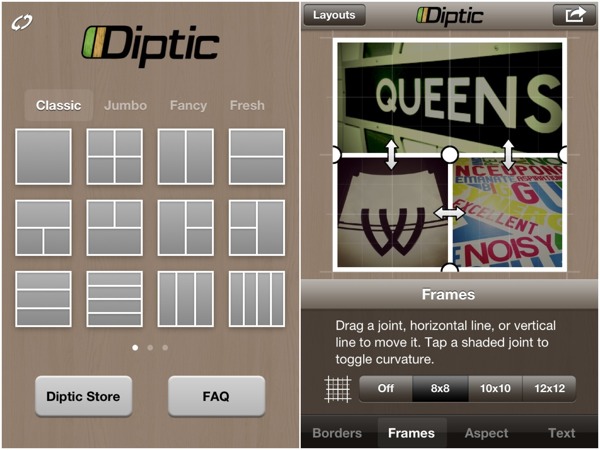
To start making collages, launch Diptic and pick a layout. All the layouts that come with the app produce a square collage, as befits something destined for Instagram, but the range of photo frame shapes and sizes that fit within that square is wide enough to meet most needs, starting simple and getting as fancy as stars in circles – you can even start dragging the frames around to make new shapes that fit your photos.

The frames themselves can be tweaked all sorts of ways, including roundness of corners, colour and thickness, or using a texture. Want your frames to sport a classy zebra-skin effect? No problemo…

instagram-collage-montage-Diptic-1

What if you want a rectangular montage, comprising two square photos side by side for example? Well, then you’d have to purchase an upgrade to unlock an aspect ratio control.

There’s a variety of in-app purchases in Diptic: new sets of layouts, new textures for the frames, and the aspect ratio control. All these are 99¢/69p and none are essential so it’s fair enough, but if you really want to use Diptic for anything aside from Instagram I recommend getting the aspect control as it’s really useful – I used it to put the two screenshots above together as one image.

Adding and editing images

Adding photos to your collage is as easy as shooting them for each frame, or choosing from your Photo Albums, Facebook or Flickr. Once in place there’s a handful of editing options (brightness, contrast, saturation and tint) and a whole range of filters that can be applied to individual snaps, useful if you used the camera in-app to fill a frame. Any blank frames you want to keep can be filled with a colour if you like.

instagram-collage-montage-diptic-2

There’s also some limited options to add text to your photos, offering a variety of fairly standard fonts, outline and drop-shadow effects, rotation and background. It definitely does the job, although if you’re looking for funkier fonts and more options for adding text to iPhone photos take a look at an app called Over (read my review of Over here).

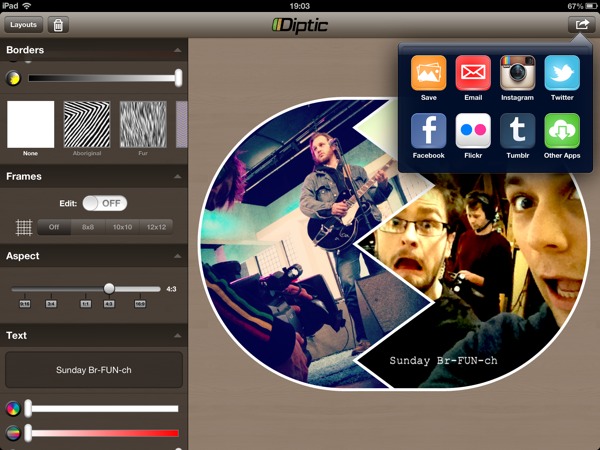
When you’re finished you can save and upload your collage right from the app, to Instagram, Twitter, Facebook, Flickr, Tumblr or Twitter; or export to any compatible apps you have installed. Recent updates have even added the ability to order a postcard and mail it anywhere in the world using Sincerely.com.

diptic-instagram-collage-montage

Plus, it’s Universal so you get the iPad version thrown in. There’s me using it to throw together something a little different with a couple of photos from my day job as a TV camera operator.

In conclusion

Diptic is by far the most popular option for creating photo collages on your iPhone or iPad, with good reason. I keep it installed because of the easy-to-use interface and the flexibility of creating non-square collages, which are good for so many more places than just Instagram. And don’t forget to give the Mac version of Diptic a try too!

app-store-downloadmac-app-store-download
Categories
iOS & Mac reviews Reviews

My updated thoughts on Instagram 2

I used to love Instagram. It had become my favourite iPhone photo app due partly to the ease of sharing to various sites at once but mainly because of it’s lovely filters which struck a good balance between light and heavy effects and had a subtle film-like quality to them at times.

Then it was updated to 2.0 and so many horrible things happened to it at once that I pretty much frickin’ hated it, and boy did I blog about it. In the many months that have passed, I have got over many of my issues with it and started to love it again. It is still flawed, but I love it nonetheless.

(If you fancy, you can check out what I’ve been doing with it at Instagrid, and I’m told that Carousel on the Mac App Store is also very good if you like browsing Instagrams on a desktop computer.)

My original issues with 2.0

If you haven’t already, you may want to read my assessment of the 2.0 update; it’s fairly long but there’s lots of pictures to look at.

Too long, didn’t read? Here’s the bulletpoints:

  • all the filters lost something of their character and in one or two cases became very different (Lord Kelvin particularly); while casual users may not have noticed or cared, as a user who came for the freebie but stayed for the filters, I definitely noticed and cared.
  • much-loved filters were dropped, notably the contrasty B&W Gotham filter. New filters introduced didn’t seem to have much to say for themselves and felt too similar to each other.
  • the tilt-shift tool lost the gradient slider that dictated the abruptness of the blend from sharp to soft, making it a much less satisfying effect to apply

I came to the speculative conclusion that the developers had re-written how the filters were applied in order to speed up the app and allow for a new ‘live preview’ function, and that the new method hadn’t captured the same film-like quality, leaving a more sterile feel overall.

At the same time, it crossed my mind that perhaps another factor was an intention to move away from the sort of look that Hipstamatic has typified and give Instagram a chance to outlive the current craze for over-the-top retro effects.

Either way, I decided to stick with version 1 and not update, but of course in time that proved to be too impractical and a few weeks and a couple of maintenance updates later I reinstalled and, yes, despite my complaints it has gone back to being my favourite photo app. So, I thought it time to post…

My updated thoughts on Instagram 2

I have niggles, but generally I’ve fallen back in love with it. It is back to being my go-to app for snapping a nice moment, and the availability of some less extreme filters contributes significantly to that.

I don’t use the live previews, good as they are; I might miss the moment trying to pick one so I shoot first and choose filters later. Occasionally I forget what that arrowhead bottom-right does so I tap it and up come the previews and I check them out, and they’re pretty cool. Seeing the moving image filtered makes me wish I could record footage with some of them, particularly Amaro.

I like how they’ve listened to users and changed how the filter scrolling works so filters don’t activate when you touch them as you scroll, and the list doesn’t wrap when it gets to the end. The new UI is smart and modern and on the 4S everything is super snappy.

A recent addition that wasn’t in 2.0 is the Lux button; it’s sort of an instant HDR effect, bringing out detail in shadows and highlights. On the downside it can introduce a lot of noise and the effect isn’t always even across the image, but it works as a toggle you can turn on or off at any time while choosing an effect so it’s dead easy to just try it and see if you like it; when it does ‘work’ it can be fantastic.

Another big bonus is how I can essentially post a Twitter update with image attached from the Save screen, so much so that it would be really cool if the app could optionally show you an effective Twitter character count; it’s too easy to type a long description in Instagram that gets cut off when the text and link is posted to Twitter.

As for their own social features, I follow a couple of friends and some people are following me but I don’t often check the Favourites page or keep up with ‘liking’ other people’s images other than friends, so I can’t comment on any bugs in that area; I understand several have crept into older versions of the app.

One thing I will say about the social side; on the rare occasions I dip in I find an awful lot of images that were not taken with the app. That annoys me. I don’t want to see your DSLR-shot HDR image you transferred onto your iPhone and uploaded, whether it’s been treated or not. I just want to see iPhone (and soon Android) images. Perhaps this could be mitigated by somehow encoding ‘100% Instagram’ captures with a tag that users can search for?

What about those filters?

The bulk of the app is the filters, of course, so here’s my big confession: while there’s simply no denying that in comparison to the originals they have lost something and look more sterile, my eye has, in time, gotten used to them. I’m finding increasingly often that I want to use a subtler filter on an image than I might have used in the past as I grow out of the habit of turning everything into a contrasty, super-saturated, fuzzy retro-look snap.

That’s not to say there isn’t a time and a place for that stuff, of course, and sure, sometimes I wish the new look filters didn’t look so damned clear and sharp under the colour layer (particularly Early Bird, which still doesn’t quite capture the mood of the original) but that’s the way they are now and as an alternative to the much-loved skeuomorphism of Hipstamatic, I’ve warmed to it.

A few new filters were added in 2.0 and I originally dismissed them for being too similar and subtle but it turns out that Amaro has become one of my most used filters, alongside other favourites X-Pro, Lo-Fi, Sutro, Brannan and Hefe.

Amaro is not too heavy, not too contrasty, and lends photos a subtle cold blue hazy wash that often summons up a sense of early morning light and imbues images with an indescribable character; there’s just something about it I love. If anything it makes me wish it’s companion filter, Rise, was a little warmer as an alternative.

Only one b&w filter?

What Instagram really lacks right now is black and white options. Black and white is a whole school of photography in itself and is noticeably under-represented in the filters with just one example, Inkwell, which I’ve rarely made a pleasing B&W with. They could fix this just by adding back Gotham, or something like it, a lovely contrasty B&W filter that got the chop in 2.0.

(An aside: I realise you can put a shot through Instagram more than once; you could use Inkwell twice, or follow it with something like Amaro to give it toning, but then you have to deal with something I’ll come to shortly – autosharing every version.)

Resurrect the gradient slider!

Another big disappointment in version 2.0 was the gimping of the tilt-shift tool. As it originally worked you set the size and shape of the sharp area then used a slider to increase or decrease the distance of the transition from sharp to soft. Version 2.0 removed the gradient slider and used a noticeably hard transition as the only setting. It mellowed a little in updates but the gradient slider is gone.

The reasoning, I would guess, is either that it didn’t fit any more, or that simpler is better. Perhaps both? Instagram has been a major success; a recent story at Lies, Damned Lies & Statistics suggests 20-25 million users as of the start of March 2012. Even more recent headlines suggest 27 million, and it’s coming to Android shortly.

Now, one key to reaching and maintaining a mass market of everyday users like that would seem to be a certain user-friendliness (often mistranslated as the removal of options) – Apple knows that only too well. Is that what’s going on here? Or was that gradient slider just not fitting onto the screen in the new design?

I would really like to see it come back. As it is now the tilt-shift can be quite inflexible as a creative tool. Sometimes you want a hard transition; other times you need it to be really subtle (such as creating believable depth of field in a fake tilt-shift). With a very soft feathering setting one could feasibly control the amount of blur in the image. Instagram 1.x gave you the tool to control all this; Instagram 2.x thinks you can’t handle it or don’t need it.

Perhaps the slider and the Gotham filter could stage some sort of comeback event, throw a party, make a it A Retro Thing. Both are sorely missed.

Auto-sharing niggles

Finally, and this really is a small gripe but one I wanted to explore, much as I love the easy sharing to Twitter, Facebook etc (if I want to), there is no easy way of taking a photo in Instagram and not sharing it to their own social network automatically the second you save it.

It’s fairly obvious why this is, of course; the social side is Instagram’s Whole Thing. There’s a reason Instagram is most easily described to newcomers as ‘like Twitter but for photos’ and put in that context, suggesting there’s a switch for turning off automatic publishing to their network seems like a pretty dumb ask. In most respects I agree but I’ll ask anyway because sometimes I really want to turn it off temporarily.

Thing is, I love the app and the pictures I make with it, but sometimes I don’t want to share. Maybe they’re personal family images, or maybe I’m at work on something I can’t talk about publically, or maybe I’m processing a photo several times before it’s ‘final’, or maybe I’m photographing multiple examples of every single letter of the alphabet to make a Christmas card, and I don’t want to spam my followers.

(These are all real examples in my case.)

Yes, I could use Hipstamatic or any of the hundreds of identikit photo apps instead.

Or, I could do that thing where you go into Airplane mode first so the auto-upload fails but the image is saved to your Camera Roll, and then turn Airplane mode off and remove the failed upload from the list.

Or, I could just deal with the fact that this is how the app works, and what their as-yet-unknown business model revolves around, so workarounds it is.

But still, it’s a niggling annoyance and one I’ve had to explain to friends at work who picked up the app after seeing me use it and then discovered they had to share all their pics with the world. Some people don’t want to, at least not all the time.

Maybe the app’s not for them. Or maybe there could be a switch that turns all sharing options off, including Instagram’s, kind of like Airplane Mode for Instagram. Go on. There’s so many people actively participating in the social side that I wonder, would it hurt to grant some of the users some privacy if and when they’d like it?

Not a biggie, though, even though I just wrote nine paragraphs on it and actually stopped to count them twice just so I could write this tenth one.

The bit at the end

Well, that’s my thoughts on Instagram 2 these days; the old filters are dead, long live the new same-but-different filters.

There is too much love in my heart for using Instagram but in the hope that asking nicely will maybe cut some ice at Insta-HQ, pretty please can we have Gotham and the tilt-shift gradient slider back, and how about my cool ‘Airplane Mode for Instagram’ switch, eh? 🙂

Oh, and good luck with the Android launch!

Thanks for reading.

Categories
Gear & gadget reviews iOS & Mac reviews Reviews

iCade for iPad: my review

It was my birthday last weekend (36 if you must know) and I treated myself to an iCade for my iPad; normally I think they’re a bit overpriced at £79 ($99) but it was in a sale and I got some Quidco cashback, plus it was my birthday so that’s okay.

It requires a bit of assembly screwing the sides, back and pre-formed control panel to each other but once complete the design and high quality finish instantly conjures up memories of mis-spent youths in arcades, even if you never actually mis-spent your youth in arcades (the only games I was allowed as a kid were ZX Spectrum and BBC Master games, and I’ve been remedying that ever since).

play PacMan on the iCade for iPadThe verdict is that we love it – my wife is no gamer but got thoroughly stuck in to a couple of classics and modern remakes on the iCade, laughing, cursing and throwing the stick around mercilessly. She’s even downloaded some to her own iPad for when I’m out with mine, it’s that good.

Yes, it’s expensive but it’s the extra level of control it brings to iPad arcade gaming that justifies the purchase – most people instinctively know how to use a stick, even if you’ve never set foot in an arcade. The improvement is profound in some cases; for example, the delightfully insane Forget-Me-Not does alright with swipe-to-turn input but played on an iCade you immediately forget about the controls and focus on the frantic, epileptic-fit-inducing gameplay; arcade gaming feels so right on this thing.

But it’s not perfect

We’ve mostly been playing Pac Man for iPad and a superb Galaga clone called Warblade HD, both of which I highly recommend. They’re the epitome of arcade gaming and well worth the price, even Pac Man’s relatively pricey (for retro) £2.99 – just think how many goes that would buy you in an arcade these days. However, these games are so good that they highlight a couple of issues I have with the controls.

playing Warblade (Galaga clone) on iCade for iPadFirst, both the stick and the buttons, while sturdy and good quality, are very clicky and the buttons require a fairly firm push. Shooting games like Warblade are bloody noisy to play as a result, and it can get pretty tiring hammering away at the stiff fire buttons. Sure, I could work on my arcade physique a little more but it really does feel like hard work after a while.

Second, the stick’s movement is restricted by a square ‘gate’ inside the control panel. The square is set so that the stick locks into the corners on the diagonals as opposed to the Up, Down, Left and Right directions which are on the flat sides of the square gate.

In Pac Man in particular you want to hit those prime directions reliably and often with some force (especially when Hollie is playing it). The way the iCade stick is set up it’s far too easy to hit the flat edge of the square gate and slide into one of the corners; it only takes a small slip like this to trigger a diagonal, turning Pac Man round a corner you didn’t intend to turn or occasionally flipping him 180 degrees, straight into the ectoplasmic jaws of Blinky, Pinky, Inky or Clyde.

Super Crate Box on the iCadeThe clickiness was a bother that I could live with but the stick gate was such a frustration in an otherwise excellent package I Googled it to see if anything could be done. I learned that some square gates can actually be removed from the plastic frame they sit in and can be rotated 45 degrees to place the corners on the prime directions.

Alternatively they can be replaced with octagonal or round gates. Unfortunately the square gate on the iCade’s stick is all one piece and can’t be rotated. For that I’d need to buy a new gate, and so I was introduced to Gremlin Solutions and everything you might need to build your very own arcade machine.

And then I got to thinking about how if I was going to pop the iCade open I might as well see about fixing the clickiness too, so I started learning about switches, button weights, PCB versus non-PCB sticks, the naming conventions of Sanwa joysticks, and how to fit all the above into an iCade. Before I knew it I’d bought a set of eight buttons, a new stick, wiring, and an octagonal gate; £50.36 delivered from Gremlin Solutions, almost as much as I spent on the iCade to begin with.

Hey, it’s my birthday, remember?

Next post – fitting the new kit.

Categories
iOS & Mac reviews Reviews

Review: Alfred for Mac, an excellent app launcher

alfred-mac-reviewToday I want to write about an app I recently got for my Macs that has completely changed how I use them for the better. It’s called Alfred and it’s a ‘launcher’ app that allows you to do almost anything on your Mac via the keyboard.

Such apps are not new but until now I’d had no interest; Alfred caught my eye with a bold, friendly design and a lot of recommendations. It’s available in a basic free version here with an optional ‘Powerpack’ for £15 that massively expands what it can do.

To really get the most from Alfred you need the Powerpack but you should definitely grab the free version and give it a whirl; I upgraded within five minutes of seeing what it could do and haven’t looked back so this review is based on features it provides – but not all of them, there’s just too many.

(All the Alan Partridge fans reading: insert your own “I wonder who got the powerpack?” gag here –>   )

Typing alt-Space brings up the Alfred box into which you type your command or keywords. Typing an application name launches it, like Spotlight; typing a URL or part of a bookmark opens your browser and takes you there; if you want to search the web Alfred offers a selection of search engines then performs the search; it can control iTunes, send emails, perform calculations, manage your clipboard history, search for and perform actions upon most any file on your computer – and that’s just ‘out of the box’.

alfred mac preferencesBy installing 3rd-party extensions in the form of Shell Scripts, AppleScripts or Automator Workflows, Alfred can integrate with many popular applications including Wunderlist, Fantastical, Things, Evernote, Spotify, and Omnifocus. You can even tweet from it. The Alfred user community has come up with all sorts of other cool computer stuff you can do with extensions, many of which are collected on the Alfred site here; have a browse and see if anything that you do often has an Alfred shortcut. If it doesn’t, just create your own.

If all of this still sounds a bit “so what?” then you’re thinking what I was thinking when I first read about launchers. I mean, what’s wrong with the Dock, right?

Alfred is quicker, less distracting & more comfortable

For a long time my Dock had been loaded with around twenty apps and four folders. I would have liked a less full Dock but I found that it was more annoying to have to go looking for them when I wanted them than it was to have the Dock looking a little busy.

Then I got a Magic Trackpad for my iMac. I like it in principle but it’s definitely suited more to gestures than it is precision; It’s probably no coincidence that around this time I started investigating apps like Launchbar and QuickSilver that I’d heard a lot about; I wanted a better way to get to apps than through precise mouse movements.

In the end I didn’t see the point installing and learning to use something new that I could approximate for free by using Spotlight to launch apps that weren’t in the Dock. Spotlight’s cmd-Space shortcut is easy to remember and type, and entering a few characters of an app’s name is far quicker and easier than invoking a new Finder window and navigating to the app and double clicking.

Having got used to launching apps via Spotlight like this, trying Alfred was like opening the floodgates as it grants the same easy access to almost everything you do regularly on your computer, and considerably more elegantly.

How could Alfred help you?

Here’s a few examples of how I use it day to day:

I rarely type URLs into browsers now, or search via the Google box in my browser (although I still don’t remember every time). I can connect to my other Mac via Screen Sharing with just two keystrokes (‘ss’) instead taking a good ten seconds of focus to do it manually. When working on my site I often use the same selection of apps so I’ve set an Alfred keyword that opens them all at once.

alfred mac growlA very useful shortcut that I’m using daily is for Wunderlist. Things I need to remember occur to me all the time; sometimes I try and record them with Siri and then get frustrated with Siri when I have to correct everything it got wrong; sometimes I remember to launch Wunderlist and create a new reminder; and most of the time I do neither because they’re both too much effort and then I forget.

With Alfred I type ‘wl remember to do that thing’ and go back to whatever I was doing while Alfred sends that off to Wunderlist in the background, displaying a Growl to confirm receipt. My fingers don’t leave the keyboard, I remain in the same app environment and I stay focussed on whatever I was doing. All I have to do is remember to check Wunderlist…

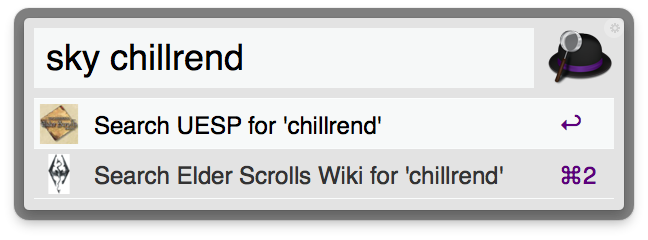
alfred mac search

Another example: I’ve been playing a lot of Skyrim recently (like, hundreds of hours of it) and occasionally need to look something up online. I’ve saved the two best Skyrim wiki sites as custom searches in Alfred and given them both the keyword ‘sky’. Now when I need the low-down on that Chillrend blade I looted I type ‘sky Chillrend’ and Alfred offers both wiki sites as possible actions. Rather than search one at a time I’ve set a keyboard shortcut to ‘action all results’ with ctrl-Return and both open in the background.

alfred mac utilityAnd then there’s the customisation and options; most of the keyboard shortcuts can be altered (although you should try the defaults first because they’ve been chosen deliberately); you can change the fallback search sites Alfred will offer to search with if it doesn’t recognise any keywords in your query; Dropbox syncing to sync extensions and settings across multiple Macs running Alfred; you can even style the Alfred box how you like it or download themes other users have created (my own attempt is available here – what I said earlier about Alfred being elegant obviously goes out the window if you go with a Sex Pistols colour scheme).

Alfred also learns quickly; the more you use it, the less characters you need to type before Alfred knows what you want. Using this I’ve trained it so that when I start typing ‘ph’ it offers Photo Mechanic first because that’s what I’ve picked the most when I’ve typed in just those two letters in the past, whereas if I continue to ‘pho’ it offers Photoshop first.

The finishing touches to an already wonderful app are the friendliness of the small team behind it and the support of an enthusiastic community providing extra functionality in spades. Every question I’ve tweeted at @alfredapp has received a prompt and helpful response and there are both official and unofficial Alfred tips sites to pore over.

Grab now, buy later

A full review of Alfred would take ages and I’ve really only touched on a very small set of the functionality; suffice to say it is extensive. The wealth of possibilities may seem overwhelming or you may be reluctant to give up the mouse. Don’t worry – it scales beautifully to users of all proficiencies and your mouse hand will definitely thank you. In fact, at first it took me by surprise how liberating it was to remove so many constant mouse interactions; even small movements down to the Dock are hassle compared to Alfred once you get into the habit.

If you’re even a bit of a geek or use your computer frequently I think you’ll love Alfred for Mac. Grab the free version now and see how long it takes you to resist the Powerpack and open up it’s trove of possibilities. It really does change the way you use your computer.

(Okay that last line sounds so much like a radio sponsorship blurb but I assure you this is from the heart, not the wallet; I love using Alfred so much I want you to as well – no kickbacks here.)

Thanks for reading. If you’d like to comment on anything I’m @myglasseye on Twitter.

Categories
iOS & Mac reviews Reviews

Cathode for Mac – an alternative to Terminal

Cathode for Mac OS XI’d like to share and recommend an app I very rarely have need to use; in fact I really only use it when I’m re-jailbreaking my Apple TV, which hopefully I’ll not need to do again for a good long while. However, I wish I had chance to use it much more often. It’s called Cathode (Mac App Store link, $10) and it’s a fun alternative to the Terminal utility that comes with OS X.

For those who don’t know Terminal (and nobody would blame you if you don’t) it’s used for accessing the command line of the computer. The command line is kind of one level of sophistication up from the system’s guts. When you do something in the graphical user interface of your app, the resulting commands come here to do their thing; you can make the computer do anything you want from here, including committing computer suicide, making it an intimidating place for the inexperienced.

(I know pretty much zero about working with the command line except what I copy and paste from reputable sites when I’m jailbreaking. I have gathered that ‘sudo’ is a powerful and oft-used command that makes something ‘do’ something, so I allowed myself the luxury of smiling knowingly at the recent Penny Arcade guest strip about that one, although I probably shouldn’t have.)

So whether you’re an occasional user or you pretty much live in the command line, you may appreciate Cathode for putting a friendlier face on it than the cold, blank stare of Apple’s Terminal.

Cathode, alternative to Terminal
clockwise from top left: three preset display types, plus one with custom tweaks to make it glitchy

You can tweak almost every option on the screen including font family, size and colour ; background and foreground colour; monitor curvature and reflection opacity; rate and opacity of the scan-line; character flicker; a whole bunch of retro sounds you can turn off completely if you like, including a beep every key press just like the movies; you can even put an iSight photo of yourself at the keyboard into the screen reflection.

It’s all completely cosmetic but it certainly makes digging into the command line on a Mac a much more enjoyable experience. At the moment I have a setup inspired by the Swan computer in Lost:

This is just a slightly tweaked 'Viti Green' preset

Thanks for reading. If you’d like to comment on anything I’m @myglasseye on Twitter.