Categories
iOS & Mac how-tos

How to sync your Colonization save game on a Mac

I just got stuck into Civ IV: Colonization for Mac after it was on sale on Steam (although it’s also available on the Mac App Store if you prefer), and I’m rather enjoying it. I’ve got Civ IV and V and they’re great games but I’m not very good at them and I’m really enjoying the smaller scale and more focussed victory conditions of Colonization. However, I’d like to not necessarily be tied to my iMac in the study, lovely as it is. Sometimes you just want to grab a laptop and hunker down on the sofa next to your loved one who insists on spending the day watching guff on Netflix… 😉

Unfortunately Colonization doesn’t support SteamCloud for savegame syncing. Dropbox to the rescue! If you’ve seen my guide to syncing XCOM save games using Dropbox this is pretty much the same deal, but if you’re new to this, read on.

(By the way if you’re trying to achieve this on a PC I’m not sure how symbolic links work on PC, but if you can work that out the principles are the same.)

Dropbox and symbolic links

First you’ll need a Dropbox account. It’s free and it’s awesome, and if you don’t already have an account use my links to sign up and we’ll both get some bonus space, which is nice!

Next up you’ll need to get ready to use symbolic links. In short, when you move a file from one place to another you can leave a little ‘map’ (a symbolic link, or symlink) in the original location that seamlessly redirects the operating system to the new location as if nothing had moved. You can read more about how symlinks work in my post here, and when you’re ready to set up the service you can get instructions from here. It’s also possible to leave a symlink behind using Terminal, but the symlink tool is sooo much easier!

Got those set up? Nice, here we go:

Move the Colonization saves to Dropbox

On a Mac you’ll find them in the User -> Documents -> Aspyr -> Colonization folder. Note that while all we really need is the Saves folder, it’s much easier to work with the entire Colonization folder.

sync colonization saves mac

Grab the folder and move it on your hard drive to your Dropbox folder. To keep things in some sense of order I have a ‘Documents’ folder in Dropbox, so I created an ‘Aspyr’ folder in there and moved my original ‘Colonization’ folder there, so it now resides in User -> Dropbox -> Documents -> Aspyr -> Colonization.

Create the symbolic link

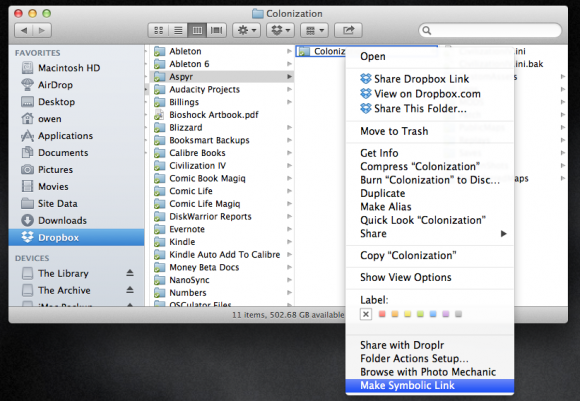
Now we need to tell the computer (and the game) where to find the folder since we moved it. Select the ‘Colonization’ folder in it’s new location, right-click and select ‘Make symbolic link’. It will create a new file called ‘Colonization symlink’ – it’s actually an Alias, as depicted by the small curly arrow on the icon.

sync savesgames colonization mac

Now move that symlink back to the original location, so Users -> Documents -> Aspyr. Once there, edit the filename to remove the ‘symlink’ element. Now wait for Dropbox to update the folder to your other computer.

Tell your other Macs about the new location

Now you need to tell your other Mac about the synced savegames. Find the newly-synced Colonization folder in your Dropbox on the other Mac and create a new symlink to it as before, then move that symlink into that computer’s Documents -> Aspyr location described above, delete or rename the one that’s already there (assuming there are no saves in there you want to keep!), and rename the symlink to just ‘Colonization’ again.

All done!

Now you should now be able to save a game on one Mac, quit the game, launch it on another Mac a few moments later (after Dropbox syncs) and fire up that same save.

A couple of words of warning – don’t run Colonization on more than one synced Mac at the same time or when you come to save it will get very confused and not know which updates to sync, which to load, and it gets messy. Secondly, if you decide to move the ‘Colonization’ folder inside Dropbox for some reason, be sure to create new symlinks in the new location and replace the old ones so the game doesn’t get lost!

Hope this helps – happy colonising! (I’m British, we use an ‘s’…)

mac-app-store-download

Categories
Other how-tos

Another way to watch Netflix from anywhere in the world

I go through phases of loving and not-so-loving Netflix, depending on what’s available and what I’m in the mood for. Right now we’re in the middle of a serious Alias binge (can’t believe I never saw it the first time round!) and at some point in the future we might try and get back into Breaking Bad (we loved the first season but never got into the second season properly). However, we’re in the UK and as you probably know if you’re reading this, the UK library kind of sucks. Thankfully there’s plenty of online services that legally sidestep the regional Netflix restrictions and I wrote a quick guide to a couple of the most popular ones last month.

overplay vpnI’d been telling a friend recently about how Unblock Us works and how we’re getting much more value from our Netflix sub with it, and he asked if it would work on websites other than ‘streaming media’ sites or offer any VPN functionality.

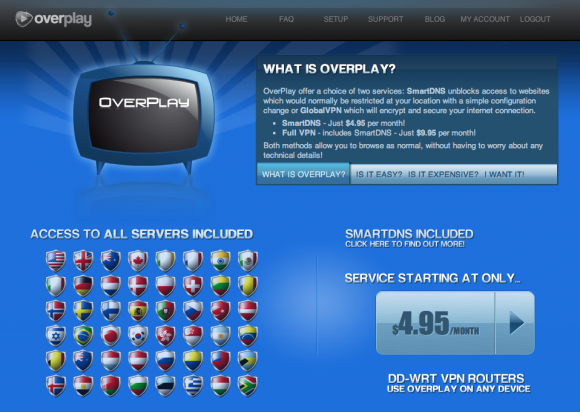
I actually didn’t know as all I use it for is switching Netflix libraries but it turns out the answer to his question is “not really”. They specialise in getting you into sites like iTunes, Vudu, iPlayer etc, but not things like Facebook or Twitter. I did a little Googling and came up with Overplay who, for $4.95, offer an identically-priced called SmartDNS which is similar to what Unblock Us does but will gain you access to a lot more geo-fenced websites, and has servers in more countries. And yes, it also does a proper encrypted VPN service for a slightly higher price of $9.95. Passed on the link to my friend, problem solved.

Personally I’m happy with Unblock Us as it covers almost all the streaming media sites you could ever want to access, and there aren’t that many regular folk who need an encrypted VPN. Also, unlike its rivals Overplay doesn’t offer a 7-day trial. And call me picky but their website is a bit… blah. I know, I know, that’s got nothing to do with the service they offer, but a bright friendly website was the deciding factor when we subscribed to Unblock Us.

On the other hand, if you want or need access to regular geo-fenced sites, and an encrypted VPN that can place you pretty much anywhere in the world as far as the internet is concerned, Overplay could be exactly what you’re after. Hope this helps!

Categories
Other how-tos

GeoRiot makes international iTunes & Amazon affiliation easy

Amazon iTunes Affiliate GeoRiot
The GeoRiot home page
If you’re running a blog and making a little money on the side with referrals to iTunes and Amazon, you’ll probably have noticed that ‘out of the box’ those programs don’t make international affiliation too easy for you. Most countries not have not only their own store but their own affiliate program as well – which country’s affiliate link should you use to get the best referral income?

I solved that problem for myself by using an cool service called GeoRiot to automatically send my international readers to their local iTunes or Amazon store – and collect the referral from the correct affiliate program at the same time. Plus, their CEO Jesse Lakes is the guy that answers the support emails – that’s very cool.

The problem with iTunes & Amazon affiliation

There’s two catches with basic iTunes and Amazon affiliate links and they’re both down to the territorial nature of the stores and the affiliate programs they use. Firstly, basic clicks on a US store link from a UK-based visitor, for example, will either result in an error if the same product doesn’t exist in the UK store, or the visitor will be taken to the US store where they won’t be able to buy anything.

Secondly, even if your UK visitor manages to find and purchase the same product on their own store, your US affiliate link won’t carry over and you won’t get the referral for the sale. You can only link to one store but no matter which country you decide to use you’ll be missing out on referrals from international visitors to your site.

I ran into this wall pretty quickly when I started looking into the iTunes referral program, being new to affiliation. I started searching forums and that’s how I came across Georiot, which seemed custom made to solve the problem.

How it works

GeoRiot isn’t an affiliate program itself, it’s more like an automatic redirection service. You can get the nitty gritty about how it all works on their site, but it boils down to this:

  • sign up for the various affiliate programs around the world
  • connect your affiliate program accounts to your GeoRiot account
  • set up a ‘Traffic Source’ for each unique location you’ll use your affiliate links
  • create international links specific to your Traffic Sources by pasting Amazon or iTunes product URLs into the GeoRiot Link Generator tool

And that’s it. Their links determine where your reader is from, redirects them to their local store and adds your referral from the appropriate program. Then you sit back and track your international referrals in their Reports section, receiving your payouts as normal from the Affiliate Programs themselves.

Switching to PHG, the new iTunes Affiliate Program

The other awesome thing is how easy it’s making the big iTunes Affiliate Program switchover from Linkshare and DGM to PHG, the Performance Horizon Group, due to kick in on October 1st 2013. The change is largely a positive move as although terms are changing slightly, the percentage commission is increasing and it will consolidate six countries that used to have their own programs plus six entirely new ones into one single program.

However, it also means that referral links using Linkshare- and DGM-specific code need to be updated to the PHG format. For bloggers that aren’t already putting their affiliate links through GeoRiot this could be a monumental task but if you setup with their service now they’ve got some Javascript snippets on their site that can automate the process for you.

If you’re already using them, all you have to do is set up your new PHG iTunes Affiliate Account and enter the user token into your GeoRiot dashboard – that’s it. When a visitor clicks one of your existing links the redirection magic just swaps in the PHG code where it would previously have used the Linkshare or DGM code.

According to Jesse the goal with GeoRiot was to build a system that was future-proof and the way they’ve handled Apple’s switchover to PHG shows the value of that decision. The whole operation feels very user-focussed and friendly – if you’ve ever got a question no matter how n00b, drop them a line and it’s usually Jesse himself on the other end.

The final bonus is, there’s no monthly fees as such. Instead GeoRiot is funded by redirecting 15% of your traffic through their own affiliate code instead of yours. It’s not even a fraction of all your traffic – they allow you to select a territory from which they will never skim referrals. So if you’ve determined your most lucrative referrals come from US visitors you can make sure GeoRiot never skims from your US traffic.

Why are you still reading? Go and check them out!

Viglink – a back-up affiliation tool

itunes amazon affiliate links
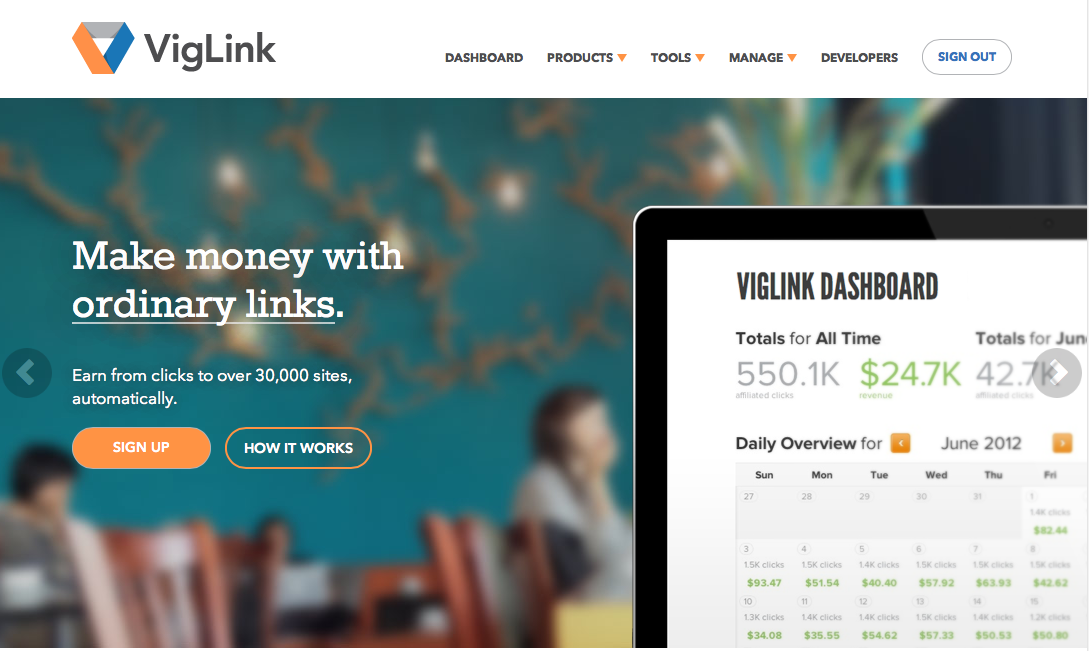
The Viglink home page
Actually before you go, just a quick mention of Viglink. They’re another affiliation service but with a different twist. Instead of you going and signing up to hundreds of retail referral programs (not just Amazon and iTunes), you sign up to Viglink who have already joined all those programs on your behalf and grant you access to them.

You add some Viglink code to the head of your site (or use a WordPress plugin) and whenever you use a raw link to a store online that’s part of an affiliate program Viglink is a member of, your Viglink account accrues the commission and they pay you directly instead of the individual affiliate programs. The idea is you stop having to worry about any referral links at all and let the Viglink redirect handle it all for you, even if you didn’t realise the thing you linked was part of an affiliate program.

They also have a tool that will find references to affiliated stores or products in your content that you haven’t linked but could have done, and insert a link for you. I think that’s a bit spammy personally, but it might be a useful tool for your own site.

It’s a very handy service – one of several similar ones, such as Skimlinks – bolstered by the fact that currently only Viglink uses GeoRiot’s background magic to perform international redirects on their iTunes links. This means that unlike Skimlinks, Viglink gets access to all 51 programs and can translate store links between countries.

Because Viglink is collecting the commission for you, they make their money by taking a 25% cut of that commission when they pay out. Contrast that with GeoRiot which redirects 15% of your least frequent/lucrative traffic and takes the full commission – if any – from those referrals.

In conclusion

I only really write about iTunes apps, and occasionally something you might find on Amazon, so while Viglink has a far wider reach I prefer GeoRiot’s laser focus on those two stores. I also prefer their revenue model so as a rule I build iTunes and Amazon affiliate links with GeoRiot and leave Viglink to scoop up the rest.

Give them both a try today – I guarantee* you’ll be glad you did.

*guarantee not legally binding.

Categories
Other how-tos

How to migrate Pixelpost to WordPress

Until recently I’d been using Pixelpost to power my photoblog, ‘my glass eye • pictures‘ but that software is long in the tooth and not well supported any more. Times have moved on so I decided to migrate Pixelpost to WordPress. It was surprisingly easy with only a few little hiccups, all of which I managed to solve.

This post details how I did it – first I go through the basic steps you need to take to migrate your own Pixelpost photoblog to WordPress, then a section on the problems I had and how I solved them.

[toc]

What you’ll need

You’ll need the following no matter what:

  • PixelPost to WordPress Exporter plugin by ElevenTwentySix. They ask for a (required) $14.95 donation which goes to The Leukemia & Lymphoma Society and it’s well worth it for the work it will save you.
  • WordPress installed wherever you want to host the new version of your photoblog.
  • a WordPress photoblogging theme set up however you want it. I went for Retouch Pro by Graph Paper Press.

Install & setup WordPress

Install WordPress to your server following their instructions. I installed it to its own directory on my site and once I’d completed the migration and was happy the site was ready to go live I moved Pixelpost out of the root directory and used the General admin page to run WordPress from my site’s address.

The most important part is that you must give your WordPress installation its own MySQL database. If you don’t, it’ll make wiping the database clean before importing your Pixelpost files damn hard, plus it’s just a good website housekeeping rule.

Once you’ve gone through the basic setup, now would be a good time to start looking for a theme to use.

Pick a photoblogging theme

migrate pixelpost wordpressI went for Retouch Pro by Graph Paper Press. It’s a premium theme but it comes the closest to the look of my Pixelpost site and as a bonus the GPP support forum is excellent. If you’d prefer a free photoblogging theme there’s plenty out there if you do a quick search. Try a few different themes, make some test posts to see how each one works and what, if any, tweaks you’d like to make.

By the way if you find a really good one, free or premium, I’m sure others would love to know about it so give it a shout in the comments below.

Once you’ve picked a theme you need to establish the following things to make the import process go smoothly later:

  • does it require images to be called using HTML in the post content, or does it just need an image to be ‘attached’? (in my case they just need to be attached)
  • does it require Featured Images? (yes, mine needs those set in order to display an image)
  • does it make use of a theme-specific post format other than Standard to display your photoblog posts? (yes, mine uses its own ‘Image’ post format)

Install optional plugins

One of the main advantages of WordPress is the huge library of third-party plugins to add functionality. Here’s a few that I highly recommend, or that may come in handy depending how your theme works:

  • Akismet – a superb spam filter for comments. It comes already installed with WordPress, you just need to generate your own API code on their site.
  • WordPress SEO by Joost de Valk (aka Yoast) – an essential plugin for sorting out SEO optimisation across your site as well as on individual posts. You should really take 15 minutes to go through the tour and set it up nicely.
  • Google Analytics for WordPress by Joost de Valk – effortlessly set up your site with your Google Analytics account.
  • SEO Friendly Images – this will automatically create Title and Alt tags for your images based on variables like post title and image name. Alt tags in particular are extremely important to search engines.
  • Smart 404 – does a great job of intercepting requests that would normally result in a 404 error and sending the visitor to its best guess at what post they were looking for. If your Pixelpost URLs were in the form ?p=123 and you go for the vastly superior pretty permalinks in WordPress this won’t help so much, but it’s handy to have anyway.
  • Auto Featured Image – many themes require Featured Images so this is extremely useful for automatically setting them on all your imported posts. It just takes the first attached image in each post and uses that, perfect for a ‘one-image-per-post’ photoblog.
  • W3 Total Cache – caching plugins make your site run faster, something both your visitors and Google will appreciate. There’s several available and many schools of thought on which is the best and how they should be set up, but you can’t really go wrong with W3 Total Cache. Do a quick search for Yoast’s set-up guide, he knows his stuff.

When you’re done with your basic setup it’s time to wipe it clean in preparation for the import.

Prepare WordPress for import

Assuming you’re starting a brand new WordPress installation for your Pixelpost import, Jeff Mahoney, author of the ‘Pixelpost to WordPress Exporter’ plugin, recommends you only import everything after properly erasing any demo or test data you’ve created while setting it up.

However, if you’re trying to add your Pixelpost blog posts to an existing WordPress blog DO NOT DO THIS! You’ll wipe out all your posts and you won’t get them back. I can’t help with importing to an existing site but I’ve heard of others managing it so have a search once you’re finished reading this guide.

If, and only if, you’re starting with a brand new WordPress site, wipe the existing demo post, page and comment data by logging in to your host’s admin page (e.g., CPanel), navigating to PHPMyAdmin, and selecting the database you set up for this WordPress site making double and triple sure you’ve selected the correct one.

Then select the following seven tables and empty them:

  • wp_commentmeta
  • wp_comments
  • wp_postmeta
  • wp_posts
  • wp_terms
  • wp_term_relationships
  • wp_term_taxonomy

Emptying these tables will also appear to remove any test images you uploaded to the Media Library but it doesn’t seem to remove the actual files from your server. Fire up your FTP app to check in the Uploads directory ([yoursite.com]/[wordpress]/wp-content/uploads) and physically delete any test images left behind.

You should now have a completely empty WordPress site ready to take your Pixelpost import!

Export .xml files from Pixelpost

pixelpost wordpress exporterOkay, we’re nearly there!

First install the PixelPost to WordPress Exporter plugin to your Pixelpost site. You just drop it into the Addon folder in your PP installation and activate it from Admin.

Export settings

From the Addons page of Admin, scroll down to the options for the exporter. As well as the posts database you have the option to include references to the images themselves, tags, categories, and comments, add an ‘img src’ tag to your posts, specify the post author, and split the export.

Remember when you noted if your theme required an image to be called by HTML in the content of a post? If it does, the ‘img src’ option can save you some work by embedding it into the post content during the export so it’s already included when you import to WordPress. Don’t worry if you’re still not sure – leave it off for now and you can always run the export again later if it turns out you need it.

Splitting the .xml is useful if you have a large blog. Hosting servers often have a timeout enabled that is too short to upload a single large .xml file, so splitting the export into multiple files just means you import smaller chunks within the timeout limit.

Don’t worry about the Author selection, you can set the Author during the import process later.

Everything set up the way you want it? Okay – export!

Keep the resulting .xml files together in a folder called something like ‘PP Export 1’ – you might want export again with different variables so it’s best to keep everything clearly labelled.

At this point you’re probably ready to import. However, if you noted that your WordPress theme requires photoblog posts to be set to a specific post format type other than Standard, skip down to the section on potential problems before going further – we may need to do a little fixing first.

Import .xml files to WordPress

All your .xml files are ready? Here we go, this is the fun bit!

Log in to your WordPress admin pages and select Tools -> Import in the sidebar. Select ‘WordPress’ and it will ask you to install the WordPress Importer plugin so go ahead and do that.

Now import each of your .xml files in order, selecting your user account to be set as the Author, and ticking the box for importing media attachments.

As each file imports don’t browse away from the page, just wait. Eventually you should see a list of the posts imported successfully and a ‘Success’ message at the bottom – at this point import the next file. Remember that one of the files, usually the first, contains just metadata and so won’t show any posts imported.

If you get a ‘fatal error’ message regarding a timeout, don’t worry! It just means there was too much work to do before the server timeout kicked in. Simply run the importer on the same .xml file a second time and it’ll skip straight to the posts it didn’t get last time coz it’s clever like that 😉

If you like, double check the Posts and Media pages after each successful import to check the tally is going up accordingly.

Once you’ve successfully imported all your .xml files… that’s it, you’ve migrated your Pixelpost photoblog to WordPress!

Potential problems and suggested solutions

The very first time I tried this two years ago it all went a bit wrong on a number of fronts. However, it was all fixable so here’s some problems you may experience, and a solution to try:

Your theme requires Featured Images to work

The import process will grab your images from your Pixelpost site and attach them to the correct posts, but won’t set a Featured Image. This is no problem – just grab the Auto Feautured Image plugin via the ‘Plugins -> Add New’ page and run it.

The plugin does currently say it’s not been updated in quite a while, but I’m on WordPress 3.6 and it worked. If you’d prefer something newer there are other plugins that appear to do the same thing.

‘Fatal Error’ timeout during the .xml import

As mentioned above, this isn’t as fatal as it sounds, it just means the .xml file was a bit too big for the importer to do its thing before the server timeout cut it off. Simply run the Importer on that .xml file again and it will pick up where it left off. Splitting the Pixelpost export into more chunks can help prevent it happening.

Importing doesn’t grab the images

First, are you sure you checked the ‘images’ box when exporting from Pixelpost? If you did and it still didn’t work there could be a number of reasons, but in my case it was a problem with the filename for around 300 of my images – I’d included a space in them. I was new to running a website back then and didn’t realise you shouldn’t have spaces in filenames!

PixelPost had dealt with this by replacing the space with %20 in the URLs so the images would load. However, the .xml file recorded by the PixelPost exporter left the space in the filename and hence the URL, so the WordPress Importer wasn’t able to find those images.

Jeff Mahoney, the creator of the PP Export plugin, was an absolute star and talked me through how to solve this:

  • run the Export plugin using the existing ‘bad’ image filenames
  • log into the server with an FTP app and create a duplicate of Pixelpost’s ‘images’ directory
  • isolate all the bad filenames in the duplicated image directory and replace the space with an underscore

    (I did this step by downloading the images directory to my Mac, renaming it ‘imagesfixed’, using an Automator action to rename the bad files and uploading this directory to the root of Pixelpost alongside ‘images’.)

  • go into the XML files and do two Find & Replace actions; the first to rename the image references using the underscore; and the second to find all references to the ‘images’ directory path and replace it with the ‘imagesfixed’ directory path.
  • run the WordPress Import tool on the edited .xml files.

This worked flawlessly – thanks, Jeff!

Your theme uses a post format other than ‘Standard’

My chosen theme, Retouch Pro, requires photoblog-formatted posts to be in their custom ‘Image’ post format but the WordPress Importer places them all in the Standard format by default.

You used to be able to change the post format for multiple posts at once using the Bulk Edit option on the Posts page, but a recent update took that facility away. It’s been raised as a feature request over at the WordPress development pages but there’s no telling if or when it’ll return.

I thought I was going to have to manually switch all 650 posts by hand, until I stumbled across a crafty workaround: I switched one of my posts to the Image format manually then I exported it to an .xml file and had a look through the contents in a text editor. Sure enough there was a line amongst the meta that designated the Image post format.

I copied this line, then opened my original Pixelpost-exported .xml files and did a ‘Find & Replace’ to drop that crucial line into the same section of code for each of my 650 posts automagically. Then I wiped my WordPress clean (again!) and re-imported using my edited .xml files. This imported all the posts as before, but set them all to ‘Image’ – success!

Categories
Other how-tos

How to watch US Netflix from anywhere in the world

us netflix from uk
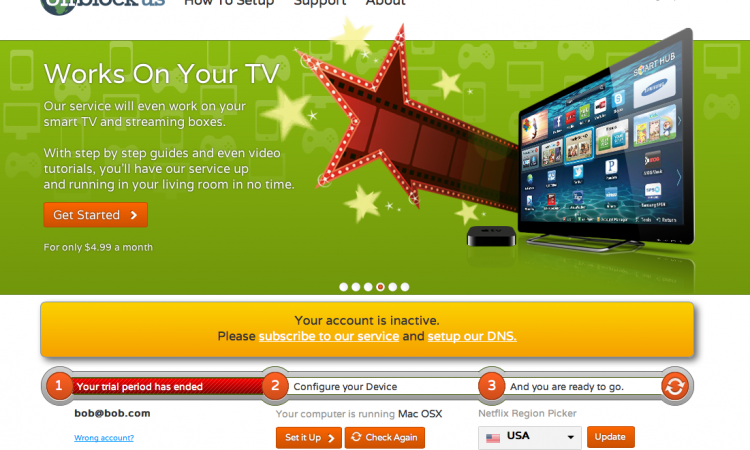
You can switch region on the Unblock US homepage
We subscribe to Netflix in the UK from our Apple TV but let’s face it, the selection available is pretty lousy – just flicking through the InstantWatcher database (a library of everything available on the US library) is enough to really make you consider cancelling your UK Netflix sub.

Enter Unblock Us to save the day!

Being a bit of a geek I was pretty sure there’d be a way around the Netflix ‘geo-fence’ and sure enough Unblock Us did the job. It’s a $5 monthly service that lets you pretend to be pretty much anywhere in the world and receive that country’s Netflix library. So if you’re in the UK and want the US library, no problem. And, of course, vice versa 🙂

Make the most of your Netflix sub!


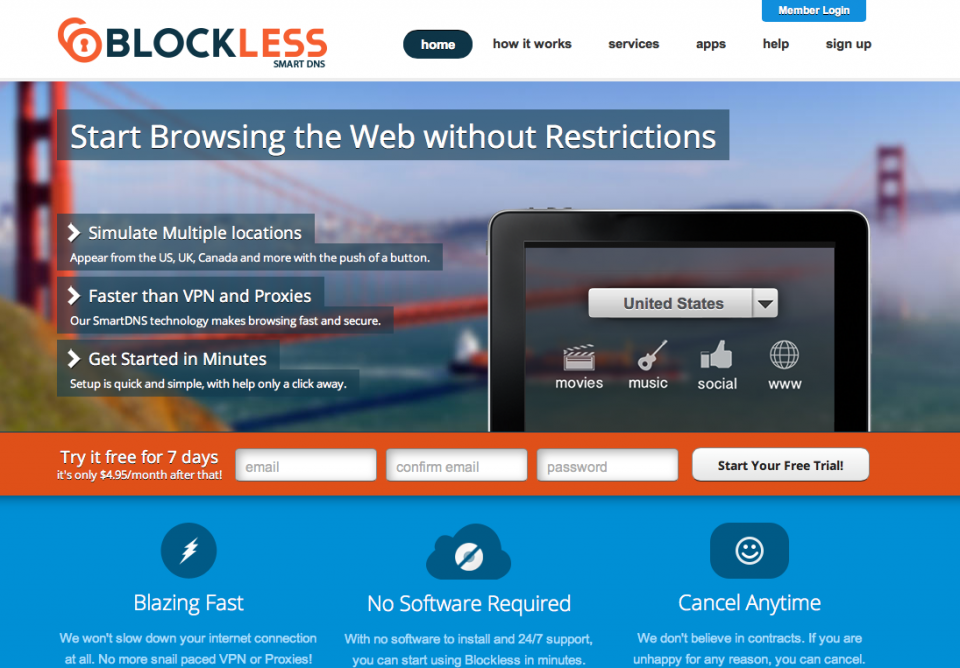
I’d seen a lot of references on some forums I frequent (mainly Eurogamer and AV Forums) to two services in particular: Unblock Us and Blockless. Both cost the same, about $5 a month, work on any device you use Netflix on, and setup really boils down to plugging some numbers into the DNS field on your device and restarting. If you want to switch library to another country you just change the country you want to appear to be in on the Unblock Us or Blockless homepage. It’s very easy and we found that in practice we loaded up the US library and rarely changed that setting.

But hey – you’ve got the power to watch any Netflix library at all, so make sure to check out what’s available elsewhere as you might be surprised! For example, at the time of writing neither the US nor UK have The Dark Knight Rises, but the Swedish and Norwegian subscribers have had it all month. (If you’re reading this in 2015 you might not think that’s so amazing, but in August 2013 it’s pretty cool).

So which one to go for? Well it’s up to you. Both have a 7-day free trial so give them a go and see what floats your boat. The two services were essentially identical for our needs, so I’m afraid in the end I made my mind up based on which homepage I preferred the look of, and Unblock Us won.

How to search the world’s Netflix libraries

So once you’ve got access to those libraries how do you find out what’s available and where it is? I use a really cool website called MoreFlicks. You tell it what movie or TV show you’re looking for and it searches the global libraries of Netflix, Vudu, iTunes, Hulu, BBC iPlayer, Fox and Crackle and tells you where, if anywhere, it’s available. You can restrict searches to particular services or search by genre or other keyword if you don’t have a particular title in mind.

Once you’ve found the movie or show you want, check which Netflix library it’s in, switch to that region using the unblocker service, restart Netflix and you’re done.

How does it work?

us netflix uk blockless
You can switch region on Blockless too, but only when logged in
You don’t really need to know this stuff to use one of these sites, but anyway: websites like Netflix determine where you are using the DNS address each device is given when it connects. It’s a series of numbers in the form xxx.xxx.xxx.xxx that work as a kind of location ID. If you’re in the UK, your connection passes through a UK-based DNS server and you get the UK Netflix library.

Unblock US and Blockless provide you with a new DNS address you can enter in your router or connecting device that will make your device appear to be anywhere in the world that you want to be by setting that location on their site whenever you want. And it’s useful for much more than just Netflix – most media-related websites that restrict access based on your apparent location should be available, including BBC iPlayer, Vudu, Hulu and MLB.

It is, as they say, pretty cool!