Categories
iOS & Mac reviews Reviews

Bike Repair, a useful app that practically pays for itself

bike repair appBike Repair is a photographic guide to the 80-odd most common repairs and adjustments you’d need to make on a bike. I picked it up to save myself a bit of money on servicing and repairs and I’ve learned a few things about the art of bicycle maintenance along the way.

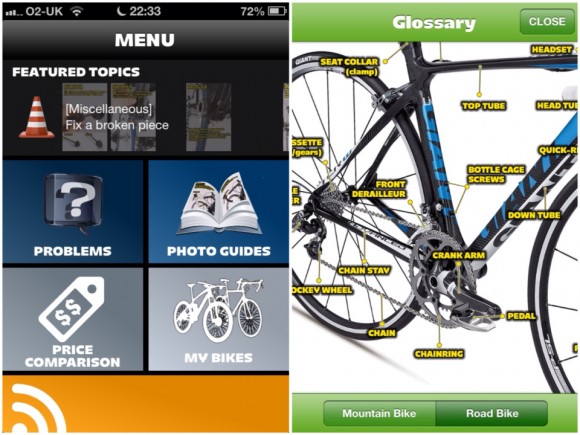
Recently it’s grown to include price comparisons, cycling forums and a personal bike log, but it’s the repair instructions I’m there for. These are split into ‘Problems’ and ‘Guides’ – pick the issue that sounds like yours and discover what’s likely to be causing it along with a link to the relevant photographic guides to do the fix yourself.

bike repair app guide

The photos are bright and clear with detailed, legible annotations, and there’s a photographic glossary available to brush up on the terminology. A pro may well know all this stuff already but for the budding novice willing to get his hands dirty it’s an excellent resource.

Perfect for keen cycling amateurs

When I first got my bike, which I only really use for tootling around Wandsworth in London, I had no real idea how to maintain it so when the first big issue cropped up (brake cables fraying) it was tempting to run it in to Evans Cycles for a tune up.

But I figured if I can code a website I could probably handle a brake cable so I looked the process up in Bike Repair, got stuck in and felt very pleased with myself afterwards – yes I know now that it’s a piece of cake, but let me have my moment!

Total cost, about four quid to cover the app and new cabling versus about a tenner to have my local place do it for me, so the app paid for itself twice over the first time I used it.

Since then I’ve handled a full brake replacement, an afternoon cleaning the chain and gear set, and fine adjustment of the gear cable tension. It’s almost always easier than I’d expected so I’ve grown in confidence and have picked up a few more bike tools. I’m not quite for a whole inner tube and tyre replacement just yet, but I watched the bike repair shop do it the other day and reckon I could handle it now.

bike repair iphone

There’s a few apps on my phone I don’t often have call for but I know I would definitely regret deleting. Bike Repair (£2.49) is one of those, so if you’re a cyclist that could do with a helping hand I recommend picking it up.

Thanks for reading!

app-store-download

Categories
iOS & Mac reviews Reviews

Tube Map Live, a cool new app from the Tube Tracker guy

I’m a big fan of Andy Drizen’s Tube Tracker, one of my three favourite London travel apps I wrote about here. It has some very cool features, one being the ability to track particular trains across the network in real-ish time using TfL data.

Andy’s just released a new app, Tube Map Live (Free), which takes that Tube Tracker feature and applies it to the whole London Underground Map, and it’s pretty damn cool. Take a look:

live tube map app

First launch triggers a quick tour but it’s pretty straightforward: you can zoom in and out with a pinch, turn lines on or off by tapping their name in the scrolling ticker below, and tap on a train to display it’s destination and location. If you’ve got Tube Tracker installed you can jump over there to get more detailed info.

live-tube-map

It’s not quite accurate enough to plan a journey as TfL’s live train data can be patchy in places – I’ve occasionally seen a random train shooting along the line overtaking everyone else, and I’ve not had a look late at night yet but Andy says the data TfL sends often shows ‘ghost trains’ whizzing around – but I can definitely match up trains I hear passing nearby with those on the map. The integration with Tube Tracker is fun (and I do love that yellow-on-dark icon) but it would be cooler still if TT was updated to be able to send train tracking information back to a friend’s Live Tube Map, not just their TT app.

But I’m nitpicking – it’s a fun wee novelty that’s enjoyable to scroll around and watch, and a good advert for some of the smart features in Tube Tracker, all for the awesome price of Free.

Thanks for reading!

Categories
iOS & Mac reviews

iPhone review: Stow – a slick packing checklist app

stow packing app

I like apps that do one thing really well, which is the main reason I really like Stow (£1.49), a checklist app dedicated to packing for a trip. I’ve already got plenty of apps that could fulfil that function such as Drafts, Simplenote, Things, or Reminders, but they’re all either too general and lack features, or are focussed on different sorts of checklists.

If you don’t travel much then any one of those apps would do the job for the occasional packing list but Stow provides certain features dedicated to the needs of the regular suitcase lugger like template lists, weather-specific suggestions, a departure countdown, list-sharing options and a button to ‘unpack all’ when you arrive at your destination so you can check it all off again before you return, which is very handy.

It even automatically adds the right number of underpants and socks based on your travel dates – unless you tell it you’ll be doing laundry while you’re there.

The app has a clean look and feel, using left and right swipes of the screen when in List mode to bring up more options or add new items, with a few of the most important functions in a bar along the bottom of each screen. It’s cannily avoided going the skeuomorphic route so it’ll fit in well with iOS 7 – although the icon is a deliciously pushable button.

Flexibility

While Stow would evidently be very useful for the frequent traveller, I don’t travel that much. Instead, I got Stow to see if I could use it as an equipment checklist when I’m packing for photography shoots. I’ve taken a few minutes to pretty much empty the pre-loaded item pool, removing all the stuff for golf, ski and city trips, adding a new category called Camera Equipment and filling it with every bit of kit I own from cameras and lenses down to tripod mounting plates. Then I saved a new template list called Photo Shoots that contained the lot, plus a few other essentials like ‘phone’.

Now when I have a shoot I fire up Stow, start a new ‘trip’ and pick the Photo Shoot template. It loads all those items into a new list and I remove any that I’m not going to need for this particular job. In future I might create more specialised template lists; for example, a portrait shoot will likely call for my strobes, lighting stands, umbrellas and softboxes, whereas on a unit stills job I can leave all that lot at home but I’ll need to remember my Sound Blimp.

Again, it’s nothing I couldn’t have tapped into Reminders or even done with a pencil and paper but knowing that I’ve got all my kit saved into Stow’s list templates reassures me that I’ll not forget to add something obvious to my list, like I might if I was having to write it out fresh each time.

Niggles

There are a few little bugs and niggles that still need ironing out. For example, sometimes Packed checkmarks don’t display when you reload the app, but reappear when you switch to the ‘unpacked’ or ‘everything’ tab and back; I occasionally had trouble getting the ‘hold to delete’ function to register my touch correctly, and when adding items to a list sometimes the counter next to each item would zero as I scrolled down past it.

The item name rows are quite short, only displaying 13 characters in the item pool screen because of the add and remove buttons, so if you’ve got a lot of items with long names (such as ‘Nikon 24-70mm f/2.8 lens’) you’ll have to use some abbreviations (such as ‘Lens 24-70’) to make it easier navigating the list.

Everything is ordered alphabetically which is definitely the best default but I’d like to be able to tap an Edit button and move things around if I want. For example, I’d like to be able to put my cameras, batteries and memory cards together at the top of the list. This is possible with a bit of crafty renaming to game the sorting system but it’s messy.

A bigger bother for me is that you can’t tap the iPhone status bar to jump back to the top of a list. I found myself trying to do this again and again, particularly at the bottom of a list and wanting to search for the next item – Search is at the top, so you have to ‘swipe and swipe and swipe and swipe, and type’, instead of ‘tap, and type’. Annoying.

To conclude

Despite those niggles I do really like Stow and it’s definitely worth a look if you’re after a packing checklist app. It’s not quite what I was looking for (an equipment checklist app specifically for photographers) but its customisability let me bend it to my needs while taking advantage of all the packing-focussed features, and the design strikes just the right balance between simple and clever in an iOS7- friendly package. And as a bonus, next time I go on holiday I’ll already have a packing app ready to go.

Categories
Other how-tos

How to watch US Netflix from anywhere in the world

us netflix from uk
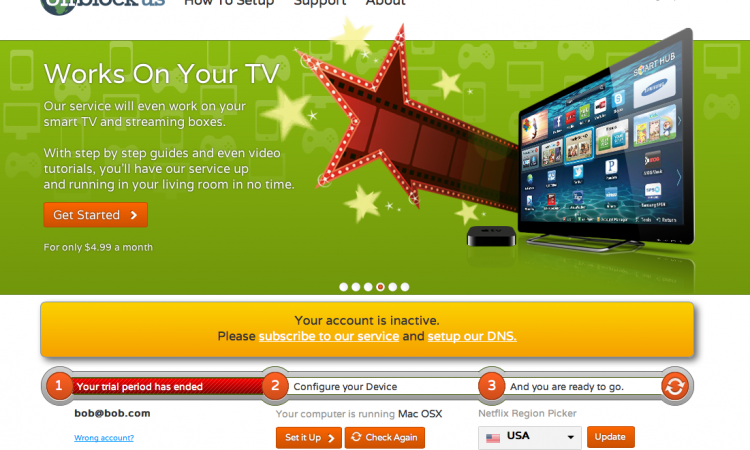
You can switch region on the Unblock US homepage
We subscribe to Netflix in the UK from our Apple TV but let’s face it, the selection available is pretty lousy – just flicking through the InstantWatcher database (a library of everything available on the US library) is enough to really make you consider cancelling your UK Netflix sub.

Enter Unblock Us to save the day!

Being a bit of a geek I was pretty sure there’d be a way around the Netflix ‘geo-fence’ and sure enough Unblock Us did the job. It’s a $5 monthly service that lets you pretend to be pretty much anywhere in the world and receive that country’s Netflix library. So if you’re in the UK and want the US library, no problem. And, of course, vice versa 🙂

Make the most of your Netflix sub!


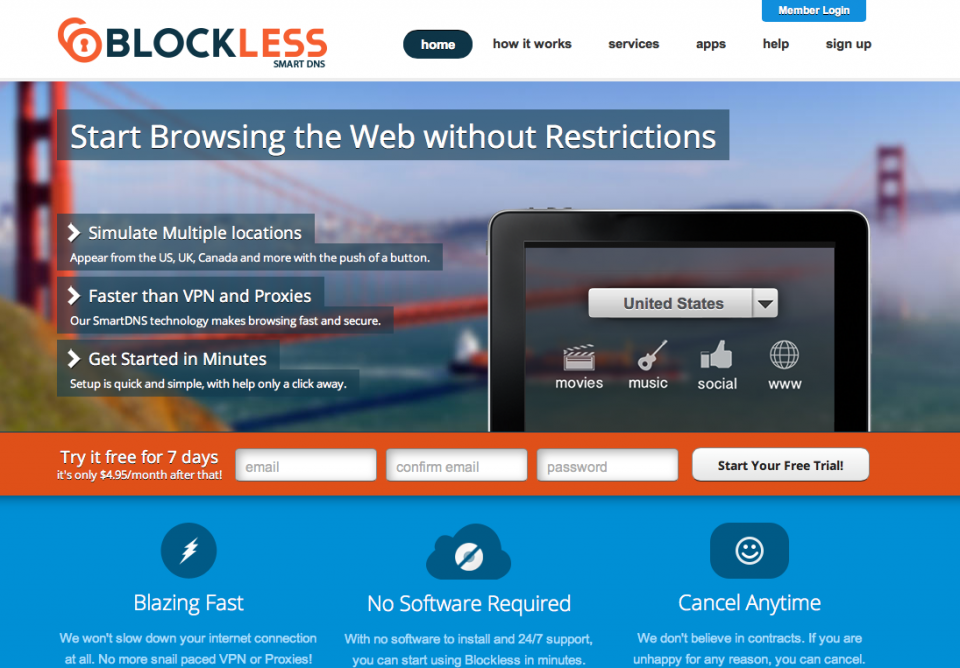
I’d seen a lot of references on some forums I frequent (mainly Eurogamer and AV Forums) to two services in particular: Unblock Us and Blockless. Both cost the same, about $5 a month, work on any device you use Netflix on, and setup really boils down to plugging some numbers into the DNS field on your device and restarting. If you want to switch library to another country you just change the country you want to appear to be in on the Unblock Us or Blockless homepage. It’s very easy and we found that in practice we loaded up the US library and rarely changed that setting.

But hey – you’ve got the power to watch any Netflix library at all, so make sure to check out what’s available elsewhere as you might be surprised! For example, at the time of writing neither the US nor UK have The Dark Knight Rises, but the Swedish and Norwegian subscribers have had it all month. (If you’re reading this in 2015 you might not think that’s so amazing, but in August 2013 it’s pretty cool).

So which one to go for? Well it’s up to you. Both have a 7-day free trial so give them a go and see what floats your boat. The two services were essentially identical for our needs, so I’m afraid in the end I made my mind up based on which homepage I preferred the look of, and Unblock Us won.

How to search the world’s Netflix libraries

So once you’ve got access to those libraries how do you find out what’s available and where it is? I use a really cool website called MoreFlicks. You tell it what movie or TV show you’re looking for and it searches the global libraries of Netflix, Vudu, iTunes, Hulu, BBC iPlayer, Fox and Crackle and tells you where, if anywhere, it’s available. You can restrict searches to particular services or search by genre or other keyword if you don’t have a particular title in mind.

Once you’ve found the movie or show you want, check which Netflix library it’s in, switch to that region using the unblocker service, restart Netflix and you’re done.

How does it work?

us netflix uk blockless
You can switch region on Blockless too, but only when logged in
You don’t really need to know this stuff to use one of these sites, but anyway: websites like Netflix determine where you are using the DNS address each device is given when it connects. It’s a series of numbers in the form xxx.xxx.xxx.xxx that work as a kind of location ID. If you’re in the UK, your connection passes through a UK-based DNS server and you get the UK Netflix library.

Unblock US and Blockless provide you with a new DNS address you can enter in your router or connecting device that will make your device appear to be anywhere in the world that you want to be by setting that location on their site whenever you want. And it’s useful for much more than just Netflix – most media-related websites that restrict access based on your apparent location should be available, including BBC iPlayer, Vudu, Hulu and MLB.

It is, as they say, pretty cool!

Categories
iOS & Mac reviews

London tube apps: three of the best

I spend a lot of my time travelling around London on the underground. It might not be the cheapest way to get about but it’s almost always the fastest and most efficient – unless you happen to have a helicopter at your disposal! Unfortunately you can easily get caught out if your preferred route shuts down either for engineering works or faulty signals – we’ve all been there, and it sucks if you find out too late, so I use a selection of excellent London tube apps to make it all a bit less hassle and a bit more fun:

This is going to be a pretty lengthy review of each of these apps, so if you’re pressed for time here’s the lowdown: Tube Tracker and Tube Deluxe both do pretty much the same job of planning your route, finding nearby stations and tracking those pesky delays with a custom update pushed to your phone and while I personally favour Tube Tracker I can recommend you try out both; and Tube Exits is a genius app that tells you which carriage to get on to arrive directly opposite the station exist, shaving minutes off your journey especially during rush hour.

This post is ready to depart, please mind the closing doors…

Tube Tracker

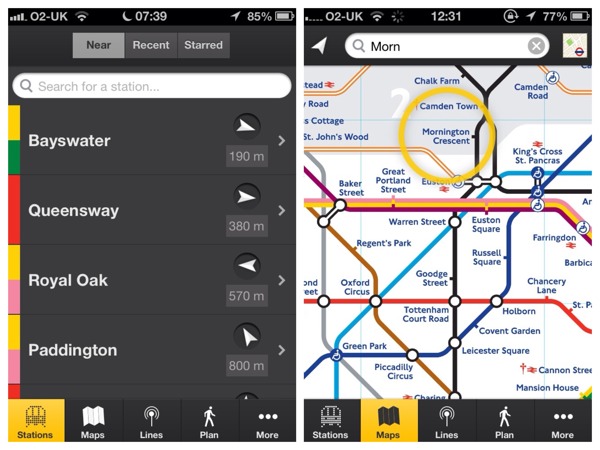
Tube Tracker (£1.99) is definitely my favourite right now. I was already using Tube Deluxe and didn’t notice it until it launched version 2 in January 2013 with a big redesign in favour of a distinctive, flatter sort of look which I really like. It feels different to a lot of iOS 6 utility apps, going for neither a heavily skeuomorphic design, nor one that uses much, if any, of the standard iOS 6 glossiness.
london tube apps tube tracker

Tools are collected in tabs along the bottom. First up, Stations presents a list of the nearest stations to you, each accompanied by a live compass arrow to point you in the right direction. Tapping a station name presents TfL live departure information (where available – as with all apps using TfL’s data, if it’s not available the app can’t do anything about that), while drilling down into particular trains presents an almost-live depiction of their location on the line which is pretty cool.

Maps is self-explanatory offering both a local, searchable copy of the official London Tube Map, and a Google map of the surrounding area along with a handy ‘5/15/30 minute walk’ radius. There’s no single-line maps like you find inside the tube trains themselves.
tube tracker lines plan

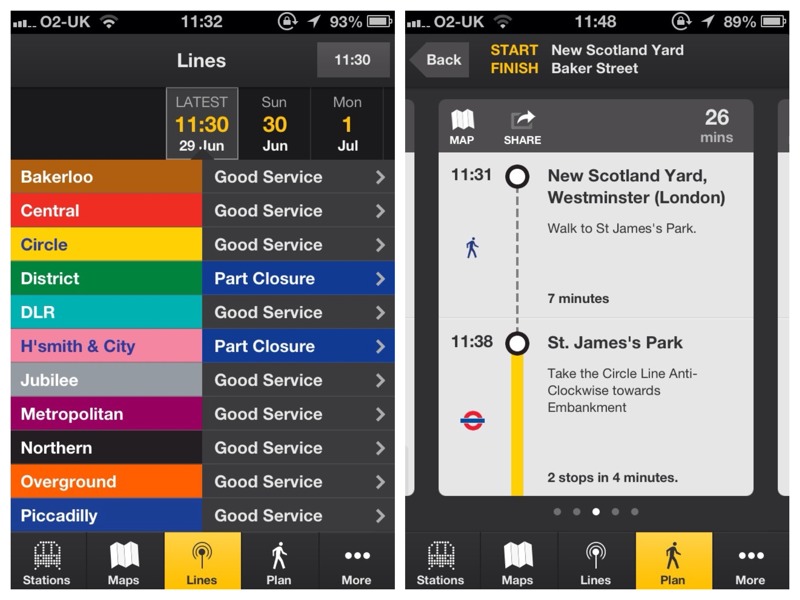
Lines displays the line status as you’d find on TfL’s Live Status web page but tap the clock in the top right and a timeline slider drops down, letting you swipe through the calendar and monitor planned engineering disruptions for the next three months all on one page. This is a good design choice – the other app I look at below splits the date selector and results across two pages, which is much less useful.

Plan uses TfL’s Journey Planner API to deliver results presented as neat swipe-able cards which drop into view. You can share the route with friends via email, or flip the card for a Google map complete with directions. A limited planning mode between stations only is available offline, and it saves every plan you create for reference any time, online or not.

While it remembers plenty of recently used stations and locations for your convenience there’s currently no ‘Favourites’ feature, nor an option to choose which methods of TfL transport the planner takes into account. However, I asked the developer, Andy Drizen, and he confirmed both are on the list for updates.
tube tracker alerts

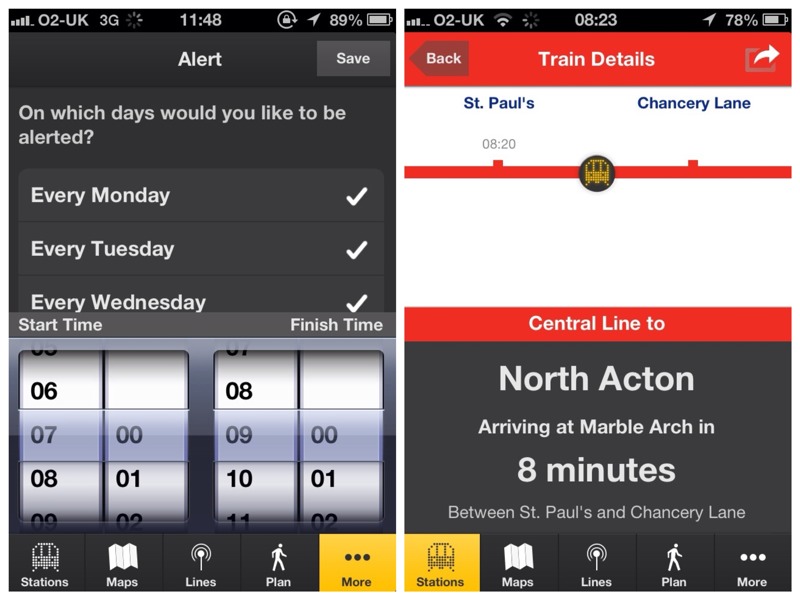
Finally, the More tab hides the settings and developer support details, as well as the Alerts tool that lets you choose which lines to watch and at what times during the day you want to be notified about problems on them.

Tube Tracker has a few fancy tricks up its sleeve such as live-updating lists of every train running on every line, and the ability to send a train-tracking link to friends running the app. They’re not essential but they’re fun and kind of geeky. But there’s a couple more features I really love.
tube tracker launch Center pro

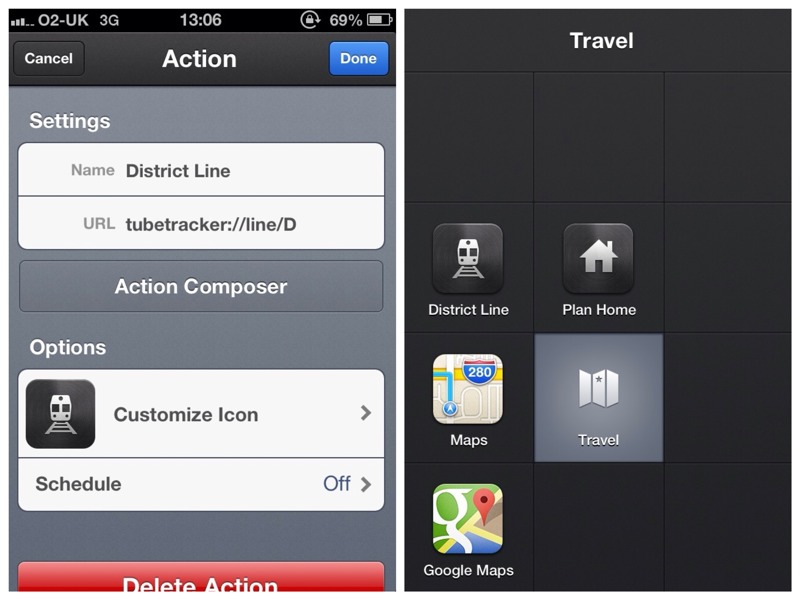
Firstly, official custom URL support: Andy has added custom URL schemes you can use to create actions in apps like Launch Center Pro that take you directly to certain screens in the app such as a particular Line status or a pre-filled Plan request.

For example, I worked out my home location as a GPS coordinate and used the instructions to build a ‘Plan Home’ action for LCP that will open Tube Tracker and automatically work out a route home from wherever I am with just a couple of taps. I borrowed the idea from the second app I talk about below, but that’s the beauty of URL support.

(If you’re interested in Launch Center Pro I wrote about it here.)

london tube apps tube tracker status board

And the other hidden gem in Tube Tracker is official Panic Status Board support. Tube Tracker is Universal which is nice but it looks best on the compact screen of the iPhone. However, if you’ve got Status Board installed and want something like the picture above you should visit this page to start setting up your very own Tube Tracker departure board, or read a bit more about what’s possible over at Panic’s blog.

It’s this kind of cool stuff that gets me excited about using an app to do something as mundane as plan my tube journeys, so Tube Tracker is now my favourite tube app and my top recommendation.

However, if you’d like to try a different take on the same sort of thing may I recommend you have a look at…

Tube Deluxe

London Tube Deluxe (69p), by Malcolm Barclay, was my go-to tube app for years, one of the first apps I ever got actually. While it appears to fulfil largely the same purpose as Tube Tracker, or vice versa, it has it’s own handy features you might consider.

At first look it’s fairly plain, but maybe you like that. Tube Deluxe’s look and feel is very much the iOS 6 standard, familiar table layouts, pinstripes, header bars and buttons. It’s done well and feels solid.

tube deluxe status maps

Down in the navigation tabs we start with Status, which provides line updates and access to custom Alerts. One advantage over Tube Tracker is the ability to re-order the lines to put your most-used at the top of the display. This would be a good screen to also view future disruption plans, as in Tube Tracker, but they’re hidden elsewhere.

Maps offers separate offline maps for the Underground, every individual Underground line, Overground, DLR, Tramlink and all rail connections, everything you’ll need. There’s also a geolocating Google map available but again it’s hidden elsewhere rather than being accessible from the Maps tab. One nit-pick: unlike Tube Tracker there’s no ability to search the map – you have to zoom in and scroll around looking for the station you want.

tube deluxe plan

The Plan tab offers as near as dammit the most complete Journey Planner experience on the iPhone. After setting the usual travel info you can dive into the settings to adjust preferred modes of transport, preferred numbers of connections, maximum walking and cycling distances, mobility requirements, and save Favourite locations. Tube Tracker doesn’t yet have this level of customisation.

The killer feature here is the built-in Plan Home button. Set up a Home location in Favourites and when you’re out and about and completely lost, tap this button and the app plans a route back home from wherever you are, just like that. Now that’s magic. It doesn’t work offline, but you can’t have everything and that’s what offline maps are for.

(Yes, that’s the function I nicked for my Tube Tracker/LCP action, which perfectly makes up for TT not nicking the idea itself.)

tube deluxe departures

Moving on, the Departures tab provides live station arrival and departure information from TfL, and as such it’s about as accurate as Tube Tracker, just less the fun display of the train moving between stations. There’s also no option to save favourite stations although you can quickly select the last four recently-viewed ones.

It seems odd that favourite stations from elsewhere don’t apply here, especially as I can easily push my ‘home’ station off the recently-viewed list in a day, and searching for it again involves a lot of tapping and swiping
tube deluxe london bus routes

Tucked away in More are various bits that didn’t fit elsewhere, including the Google map, a plain list of nearby stations, and planned closures by line and date (which splits the info and the date selection over two screens, awkwardly).

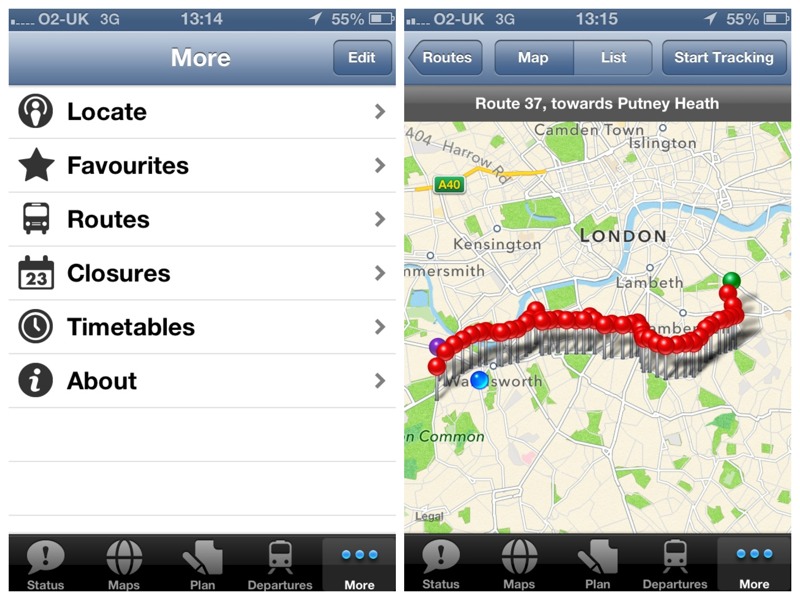
But there’s also a couple of invaluable hidden gems: full timetables of all TfL transport sorted by station, transit type, and date; and most pleasingly a comprehensive London bus route list with all stops for every route laid out on a Google map with geolocation so you can follow your bus journey and know when to get off.

These last two things are the sole content of some other apps, and it’s just tucked away in the back here!

So… Tube Tracker or Tube Deluxe?

It’s clear these two do pretty much the same things but right now I just love using Tube Tracker the most, for the look and feel, the more logical and efficient (to my mind) layout of features, and definitely all the really cool stuff like live compasses, train tracking, and Launch Center Pro and Status Board support. It makes navigating London by tube feel fun.

But for the completist in you, Tube Deluxe is unofficially pretty much TfL In Your Pocket in a familiar iOS 6 uniform. It just needs a bit of a feature reshuffle and then I want to see how it takes to iOS 7. And to be fair that’s probably what most app designers are thinking about at this very moment.

My solution to the conundrum faced by those seeking the best experience for their money is… get both! £2.68 buys you both the coolest and the safest pair of hands for travelling London both above and below ground. That’s less than the price of a Zone 1-2 peak single so you know what to do.

I use both of these in combination with this third app to master the tube and become a London Underground Ninja…

Tube Exits

Tube Exits (69p) – if there’s one app that emerged in the initial ‘there’s an app for that’ goldrush that made me sit up and go "Why didn’t I think of that?" it was this one. Believe me when I tell you that once you’ve used this app a few times you will curse yourself when you forget to.

london tube exits screenshot

You tell it your route (just the start and end will do, it does everything else) and it tells you exactly which carriage to get on at each station so that when you change lines or arrive at your destination, when the doors slide open you’re always right next to the appropriate exit. It also provides the latest line status and a tube map

If you’re a tube traveller yet to experience being at the wrong end of a platform at rush hour, get this app and spare yourself the misery. If you have, you’ve probably not even finished reading this page before heading to the App Store – you’re welcome!

By the way if you’re planning a trip to Paris or Berlin you can also pick up local versions for those cities – Paris Metro Exits, and Berlin U-Bahn Exits.

In summary

Do what I do and combine Tube Exits with either Tube Tracker or Tube Deluxe and you’ll pretty much have London transport cracked. You’ll know which lines have delays, what route you need to take, and which carriages to get on for the quickest transfers and exit. Sorted!