Categories
iOS & Mac reviews Reviews

hipstamatic: a wonderful toy camera app for iPhone

(UPDATE: if you’re reading this you might be interested in a Photoshop action I wrote to sort of emulate the look of these retro camera styles – have a read of ‘my Hipstamatic effect for Photoshop’ after you’re done here. Okay, as you were!)

I recently went off iPhone photography for a while. I’d set myself the goal of uploading a new iPhone photo every single day to my Tumblr blog and within a few months it became a kind of millstone around my neck and so I went off iPhone photography for a bit, had a clean-up of apps I never use and cleared out the thousands of photos in the filmroll which was slowing the camera dooown.

A few weeks later I’m sort of getting the itch again. Just a tingling really, nothing to see the doctor about. Well, I had a little look in the photography section of the App Store the other day, not to buy anything you understand, just to see if there was anything new and exciting to play with and clicked on Hipstamatic (App Store link) almost by chance really. There’s quite a lot of Lomo and Holga style apps already, and I felt like I had got one of the best in ToyCamera. Hipstamatic’s icon isn’t flashy, but the name is catchy and it had a great rating, so I gave it a go and I love it.

It’s so fun to play with and use. The way it works is that you have the basic Hipstamatic ‘body’ and you select a combination of one lens and one film, then optionally charge up one of four ‘flashes’. The display has two ‘sides’, the front and back of the imaginary Hipstamatic camera, styled after the Instamatic range of cameras. Along the bottom of the front display are buttons allowing you to change the film, flash or lens, buy new packs from the shop or flip to the back screen. Alternatively you can swipe the lens to swap in the next available lens. On the back is a small squarish live viewfinder, the flash charger and the huge yellow shutter release button, and if you shake the phone you get a completely random setup.

So you select your film, lens and optional flash, take the shot, then wait a few seconds while it ‘prints’ the shot and saves it into the iPhone camera roll as well as the app’s own gallery. Tapping the gallery button takes you into a gorgeous gallery display where you slide through your recent prints. Tapping one flips it over to reveal the lens, film and flash settings. From here you can copy the settings for your next shot, share it through Facebook, Twitter or email, bin it or enter it into one of the regular contests the developers run.

A full kit comprises 8 films, 6 lenses and 4 flashes but the app comes with only 3 lenses (John S, Jimmy, and Kaimal Mark II), two flashes (Standard and Dreampop), and two films (Ina’s 1969, and Kodot Verichrome) as standard and further expansions cost 59p per ‘Hipstapack’. Each pack usually contains at least one lens and film, and occasionally an extra flash and purchasing them takes you into a custom-built store with it’s own gorgeous graphics. I really love all this attention to detail.

So it’s a pretty slick app!

The fact that you can combine any film with any lens means that theoretically you’ve got 48 different looks available, plus even more variations on those by using one of the different flashes which basically just apply a splash or wash of colour or ‘light’ depending on what you use. In practice, however, a few of the different looks are all but identical apart from the frame applied. On the other hand, something I really liked is that while other apps often have a set vignette effect that doesn’t change much if at all from shot to shot, Hipstamatic appears to have quite a variety available meaning it’s rare to get exactly the same vignette effect on two consecutive shots using the same settings. That’s a nice touch and really adds to the realism of the effect.

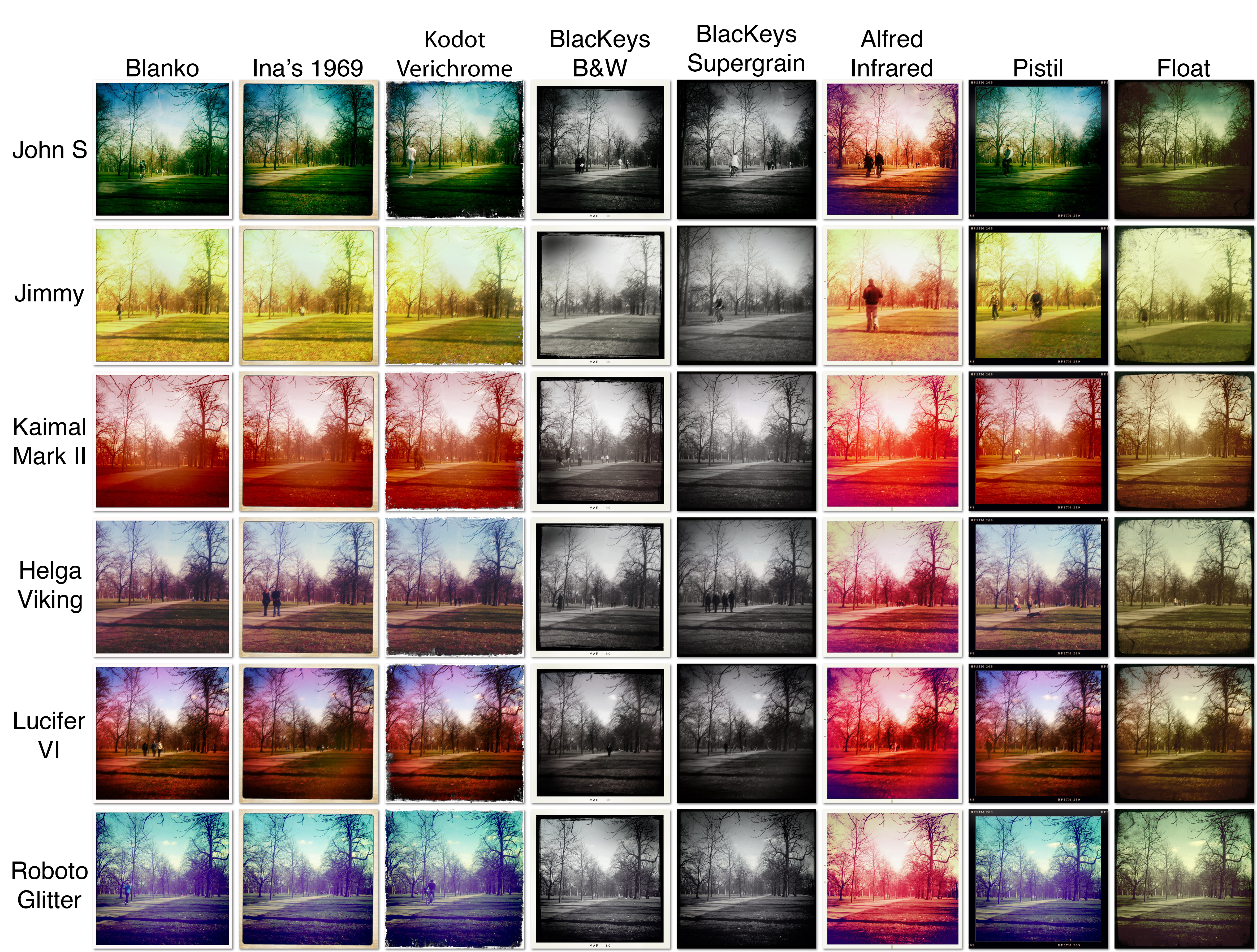
In the name of testing these effects, I spent 20 minutes crouched in Hyde Park trying each and every combination on the same scene. You better appreciate this:

Rows are the lens effects, columns are the film effects

If you’d like to see it in much greater detail, the original is available to download from Flickr here – a 12MB download but each image is original resolution.

As you can see, the first three films are identical except for frame, and I hope you can see what I mean about the slightly naff Kodot frame! B&Ws are also pretty similar, and although the blurb for the first BlacKeys film says it prints the date on, the only date I’ve ever seen is MAR 80 so I’m not too sure what’s happening there. Nice frames though, and my favourite film of all of them is the last one, Float. I love the smudgy contrasty vignette and artifacts it produces.

In terms of the lenses themselves there’s a good selection of looks no matter your taste, although John S is the one I find myself going back to most often. Don’t forget to experiment with all the films though. For example, the severe yellow look of Jimmy doesn’t do much for me until it’s paired with the Float film and you get a nice slightly faded off-green look. On the other hand, Kaimal turns everything a bit too red, and again the Float film saves the day, pulling it all back a bit.

It’s almost churlish to moan about something with such variety and charm, but… as I touched on above the two films that come with the basic pack and a third from the premium packs are exactly the same in terms of colour processing with the only difference being the frame they apply. The premium of these, Kodot, has a really fake looking scrappy frame which I think is the poorest of all 8 films. While I’m being picky, the two B&W films also seem pretty similar except for the frame despite implying in the name that one offers more contrast.

I only noticed when having a look close-up that several of the lenses (Jimmy, Helga and Lucifer) aim to recreate the imperfect toy-camera look by ghosting the image and you end up with what looks like camera shake on a long exposure. I’m not a fan of that as I’d rather they just slightly softened the image around the edges rather than make me look like I’ve got the shakes. It’s a shame as Helga and Lucifer in particular produce some lovely colouring.

I’m critiquing on a very personal level but hey, I’ve used a lot of Lomo-like camera apps and spent many an hour tinkering in Photoshop creating similar looks for own DSLR images so I knows what I likes. So I’ve got a couple of reservations, but I love this app as much for it’s fun interface and the huge variety of looks it produces as for getting me back into iPhone photography. This is well worth your cash, folks, and to give you a flavour of how it performs on scenes other than Hyde Park, here’s a few more shots I took the same day.

Cheers for reading!

Categories
Gear & gadget reviews iOS & Mac reviews Reviews

these are a few (more) of my favourite things

Who doesn’t love using cool stuff to make their day to day survival more pleasing and less hassle? I’m sure I’m not the only one who’ll trawl the interwebz looking for cool stuff to buy or install, in the name of streamlining or at least aesthetically enhancing my workflow or daily routine, or just because its… well, cool.

Here’s a list of cool stuff I use at the moment, none of which falls under any particular category. Consider it more of a Buffet of Cool. Fill your plate with as much or as little as you like and do feel free to pitch in with some of your own Discoveries of Cool.

Categories
iOS & Mac reviews Pictorial Reviews

these are a few of my favourite… iPhone photo apps – part 1

So there’s now millions of iPhones in the wild and a lot of people are taking photos with them. According to stats that I checked just moments ago there’s over 14 million iPhone photos and over 113,000 iPhone 3GS photos on Flickr. I guess they don’t differentiate between the original iPhone and the 3G as the camera didn’t change, but the 3GS gets its own category since the sensor was upgraded. Interestingly I took a screengrab of the same statistics on Tuesday the 29th of September (almost a week ago) and there were 76,000 3GS images, so that’s a 50% increase in 6 days, which seems odd assuming Flickr’s stat machine isn’t on the blink.

Picture 4.png

Picture 5.png

Obviously there’s nothing new in taking photos on a phone and other phones have many millions of photos on Flickr, but my point is that the relatively poor technical spec of the iPhone camera doesn’t make it any less popular amongst its users.

Mobile Photo 4 Oct 2009 18 27 42.jpgThe wealth of photography apps on the Store offer a huge variety of options to the experience of taking a photo. There’s a lot of repetition though, and plenty of trash, so I’ve only ever gone for apps that were either considered the best or which appealed in some other way, such as the interface. Whatever you can think of, by this point there is almost certainly “an app for that” (grr). I’ve just had a clear-out and the core bunch that will never leave are CameraBag, QuadCamera, ToyCamera and Tiltshift Generator. I’ll look at those four today, and they’re really fantastic if you’ve not heard of them.

Three others I use a lot, not covered in this post but perhaps later, are Pano, Polarize and Snapbox. Pano and Polarize are another two keepers and I heard that the latter is about to get a big update which will hopefully fix some long-standing issues with the once-dormant app. Snapbox is one I toy with now and again but is by the same developer as Polarise so worth a mention alongside it.

I also hang on to Photogene and Best Camera. I find these apps perfectly adequate but if it wasn’t for a couple of particularly cool or useful things they did I wouldn’t miss them if I deleted them. Still, worth a look!

Finally I also have a couple of photo-related apps, Tumblr and Pixelpipe, that don’t actually process shots but are my go-to guys for uploading to blogs or Flickr, as well as another app called DropBox that I’ve been using a lot of recently for syncing iPhone photos (amongst other things) across my devices.

So I’m going to go through each one and give it a mini-review with as many screenshots as possible to let you make an informed decision about going on an App Store spending spree.

CameraBag

Website / App Store

I think this was possibly the first camera app I got on my iPhone, and it’s still easily my most used, I absolutely love it. It has 10 filters built in although two of them are a bit crap really, as you’ll see below. You load a photo by selecting it from your library or taking a new one within the app, then choose a filter to apply by swiping left or right through them. It shows you the effect and when you’re happy you save the image. There’s also a drop down menu for going directly to a filter.

Mobile Photo 4 Oct 2009 19 52 07.jpg Mobile Photo 4 Oct 2009 18 01 11.jpg Mobile Photo 4 Oct 2009 18 01 21.jpg Mobile Photo 4 Oct 2009 18 01 32.jpg Mobile Photo 4 Oct 2009 18 01 50.jpg Mobile Photo 4 Oct 2009 18 02 03.jpg Mobile Photo 4 Oct 2009 18 02 15.jpg Mobile Photo 4 Oct 2009 18 02 27.jpg Mobile Photo 4 Oct 2009 18 02 36.jpg Mobile Photo 4 Oct 2009 18 02 51.jpg Mobile Photo 4 Oct 2009 18 03 01.jpg

Guess which two filters I’ve removed from the ‘swipe’ list? Yep, Infrared and Fisheye. Still, valiant attempt to diversify but I think they’re a bit naff. The 1964 option is a little harsh as well, creating blown highlights and huge areas of pure black, but it’s worth keeping active as it does suit some photos.

Mobile Photo 4 Oct 2009 18 03 11.jpg Mobile Photo 4 Oct 2009 18 03 22.jpgAlso, I’ve disabled the ‘crop’ feature in the settings, but when it’s active it crops the Helga, Lomo and Instant filters square, crops 1974 almost square, and Cinema into a narrow 16:9 format which really doesn’t work well on vertical images. There’s also a border option and you can vary the output size of the saved images if your iPhone is struggling – like most camera apps it gobbles up memory and so like most camera apps has garnered its fair share of negative reviews on the App Store for regularly crashing if it’s been a while since you last rebooted the phone. If that happens restarting is generally necessary but the I’d have thought the iPhone 3GS would run it well – can anyone confirm that?

If you’re feeling especially creative you can reopen a saved image in order to apply another filter on top. This mechanic of multiple filters has since been done better in a few other apps which allow them to be applied on top of each other before saving, but like a classic movie this app never seems to get old and every so often an update drops a new filter in there. There’s even a desktop version now, although the Photoshopper in me is loathe to stoop to an automated processing technique for ‘proper’ photos.

Anyway, CameraBag for iPhone is brilliant.

QuadCamera

Website / App Store

This is just one of several photography apps from Takayuki Fukatsu, who runs a company called Art&Mobile. Apparently his photo apps are regularly amongst the most downloaded iPhone apps in Japan, particularly ToyCamera which I’ll come to next.

Mobile Photo 5 Oct 2009 16 28 58.jpg
Mobile Photo 5 Oct 2009 16 30 37.jpg Mobile Photo 5 Oct 2009 16 31 38.jpg Mobile Photo 5 Oct 2009 16 32 54.jpg

QuadCamera basically copies the likes of the Lomo Actionsampler and Oktomat cameras, which take 4 or 8 shots in quick succession and present them in one frame as a sequence. A quick look at the settings page clearly shows the options available, and also gives you a good idea of the presentation style Art&Mobile favour. As you can see it’s very un-Mac-like, which at first alienated me but it actually does the job very well and I’ve come to rather like its distinctive appearance, which also appears in his most recent app Tiltshift Generator, although not in ToyCamera.

Mobile Photo 4 Oct 2009 18 03 32.jpg Mobile Photo 4 Oct 2009 18 04 51.jpgIn terms of customisation there’s a slider to alter the delay between each shot in your sequence, whether to shoot 4 or 8 shots and whether to lay them out in a row or in a 2×2 or 2×4 arrangement. There’s a selection of filters: Vivid, Bright, Dull, Hi Con, Grayscale and No Effect. If you choose the 1×4 or 1×8 options the app will lay them out vertically for landscape oriented shots, or horizontally for portrait orientation.

There’s a second menu hidden in the Settings app for the iPhone itself, where you can remove the borders or the vignette, or activate a ‘Tap Anywhere’ shutter release, and deactivate the shutter sound.

QuadCamera is unusual in that it automatically saves the result whether you like it or not. In my case this means I easily end up with a dozen different new photos in my camera roll every time I use it because once you start it’s hard to stop and even though I might not actually like any given result it gets saved regardless. It’s extremely hard not to find something interesting in pretty much every shot you get from it, though, especially with all the different filters to try.

There’s also a lot more you can try with it than just the obvious ‘train coming into a station’ type shot. I had dozens of attempts at the magazine shot below before getting it the way I wanted it! The escalator shot went through the Lolo filter in CameraBag a few times to get the glowing orange. It also makes for unusual panoramas.

Mobile Photo 4 Oct 2009 18 36 11.jpg Mobile Photo 4 Oct 2009 18 31 50.jpg Mobile Photo 4 Oct 2009 18 30 44.jpg
Mobile Photo 5 Oct 2009 16 29 25.jpg

There’s not a great deal else, if anything, that duplicates QuadCamera – if there is I’d like to have a look at it. If you don’t already have it, you should definitely check out this app and others from the same developer.

ToyCamera

Website / App Store

It’s another of Takayuki Fukatsu’s apps and I toyed (geddit?) with deleting it quite a few times as it was frustratingly restrictive when it came to customisation. A recent update fixed that though, and so it’s earned a permanent slot on my ‘camera app’ screen.

Mobile Photo 5 Oct 2009 11 10 07.jpg
Vintage Green
Mobile Photo 5 Oct 2009 11 10 27.jpg
Vintage Warm
Mobile Photo 5 Oct 2009 11 10 54.jpg
Vintage Yellow

Mobile Photo 5 Oct 2009 11 11 20.jpg
Low Saturation
Mobile Photo 5 Oct 2009 11 11 37.jpg
High Saturation
Mobile Photo 5 Oct 2009 11 11 54.jpg
Toning Sepia

Mobile Photo 5 Oct 2009 11 14 40.jpg
Rich B&W
Mobile Photo 5 Oct 2009 11 14 58.jpg
HiCon B&W
Mobile Photo 5 Oct 2009 15 28 15.jpg
Original scene, no ToyCamera

ToyCamera is designed to mimic the weird colours, blur and vignetting of ‘toy cameras’ such as the plastic Holga and Lomo models. There’s plenty of other apps that offer similar effects as it’s a look that’s very much in vogue, and to that end purists should note that it’s heavily stylised, with extremely strong colour, contrast and B&W toning filters that go way beyond most photos I’ve seen produced by these cameras it’s inspired by. The flipside of this is that in terms of this look, ToyCamera is pretty much rules the roost on the App Store.

Mobile Photo 5 Oct 2009 14 55 00.jpg Mobile Photo 4 Oct 2009 22 21 35.jpgUp until recently the app used to apply the filters randomly by default, which was frustrating if the filter it chose didn’t suit the image (they really can be too much sometimes). Now, however, you can choose a specific filter to be used but only before you shoot; you can’t pick an effect to apply to a photo you already have, like you can with CameraBag for example. If you’re into the whole random ‘shoot from the hip’ ethos that the Lomographic people promote then you can activate the random mode and select which effects you’d like it to choose from.

Other settings include the standard image size settings (with a full range of sizes from 320 x 427 up to 1200 x 1600), the option to crop square and/or apply a vignette, and whether or not you’d like to upload to the Big Canvas Photoshare community. I’ve never used this as there’s just too many photo sharing communities out there for me to keep up with, but it’s there if you want it. Ideally a future update of the app would add Twitter and Facebook and all the usual suspects, which is actually something that several other apps could do with sorting out in the same vein as Best Camera has (the best example of a one-touch sharing solution – I’ll cover it in a subsequent post).

Apart from that it’s a fun little app that offers pretty much all the crazy extreme ‘toy camera’ effects you could possibly want.

Tiltshift Generator

Website / App Store

Yet another photo app from Art&Mobile, designed by Takayuki Fumatsu and Takuma Mori. It’s an example of a function that is covered by other apps in the store (such as TiltshiftApp Store), but to my tastes this is the better example, with a more pleasing effect and the same sleek interface which I liked so much in Quadcamera.

Tiltshift lenses are expensive lenses that allow you to shift the focus around by tilting the lens independently of the camera body, creating bizarre depth of field effects that trick the eye into thinking it’s looking at a miniature model of a life-size scene. It’s possible to fake the effect by applying heavy blur to a photo, leaving a strip or area sharp. Tiltshift Generator gives you this ability, as well as the option to alter the contrast, brightness and saturation, and add a vignette.

Mobile Photo 4 Oct 2009 17 58 44.jpg Mobile Photo 4 Oct 2009 17 59 02.jpg Mobile Photo 4 Oct 2009 17 58 53.jpg

Like many other apps, you have the option to shoot a photo from within, or open one from your library. Then you select the area you want to keep sharp (or protect for blurring). In the example above I’ve used the ‘strip’ option but you can also switch to a circular selection. As you can see, there’s a central pair of thick bars, then two lighter outer bars. Inside the thicker bars stays sharp, and between that and the outer bars the blur blends in. Moving the slider adjusts how ‘quickly’ the blend occurs across the photo.

Mobile Photo 4 Oct 2009 17 59 12.jpg Mobile Photo 4 Oct 2009 17 59 23.jpg Mobile Photo 4 Oct 2009 17 59 33.jpg

The next tab along covers the saturation, brightness and contrast controls. Finally there’s a vignette slider, and then saving and export options. Export lets you mail it out or post to Twitter.

If there is any room for improvement with Tiltshift Generator, it’s that the contrast and brightness sliders are very sensitive and it’s very easy to make a small precise adjustment and then nudge it when you remove your finger from the screen. The iPhone sensor doesn’t have the greatest dynamic range in the world so it’s all too easy to blow the hell out of the highlights, or create large chunks of sold black in the corners with the vignette – but a little tweaking can usually find a good middle ground. Also, the save size is set to 800×600 but I believe this will change in a future update.

I’ve found you don’t need to limit yourself to making traditional tiltshift photos, and have used the app to blur the corners of photos in a ‘Holga’ style, as well as to create depth of field on my 3G iPhone.

Mobile Photo 4 Oct 2009 21 37 35.jpg Mobile Photo 4 Oct 2009 21 38 04.jpg
Mobile Photo 4 Oct 2009 21 39 16.jpg Mobile Photo 4 Oct 2009 21 38 49.jpg

I’m a big fan of vignettes and slightly de-saturated contrasty images, so this app has seen almost as much use as CameraBag since its release. Highly recommended!

That’s all for now but plenty to get your teeth into if you’ve not heard of any. Next time, Pano, Polarize and SnapBox.

Thanks for reading!

Categories
iOS & Mac reviews Reviews

mac stuff for photographers

macphotography.jpgIf you’re a photographer and you use a Mac, chances are you’ve probably already heard of the vast majority of these, but it’s still a pretty good list so I really ought to link to it before I lose too many readers.

The Ultimate Mac Setup for Photographers is a nice collection of apps that you’re bound yo find handy when it comes to your digital workflow on your Mac. (and I nicked the image on the left from their site – credit where it’s due!)

There’s a couple of things I use that aren’t on there at all, surprisingly. First of all, in ‘Organizing and Editing’ (damn their American spellings!) they’ve tragically forgotten Photo Mechanic which to my mind is by far the best organisational tool for professional photographers. Of course, I’m biased because I don’t use Bridge, Aperture, Lightroom or iPhoto.

I’m not a fan of what iPhoto does to my filing system. I think Aperture does the same thing, I might be wrong. iPhoto’s default system is to take your photos off your memory card and store them where it wants to see them, in a folder within a folder within a folder within iPhoto’s own folder in your Pictures folder. Then if you make edits to the image it stores another copy and keeps the original untouched (good move). I don’t like this because it ties me into using iPhoto exclusively so that at least all my photos are in one place – but that’s iPhoto’s place, and if I want to use other apps, it becomes messy. Which one do I edit? Where do I save it?

And what if I have other shoots in different places but I want to start using them in iPhoto? It copies them from where they are to it’s own folder again, creating more duplicates. No, I vastly prefer to have complete control over my photos. I use iPhoto only for the occasional calendar or photobook from Apple, or to create albums of images to put on my iPhone. That’s it. I realise I can now set iPhoto to not move/copy photos to it’s own location, but that’s by the by as it’s simply a consumer tool – it might be great for you, but it’s not for me.

Photo Mechanic, which I use, doesn’t have any editing capabilities, focussing just on organisation and tagging. I ingest a whole shoot into my computer from a card using the app – it adds my IPTC info to each photo as it arrives. Then I can tag using stars (1-5) or colours; view or edit EXIF and IPTC metadata; preview full screen; move photos around the computer; batch rename; all the usual organisational stuff. It can show me previews of my RAW files almost instantly, rendering a preview JPG from the RAW data without any latent interpretation of the data by the app – the settings I shot at are what it shows me so I can make a judgement call. I can also export images to a web-gallery automatically, with a choice of several different packages – I use the SimpleViewer package almost exclusively as it’s so simple and classic. Finally, the colour or rating tags I apply can be set to be recognised by Nikon Capture NX2, my RAW developer of choice.

Which is the second big omission in my eyes. They list Lightroom, Capture One Pro and Aperture, but no Capture NX2. I know Lightroom, Capture and Aperture are the big boys with the big marketing bucks, but Capture NX2 is the only software that can do proper justice to a Nikon RAW file, in my opinion. It’s the only RAW converter I’ve used where the image I saw on the LCD is exactly what I get on the screen when I open the RAW file up. Other converters apply their own baseline values to the RAW files which necessitates setting up your own defaults that match what you thought you were shooting at the time. NX2 also gives you all the controls you’re used to on your Nikon camera, such as the Picture Control and Active D-Lighting settings. It’s also up to a useable speed on my aluminium iMac (the first of the new line of iMacs that came out a couple of years ago).

Other than that, it’s a great list with a lot of great apps in there. Have a look and see if there’s something you’re missing out on.

Categories
iOS & Mac reviews Reviews

QuadCamera – my all new favourite iPhone camera app

I’ve got a new obsession on my iPhone, and it’s name is QuadCamera (made by Takayuki Fukatsu and available on the iTunes App Store here, currently £1.19 but apparently it will go up in price after the next update). It’s basically a software application of the popular Lomo Supersampler cameras, one of which currently resides in a drawer somewhere in my flat, shamefully underused, probably because I can’t be bothered to get the film developed every time. It’s not exactly the same as the photos are all the full aspect ratio of the camera, whereas Supersampler takes a ‘slice’ and fits them all on one 4×3 35mm film frame, but it’s an extremely slick and stable (so far) piece of software nonetheless.

It’s also, and more importantly, really good fun! I’ve not bothered with the maker’s other Toy Camera apps for the iPhone because Nevercenter’s CameraBag (App Store link here) has fulfilled all my other iPhone camera effect needs, but just a few minutes play with QuadCamera has me completely sold. It can take either 4 or 8 photos and the settings screen gives you very simple options to choose the duration of the gap between shots (1/4 sec up to 3 secs), the layout of the final image (2×2, 4×1, 4×2 or 8×1), whether it shoots in colour or B&W and whether it displays the resulting image (which is saved to the Camera Roll whether you choose to view them immediately or not). Handily, the shooting interface displays whether you’re in mono or colour at a glance, but not the image number or layout options you’ve selected.

Each individual photo taken is in the standard aspect ratio and has that ‘Lomo look’ applied with distinctive vignetting. The colour versions are slightly desaturated and contrasty, whereas to my eye the B&W look a little flat – I’ve done a little experimentation and I think you actually get better B&Ws if you take your photos in QuadCamera and then open the saved image in CameraBag and apply either the Mono or 1962 effects.

To top it all, they’ve even thrown together a “quick and dirty experimental” desktop app for Mac and PC called QuadAnimator that takes a QuadCamera image and converts the individual frames into an animated GIF. Very pleasing!