Categories
Photographic

I won another PhotoFriday Noteworthy!

Gosh, has it really been a week and I’ve not posted anything? Well, I’m working on a review of You Need A Budget so maybe I’ll get that up soon.

In the meantime, I’m proud to say I got another Noteworthy over at PhotoFriday, which is very flattering! Thanks to everyone who voted! The subject was ‘End Of Summer’ and I submitted what is probably my favourite photo I ever took, of all time, ever. Yep, I really like it! You can check it out below, or over on my photoblog, my glass eye • pictures.

photofriday noteworthy
I took this on a short film called ‘The Peculiar Blues of Melody Peach’

It doesn’t really have a name but for my photoblog I called it ‘Hold On To Your Hat’. I took it on a short film called The Peculiar Blues Of Melody Peach, about a girl who hates summer and longs for the dark days of autumn and winter, so it seemed apt for the Photofriday entry.

The next competition is called ‘Spacious’ so I’m off to pick out a photo to enter. Wish me luck!

Categories
Photographic

I won a PhotoFriday!

Since I finally got my photoblog back on its feet a few weeks ago and started posting to it regularly again, I’ve been going back to some of the old photoblogging community haunts to see if it’s all still going.

Photoblogs.org seems to be in some kind of limbo, Coolphotoblogs.com is still there but seems to be on autopilot… but Photofriday is still going! I started entering again a while ago and got a Noteworthy last week for the Frozen competition with this image, ‘Yellow, Red and White‘:

photofriday noteworthy
Yellow, Red and White – won a Noteworthy on Photofriday for ‘Frozen’

So that’s my trumpet successfully self-blown there, lovely stuff! Click the image to visit it on my photoblog where there’s a bit more detail about how I made it.

Thanks for reading, hope you liked the snap!

Categories
Other

MGMT’s new album a week early on Rdio

Controversy over how streaming service royalties are divvied up aside, I really enjoy our Rdio subscription. I listen to a lot more music, try a lot of things and find new stuff I really love in a way I wouldn’t have otherwise. Rdio are much more album-oriented than Spotify which I prefer too.

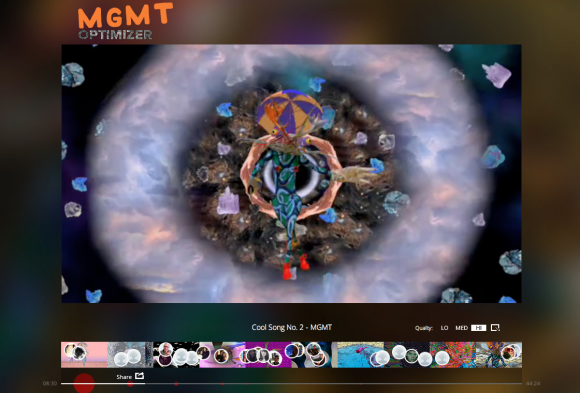
Just got an email from them promoting their exclusive access to the new MGMT album, along with a pretty trippy video experience that ties in with the music, called the OPTIMISER.

Rdio MGMT
The triply crab-head humanoid thingy wants you to dance

Got to say, I’m new to MGMT but I seem to remember someone telling me about them before so I’m giving it a go and so far it seems like a sort of hippy funky electro psychedelic opera kinda vibe. I’m liking it, but I think a lot of that has to do with the dancing crab-head humanoid drawing me through a weird 1990s-era computerised vortex video effects. It’s not subtle, but it’s pretty fun! As you get drawn into the visuals, glance down to see the avatars of other Rdio users float along the timeline as they watch too. Which is nice.

Sign into Rdio now and check it out just for the weirdness. But you know – in a good way.

Categories
iOS & Mac reviews

Mac app review: Analytics for Clicky

mac clicky app

I love tracking visitor stats on my websites and right now I have a bit of a thing for Clicky‘s really user-friendly interface. Google Analytics is running as well of course – it’s free and has incredible visitor tracking power but it’s also got a steep learning curve. Clicky’s interface isn’t so fussy and puts all the important stuff up front with plenty of levels to drill down into Goals, Conversions, Outlinks and so on. There’s monthly tariffs and a free option if you only have one site to track.

Because GA can be so daunting there’s plenty of third party apps trying to do a better job of presenting the key data – on my iPhone I turn to Quicklytics and on my Macs I use the GAget dashboard widget by Zoltan Hosszu, which graphs visits, new visitors and bounce rate in a lovely panel just a keystroke away.

I find these sorts of apps really useful to get a quick fix of stats so once I got Clicky all set up properly I started looked around for something similar, a little widget or menubar app to save me going to the Clicky website all the time (lovely as it is!).

mac-app-store-downloadRight now the only Mac app filling the niche for Clicky users is a handsome-looking little menubar widget called Analytics for Clicky ($3.99), and so I gave it a go.

How it works

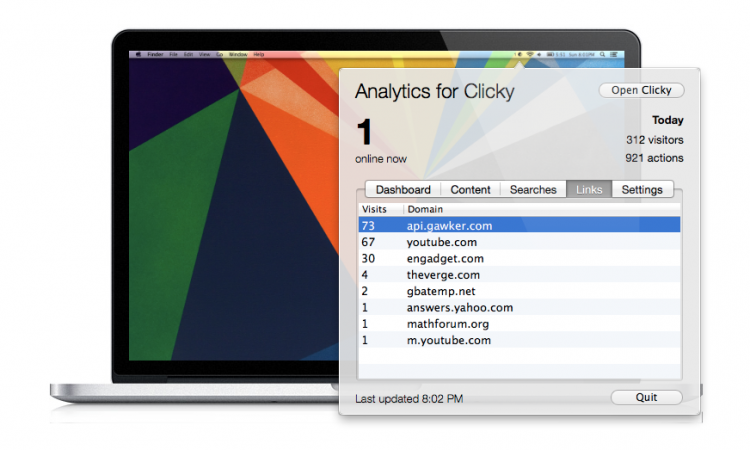
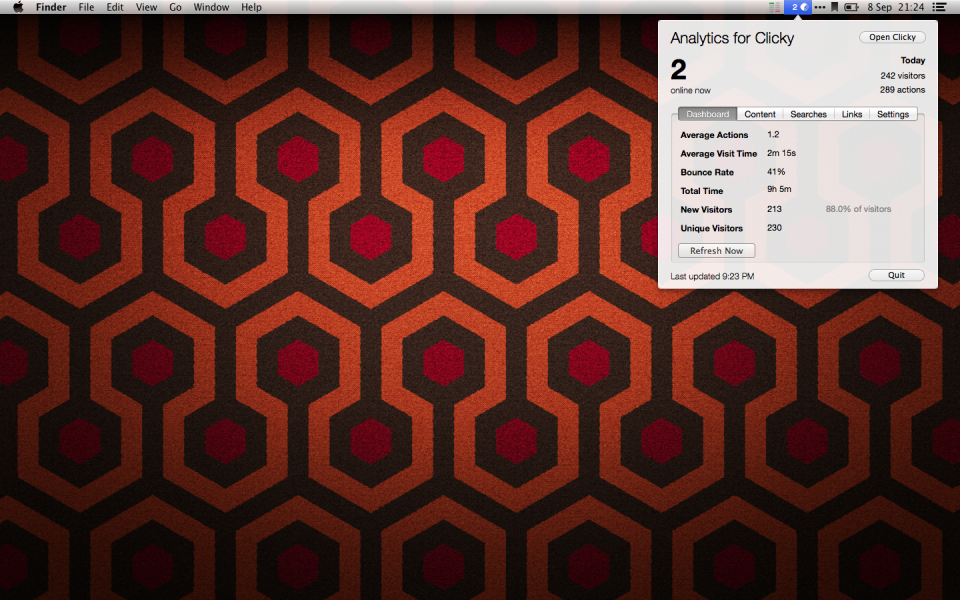
Analytics for Clicky lives in your menu bar as a little pie-chart icon and digit representing current visitors on your site. Clicking it brings up a clean display of all the headline stats from Clicky’s site, organised via tabs: Dashboard is essentially ‘The Basics’, listing today’s visits, uniques, average actions and duration, and bounce rate; and the Content, Search and Links tabs list today’s top ten pages, in-bound search terms and referring domains.

mac clicky stats app
The tabs keep the array of Clicky stats organised neatly

Oh, and there’s Settings but that’s really just for your login and setting up the visitor alert, which will buzz you if the number of simultaneous visitors on your site passes a certain threshold.

Pros and cons

Like GAget, Analytics for Clicky is focussed on quickly scratching that stat-check itch and it serves that purpose admirably; it’s always just a click away, updates every few minutes, and looks great with a clean, organised interface. The range of stats packed into the tabs gives you a great overview of the day your site has had so far, and the fact it’s all live combined with the ease of access in the menubar makes using the app quite addictive, particularly at first.

Given all that, and also that it’s the only Clicky app for Macs out there right now, it feels a little churlish having niggles but there’s just a few things I’d like that I think would make it an essential purchase. In no particular order:

  • it doesn’t list your Goals stat – you need to click through to Clicky’s website if you want to see it (using the handy button top right). This can be a key stat for webmasters so I’d love to see it added to the Dashboard panel in an update
  • no graphs – graphs are a stat-junky’s friend and make it much easier to convey loads of data at a glance. The GAget widget is so awesome precisely because of its graphs so I wonder if Clicky’s Dashboard graph could be squeezed into Analytics either as a tab or by redesigning the top space, with the option to set the time-scale tucked into Settings?
  • you can only track one site – I’ve got three sites I want to track so I just have to pick one and hit ‘Open Clicky’ if I want to see the others. GAget lets you place multiple widgets and set each up with a different GA profile; Analytics for Clicky has to fit everything into one ‘widget’ so it could really do with a site-switching option somewhere. The app title at top left feels redundant so perhaps it could be replaced with a clickable/switchable site-name?
  • the stat order doesn’t match – the key stats are listed in one order on Clicky’s ‘The Basics’ and a different order in the Analytics Dashboard. This might seem really picky but humans like patterns so if you get used to one source, even a momentary search for the same stats on the other source will niggle at you. Well it niggles at me, anyway.

In conclusion

Analytics for Clicky is a neatly organised, good-looking, lightweight quick-fix solution for Clicky users on Macs, and the only one on the market at that.

Right now it doesn’t quite scratch my personal statistical itch as satisfyingly as I’d like – although full satisfaction via the full Clicky site is always just one more click away, regular use of that reduces a rather lovely little utility to a glorified browser shortcut. With the addition of goal-tracking, multiple sites and – maybe? – a visitor graph, it would easily be the most essential Clicky utility available for Macs.

mac-app-store-downloadYou never know what delights future updates might bring but as it is it’s still a great tool with more than enough at-a-glance stats here for most people, and for the price I can happily recommend you give it a try.

Categories
iOS & Mac how-tos

How to sync your Colonization save game on a Mac

I just got stuck into Civ IV: Colonization for Mac after it was on sale on Steam (although it’s also available on the Mac App Store if you prefer), and I’m rather enjoying it. I’ve got Civ IV and V and they’re great games but I’m not very good at them and I’m really enjoying the smaller scale and more focussed victory conditions of Colonization. However, I’d like to not necessarily be tied to my iMac in the study, lovely as it is. Sometimes you just want to grab a laptop and hunker down on the sofa next to your loved one who insists on spending the day watching guff on Netflix… 😉

Unfortunately Colonization doesn’t support SteamCloud for savegame syncing. Dropbox to the rescue! If you’ve seen my guide to syncing XCOM save games using Dropbox this is pretty much the same deal, but if you’re new to this, read on.

(By the way if you’re trying to achieve this on a PC I’m not sure how symbolic links work on PC, but if you can work that out the principles are the same.)

Dropbox and symbolic links

First you’ll need a Dropbox account. It’s free and it’s awesome, and if you don’t already have an account use my links to sign up and we’ll both get some bonus space, which is nice!

Next up you’ll need to get ready to use symbolic links. In short, when you move a file from one place to another you can leave a little ‘map’ (a symbolic link, or symlink) in the original location that seamlessly redirects the operating system to the new location as if nothing had moved. You can read more about how symlinks work in my post here, and when you’re ready to set up the service you can get instructions from here. It’s also possible to leave a symlink behind using Terminal, but the symlink tool is sooo much easier!

Got those set up? Nice, here we go:

Move the Colonization saves to Dropbox

On a Mac you’ll find them in the User -> Documents -> Aspyr -> Colonization folder. Note that while all we really need is the Saves folder, it’s much easier to work with the entire Colonization folder.

sync colonization saves mac

Grab the folder and move it on your hard drive to your Dropbox folder. To keep things in some sense of order I have a ‘Documents’ folder in Dropbox, so I created an ‘Aspyr’ folder in there and moved my original ‘Colonization’ folder there, so it now resides in User -> Dropbox -> Documents -> Aspyr -> Colonization.

Create the symbolic link

Now we need to tell the computer (and the game) where to find the folder since we moved it. Select the ‘Colonization’ folder in it’s new location, right-click and select ‘Make symbolic link’. It will create a new file called ‘Colonization symlink’ – it’s actually an Alias, as depicted by the small curly arrow on the icon.
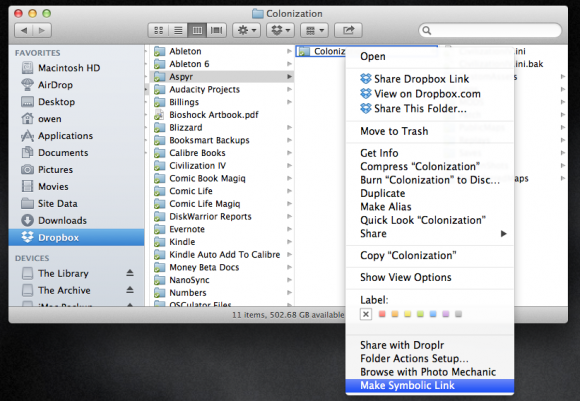
sync savesgames colonization mac

Now move that symlink back to the original location, so Users -> Documents -> Aspyr. Once there, edit the filename to remove the ‘symlink’ element. Now wait for Dropbox to update the folder to your other computer.

Tell your other Macs about the new location

Now you need to tell your other Mac about the synced savegames. Find the newly-synced Colonization folder in your Dropbox on the other Mac and create a new symlink to it as before, then move that symlink into that computer’s Documents -> Aspyr location described above, delete or rename the one that’s already there (assuming there are no saves in there you want to keep!), and rename the symlink to just ‘Colonization’ again.

All done!

Now you should now be able to save a game on one Mac, quit the game, launch it on another Mac a few moments later (after Dropbox syncs) and fire up that same save.

A couple of words of warning – don’t run Colonization on more than one synced Mac at the same time or when you come to save it will get very confused and not know which updates to sync, which to load, and it gets messy. Secondly, if you decide to move the ‘Colonization’ folder inside Dropbox for some reason, be sure to create new symlinks in the new location and replace the old ones so the game doesn’t get lost!

Hope this helps – happy colonising! (I’m British, we use an ‘s’…)

mac-app-store-download